
A WiFi extender cannot create internet access by itself. During a provider outage, it may still carry local network traffic if the router, extender and devices remain powered and connected. That can help with a local printer or stored files, but it will not restore web browsing or other services that need the internet.
WiFi is the local wireless connection inside your home. Internet service is the outside connection. A phone can show full WiFi bars while the home has no internet service.
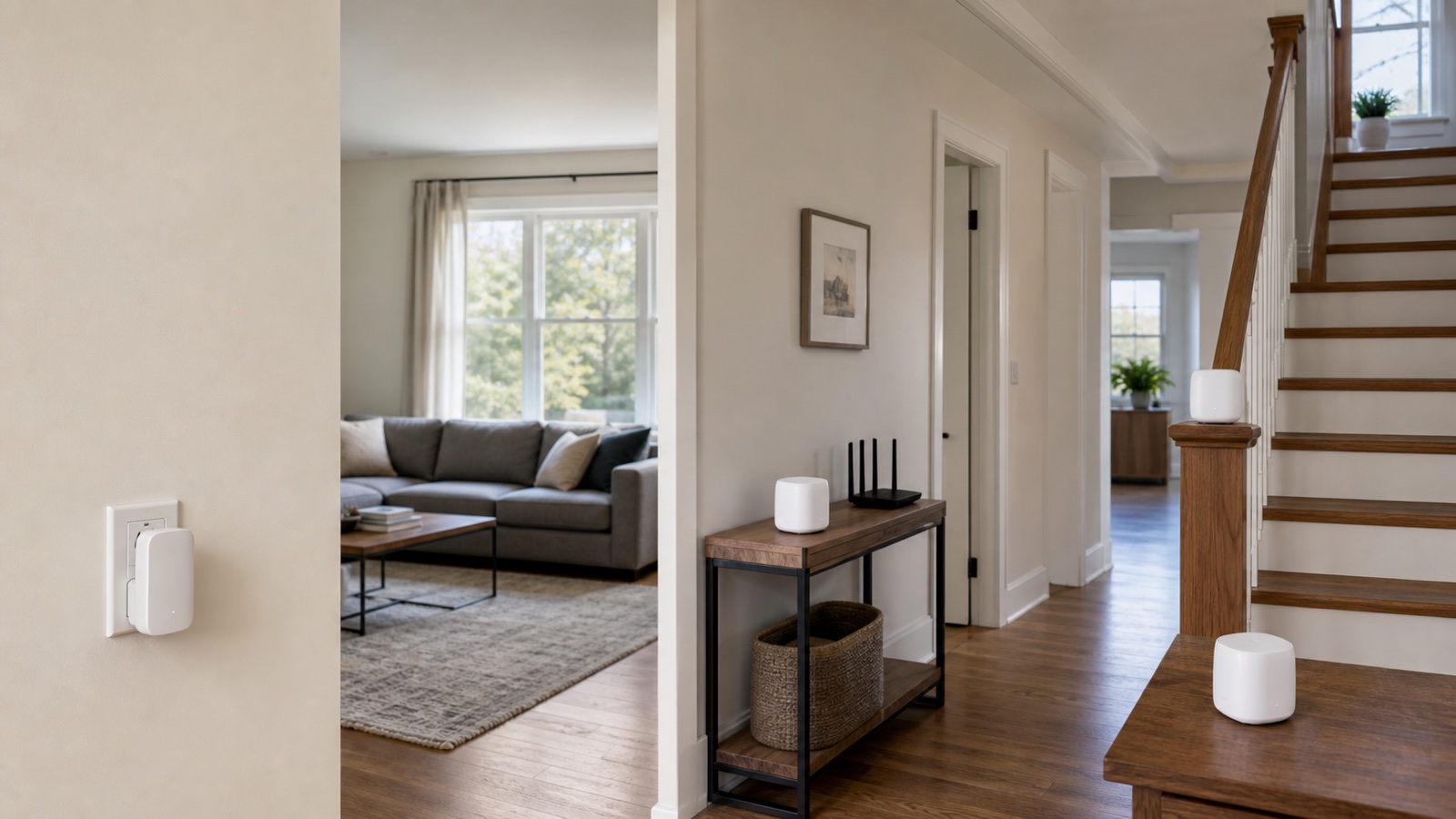
What a WiFi extender actually does
A wireless extender receives an existing WiFi signal from a router or access point and rebroadcasts it into another area. TP-Link’s range-extender user guide describes this role. The extender increases coverage, not the internet service entering the home.
Think of it as a relay between your device and the main network. If the main router has internet, the relay can carry that access. If the provider connection is down, the relay has no outside service to pass along.
Is the outage at the provider, router or extender?
| What has failed? | What you may see | What to check first |
|---|---|---|
| Provider or internet input | WiFi remains visible; websites fail near both router and extender. | Router internet status and the provider’s outage notice, using another connection if available. |
| Main router power or WiFi | The extender loses the source network; its own name may remain visible. | Router power and whether a device can join the main network. |
| Extender power or router link | Internet works near the router but not through the extender. | Extender power, configured mode and router-link status. |
| One app or cloud service | Other websites or local tasks work, but that app fails. | The service’s status and whether that feature requires cloud access. |
Seeing the extender’s network name does not prove that its router link or internet service works. Compare a simple public webpage near the main router and near the extender before blaming the extender.
What may still work during an internet outage
- Files shared directly from a computer or local storage device.
- A printer that accepts jobs entirely over the local network.
- A media server playing files stored inside the home.
- A local camera recorder with no required cloud sign-in.
- A home-control hub that supports local commands.
- A router or extender administration page.
These are possibilities, not promises. The devices need a working local path and suitable settings. A guest network or device-isolation setting can prevent communication, and some apps require cloud sign-in even at home. Do not turn off isolation on a shared network just to make a device work; use the approved network for that device.
One documented example is local administration: TP-Link’s extender login instructions say internet access is not needed to reach the built-in management page when you are connected to the extender. Use your model’s official address or the address shown in your router’s device list. Do not enter an admin password on an unfamiliar page or bypass a browser security warning.
What normally stops without internet
Loading websites, streaming new video, playing internet multiplayer games, making internet video calls, remotely viewing cameras and sending cloud backups normally require a working internet connection. Downloaded media and local features are different. A strong extender signal cannot replace the missing outside connection.
A phone may switch to cellular data and make the home network look repaired. Check which connection it is using. If mobile data is not needed for communication, you can briefly turn it off for a local-task test, then restore the setting. Do not disconnect a security system or pull provider cables to simulate an outage.
Can you set up an extender while internet is down?
It depends on the model and setup method. TP-Link’s user guide documents a local browser setup that selects the host WiFi network, with cloud-account registration offered separately afterward. That is not a guarantee that every extender or app can be set up offline. An app download, required account sign-in or firmware download can still need internet.
Save your model’s guide before an outage if possible. Keep the extender near the router during initial pairing, then move it after the router link is confirmed. Use only the manufacturer’s documented local method, or wait if the required app or account is unavailable. Do not interrupt a firmware update or begin one with unreliable power.
An extender alone does not replace a router or modem
A typical range extender expects an existing router or access point. It does not usually perform the modem, fiber terminal, provider authentication, firewall, and routing jobs needed to create a normal home internet connection.
Some products have several modes. Check the manual rather than assuming that an Ethernet port or a different mode turns an extender into a complete internet gateway.
What the Ethernet port can and cannot do
Some extenders have an Ethernet port for a television, console or computer. NETGEAR’s extender explanation describes using a wireless extender to provide Ethernet connections for wired devices. Availability depends on the model. That cable still cannot create internet when the router’s outside connection is down.
On models that support access-point mode, an Ethernet cable from the router can feed WiFi at the extender’s location. TP-Link’s guide documents selecting this mode before connecting the cable. A port alone does not prove support: check the exact model’s modes and wiring instructions. Neither wired nor wireless operation replaces a missing internet input.
Would mesh WiFi or another device restore internet?
A mesh system, wired access point or powerline kit can improve the path inside a home. If that path is not the fault, replacing it will not repair the provider connection. A travel router also needs a permitted, working input; cellular sharing is a model-specific feature, not something every small router includes.
For backup internet, you need a separate working service and equipment that supports sharing it. For a coverage problem, compare the options in our mesh WiFi versus extender guide.
Public WiFi is a difficult source to repeat
A normal home extender may not repeat hotel, apartment, campus, or cafe WiFi correctly. Public networks can use browser sign-in portals, device limits, client isolation, changing sessions, or rules that prohibit sharing. Even a successful connection does not increase the hotspot’s available internet capacity.
Ask the operator whether your equipment and sharing method are permitted. Do not clone another device’s identity or bypass access controls. If you want to use a travel router, confirm its compatibility and the venue’s rules before buying it.
Place the extender where it still hears the router
An extender cannot repeat a useful signal from the middle of a dead zone. Current TP-Link extender placement guidance and NETGEAR placement guidance both put the extender between the router and the weak area while keeping it within the router’s wireless range.
Start near the halfway point, then use the model’s signal indicator or app. Walls, metal, appliances and floor changes may require a closer position. Check at the desk, television or room where you use the connection. Better placement can repair a weak router link, but it cannot end a provider outage.
A power outage is not the same as an internet outage
For a local task, the router, extender and target device must all remain powered and connected. A local server also needs power if it holds the files you want. A separate modem or fiber terminal is needed for the outside connection, not necessarily for local WiFi traffic. If the main router itself is off, an extender cannot keep repeating that router’s network.
Use backup equipment only within its safety and load instructions. Do not run network cables or power cords through unsafe locations just to keep an extender online.
Test whether the extender or internet is failing
- Compare a public webpage near the main router and near the extender, using the same device.
- Check the router’s internet status and the provider’s outage report if both locations fail.
- Check the extender’s configured mode and router-link status using its model guide. Indicator meanings differ by mode and model.
- Try an already configured local task, such as reaching a known local printer or file share.
- If only the extender path fails, move it closer to the router and repeat the comparison.
If router-connected devices also lack internet, investigate the main connection before resetting the extender. If the connection drops repeatedly only through the extender, follow the extender disconnection checks. Placement, a changed router password or a changed network name may explain a lost link; none proves the cause without checking.
Do not factory-reset the network first
A factory reset erases the extender’s saved network settings. Check the main router and placement first. If a restart is needed, use the model’s normal procedure and make sure no firmware update is running.
Reset only when the model’s official troubleshooting instructions call for it and you have the router name, password, app access, and setup guide. If every room has the same problem, use the router replacement checklist before buying another extender.
Questions to ask before buying
- Is the problem weak coverage, or does internet also fail beside the main router?
- Is there a usable router signal between the router and the weak room?
- Does the model support your router’s security settings and the mode you need?
- Can your intended local task and the extender’s management method work without cloud access?
- Would a wired access point or mesh system fit the home better, and are support and return terms clear?
Do not buy an extender to solve a provider outage. Buy it for a verified coverage problem, with a suitable router link. If you need internet during outages, look for a supported backup connection rather than a stronger local WiFi signal.
Sources
- TP-Link range-extender guide: local setup, cloud registration and access-point mode
- TP-Link: reach an extender’s management page without internet
- NETGEAR: extender coverage and Ethernet connections
- TP-Link: place an extender within usable router range
- NETGEAR: placement and the main router’s internet connection