
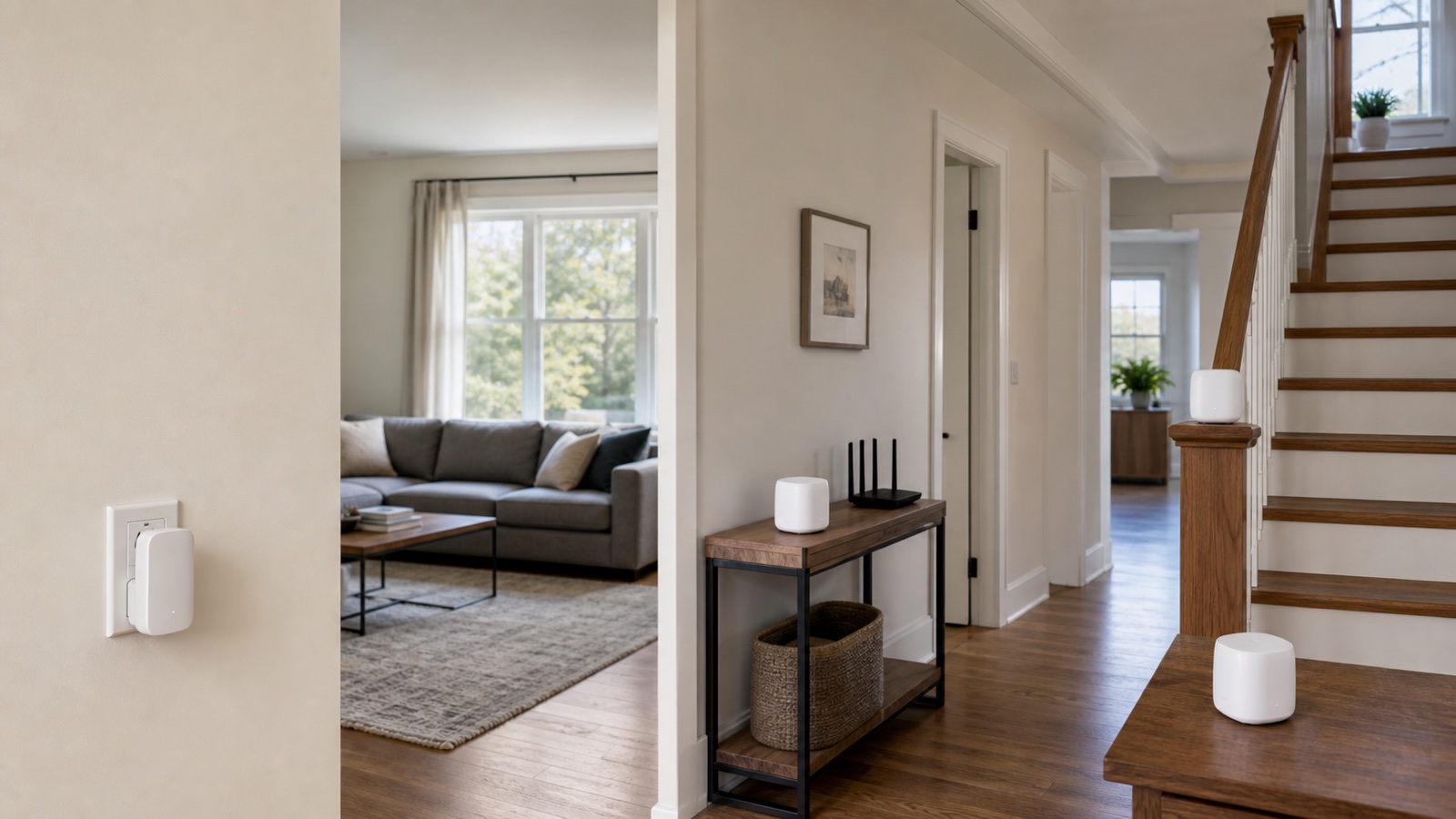
If your WiFi extender keeps disconnecting, do not assume the extender is the only possible fault. The connection has three parts: the main router, the wireless link from router to extender, and the phone, TV or computer using the extender. Compare those parts first. Then test placement, firmware and recent router changes one at a time.
Identify what disconnects
| What fails | Likely area | First comparison |
|---|---|---|
| Every device loses internet through both router and extender | Main router, modem or provider | Test beside the router |
| Every device on the extender drops, but router WiFi stays online | Router-to-extender link or extender | Check the extender signal light and move it closer |
| One phone or TV drops while other extender clients work | That device or its saved network | Test a second device in the same place |
| The extender fails after a router replacement or password change | Saved host-network settings | Reconnect or reconfigure the extender |
| Devices drop while walking between rooms | Roaming between router and extender | Test while stationary on each coverage point |
Run the comparison when the problem is happening. A speed test after everything reconnects cannot tell you which link failed. Note whether the extender’s connection light changes, whether its network name disappears and whether the main router still serves another device.
Test the main router without the extender
Stand near the main router and connect the same phone or laptop directly to its WiFi. Use the same website, stream or video call that failed through the extender. Then try a second device. If both devices also lose internet beside the router, moving or resetting the extender will not fix the upstream problem.
Check the modem or gateway lights and the provider’s outage status. If the main router is unstable, use our guide to decide whether you need a new router or a different fix. Keep the extender out of the diagnosis until the main connection stays online.
Read the extender light for your exact model
Look up the user guide for the model and hardware revision printed on the extender. A signal, router or link light may tell you whether the extender is still joined to the main router. Colors and blinking patterns differ, so a rule written for another model can point you in the wrong direction.
A solid signal light can confirm a router connection without proving that the connection is strong or that internet access works. TP-Link’s signal-light and status guide separates those checks. Take a photo during the drop, note the affected band and test a website from a connected device.
Move the extender closer as a controlled test
Plug the extender into a safe, unobstructed outlet closer to the main router. Connect one test device and repeat the same task. TP-Link recommends this comparison for an unstable extender. NETGEAR also notes that an extender near the border of the router’s coverage can lose its connection. Follow the model’s spacing and ventilation instructions.
If the connection becomes stable in the closer outlet, the saved password and basic setup probably work. Move the extender outward in small steps until it still receives a reliable upstream signal while covering the weak room. An extender placed inside the dead zone cannot repeat a connection it does not receive.
Remove nearby signal obstacles
Avoid outlets behind a television, inside a cabinet, near large metal objects or beside a microwave, cordless-phone base, refrigerator or baby monitor. Thick walls, mirrors, masonry and a fish tank can weaken the link between the router and extender. Test one location change with the same device before changing radio settings.
Do not use a distance printed in a generic article as a promise for your home. TP-Link’s placement guide gives model and obstacle examples, but walls and interference change the useful range. The extender’s own signal indicator and a repeated household task are better evidence.
Update the correct extender firmware
If no update is running, try a normal restart first, not the reset button. Wait for the extender to reconnect, then repeat the failed task. If the drop returns, record the firmware version in the official app or management page.
Use the manufacturer’s updater or download page for the exact model, hardware revision and region. TP-Link’s extender firmware instructions cover supported app and web update methods and warn against powering off or resetting during installation. Do not install a file meant for a similar-looking model.
Check the main router’s firmware too. TP-Link’s disconnect guide recommends updating the extender in both router-side and extender-side cases. After updates finish, retest before changing anything else. That keeps the result interpretable.
Review changes to the main router
An extender stores details about the host network. A new router, changed WiFi name, changed password, disabled band, stricter security mode or access-control rule can break that relationship. TP-Link says an extender normally needs to be reconfigured after the host router is replaced. Check the extender maker’s supported security and band settings before changing the whole home network.
If the problem began after a router change, reconnect the extender using its official setup flow. Keep encryption, the firewall and household security controls enabled. Ask the manufacturer about compatibility rather than downgrading security to keep an old extender working. For provider-managed settings, ask the provider before changing channels or security modes.
Separate roaming trouble from an extender outage
Test while standing still near the router, then near the extender. If both stationary tests work but walking between rooms triggers a drop, investigate the device’s handoff between coverage points before declaring the extender broken. Repeat the walk with another phone to see whether the symptom is limited to one device.
A traditional extender may not coordinate roaming like a managed mesh system. Our mesh WiFi versus extender comparison explains when one spot fix is enough and when several rooms need a coordinated system. Do not replace a working extender merely because one older phone switches slowly.
Use Ethernet or access point mode when placement cannot work
If every usable outlet sits beyond a reliable router signal, a wireless extender has no stable upstream path. Some models support access point mode: an Ethernet cable connects to the router, and the extender supplies WiFi in the target area. Check your model guide before buying a cable. An Ethernet socket alone does not establish which operating modes are supported.
TP-Link’s extender access point setup guide explains the app and web methods for supported devices. In this mode, its Signal LED can be off while the 2.4 GHz and 5 GHz lights describe the extender’s own WiFi, not a wireless link to the router. Read the lights for the mode you actually use.
A wired access point or wired mesh node can be more predictable through dense walls. The same principle appears in our Ethernet versus wireless backhaul guide: the cable removes the weak wireless relay from the upstream path.
Reset only after preserving the setup details
A factory reset erases the host network and extender settings. Before using it, record the exact model, hardware revision, firmware version, router name, security mode and working configuration. Follow the model’s reset instructions. Button location and hold time are not universal.
If the extender still disconnects close to a stable router after current firmware and a clean reconfiguration, contact the manufacturer. Give support the router model, extender model, LED photo, affected band, firmware versions, placement result, client device and whether the device received an IP address, gateway and DNS during the failure. Those details show which link remains broken.
Sources
- TP-Link: diagnose devices disconnecting from a range extender
- TP-Link: troubleshoot an extender that stopped working
- TP-Link: place a WiFi extender for a reliable router link
- NETGEAR: WiFi range extender frequently asked questions
- TP-Link: check signal lights, status and internet access
- TP-Link: update range extender firmware
- TP-Link: configure extender access point mode