
You probably do not need a new router if WiFi is fast near it but weak in only one room. Move the router first, then test again with the same device. A replacement makes more sense when wired and nearby WiFi tests are both slow, the router drops every device, security updates have ended, or its ports and WiFi generation cannot support your internet plan.
This is a research-based troubleshooting guide, not a hands-on router test. Official support information was checked on July 27, 2026. Router menus, update policies, and ISP equipment rules vary by model and provider.
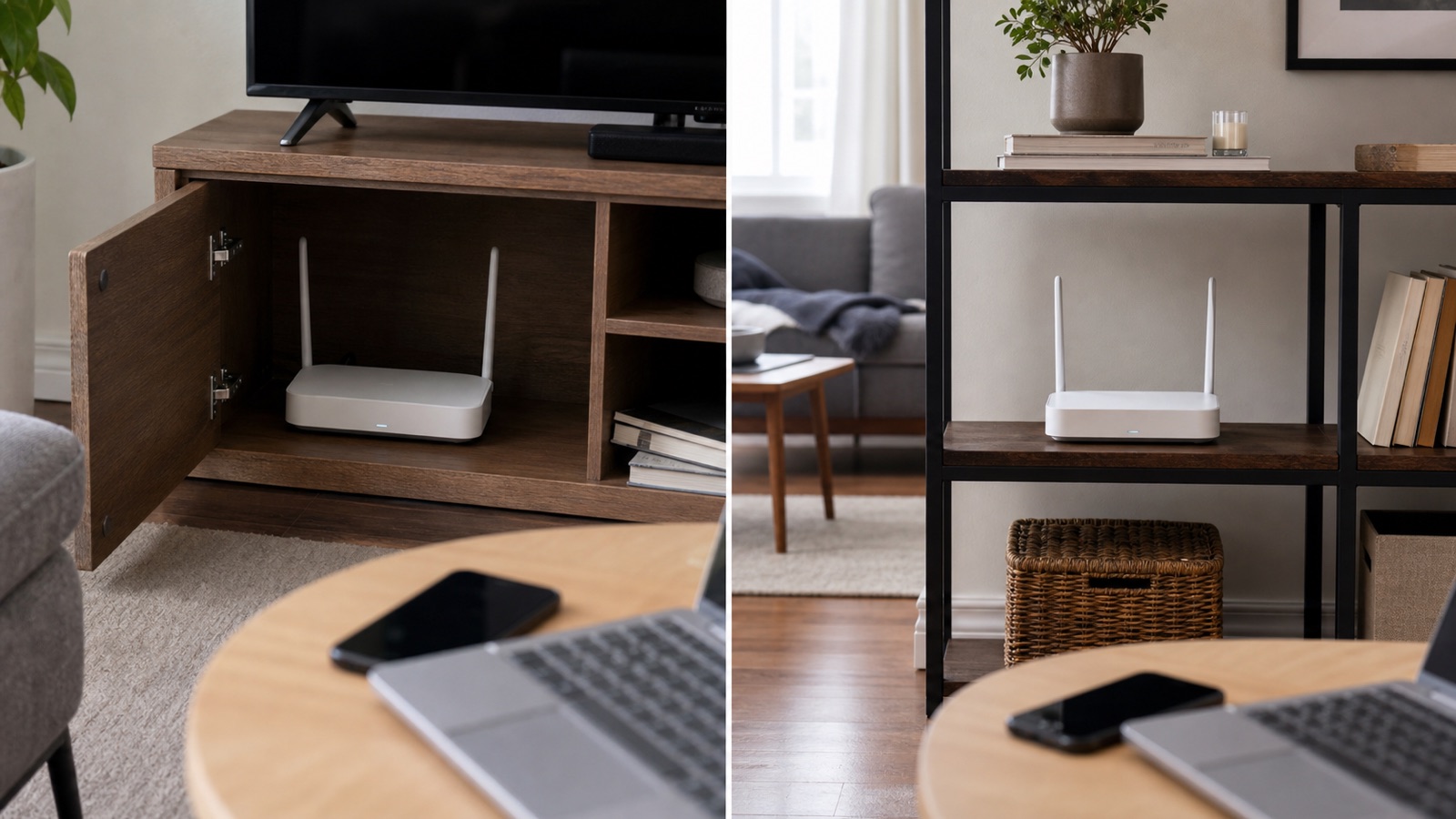
Do I need a new router? Start with this table
| What you observe | Best next step | Why |
|---|---|---|
| Only one phone, laptop, TV, or printer has trouble | Fix that device first | The router is serving everything else, so replacement is unlikely to solve the isolated problem. |
| WiFi is good beside the router but poor in one area | Move the router or add coverage | The problem follows distance, walls, or interference rather than the router’s internet connection. |
| Ethernet is slow on several devices | Check the modem, ONT, ISP, cables, and router ports | This is not just a WiFi placement problem. |
| The router reboots, freezes, or drops every device | Update, cool, and power-check it, then replace if the fault remains | Persistent whole-network failures can point to unstable hardware or software. |
| The manufacturer no longer provides security updates | Plan a replacement | An unsupported router can keep working while missing important fixes. |
| The router works but cannot match a faster plan or new devices | Replace only after verifying the bottleneck | A new router helps when an actual port or wireless limit is holding the network back. |
The useful question is not how old the router is. It is where the failure appears. A four-year-old router that stays supported and handles your normal use may be fine. A newer router with a bad power supply, poor placement, or a 100 Mbps WAN port can still be the problem.
Run four tests before buying anything
1. Find out whether one device or the whole home is affected
Try the same website or service on another phone or laptop. Microsoft recommends testing the same WiFi network with another device because a successful connection there points back to the first device. Its Windows WiFi troubleshooting guide also starts with basic device checks before more disruptive resets.
If everything except one device works, forget and reconnect to the network, restart that device, check its software and WiFi adapter, and disable any VPN temporarily for a controlled test. Our modem, router, and ONT guide can also help you identify which box you are actually restarting.
2. Compare Ethernet with WiFi near the router
Connect a laptop directly to a LAN port with a known-good Ethernet cable if the router allows it. Pause large downloads and cloud backups, then run several tests to the same service. Compare the wired result with WiFi from the same room.
- If Ethernet is healthy but WiFi is poor beside the router, check wireless settings, interference, firmware, and the router’s radio capability.
- If both are poor, check the ISP status, modem or ONT, Ethernet cables, and the speed supported by the WAN and LAN ports.
- If the wired result matches the plan but one distant room is slow, replacing the internet plan will not fix that room.
Compare against the plan you actually pay for, not the largest number printed on the router box. If you are unsure what your household needs, the home internet speed guide can keep a router problem from turning into an unnecessary plan upgrade.
3. Repeat the WiFi test in two locations
Use one device, one test service, and roughly the same time. Test first a few feet from the router, then in the problem room. That controlled comparison is more useful than comparing a new phone in the living room with an old TV behind a wall.
If performance drops mainly with distance, placement and coverage deserve attention first. Google says WiFi reliability depends on home size, construction, layout, where people use WiFi, and device placement. Its WiFi placement guidance recommends avoiding obstructions, getting devices off the ground, and placing a mesh point partway toward a weak area rather than inside the dead zone.
4. Check stability, heat, power, and support
Write down when the router disconnects instead of relying on memory. Does every device drop at once? Do the status lights go out? Does the problem appear during heavy use, after the router becomes very hot, or at the same time each evening?
- Install the latest firmware offered for the exact model and hardware revision.
- Restart the modem or ONT first, wait for it to reconnect, then restart the router.
- Make sure vents are clear and the router is not inside a hot cabinet.
- Check that the power adapter is the correct one and its cable is secure.
- Look for the model’s support or end-of-service page on the manufacturer’s website.
NETGEAR’s router replacement checklist highlights outdated WiFi standards, old software, frequent connection problems, and inability to use the speed you pay for. Treat those as prompts to test, not as proof that every older router must be discarded.
Try better router placement first
Move the router only after taking a baseline test, so you can tell whether the change helped. The best location is usually open, elevated, and closer to the center of the area that needs coverage. A perfect geometric center is not required, but a cabinet at one edge of the home is rarely a good starting point.
- Take the router out of a closed cabinet, drawer, or media console.
- Place it on a stable shelf or table rather than on the floor.
- Keep it away from large metal surfaces, aquariums, thick masonry, and clusters of electronic equipment.
- Do not hide it directly behind a television.
- Keep antennas in the orientation recommended by the manufacturer.
- Retest the same near and far locations after each meaningful move.
Placement cannot bend WiFi through every wall. If the router is already in a sensible location and several rooms remain weak, compare Mesh WiFi with a WiFi extender. A wired access point or mesh node placed before the dead zone may solve coverage more reliably than one expensive router trying to reach the whole house.
Signs that a replacement is justified
Security support has ended
A router can continue passing traffic after the vendor stops supporting it. That does not mean it will receive fixes for newly discovered problems. Search the manufacturer’s support site using the exact model number and hardware revision. If updates have ended, replacement becomes a maintenance decision even when the current speed feels acceptable.
Whole-network failures remain after basic fixes
Frequent spontaneous reboots, settings that will not save, or all devices disconnecting together are stronger replacement signals than one weak bedroom. Update firmware, restore the recommended ventilation, and verify the power adapter first. If the same fault remains, keeping the router in service may cost more time than it saves.
A verified hardware limit blocks your service
Check the specifications for WAN and LAN port speeds, supported WiFi generations, and any ISP compatibility requirement. A router with Fast Ethernet ports cannot pass a faster wired plan through those ports. Likewise, buying WiFi 7 will not transform WiFi 5 phones into WiFi 7 clients. Use our WiFi 7 upgrade checklist to match the router to the devices and wired network you already own.
The home needs a different network shape
A long house, multiple floors, dense walls, or an outbuilding may need more than one WiFi access point. This is not necessarily a failure of the old router. It may be a design mismatch. If you choose mesh, estimate the number of units with the mesh node placement guide and avoid buying extra nodes without a placement plan.
Move it, extend it, replace it, or call the ISP?
| Choice | Use it when | Do not expect it to fix |
|---|---|---|
| Move the router | Nearby WiFi is good and weak areas follow distance or obstructions | A slow ISP line, failing modem, or unsupported router |
| Add a wired access point or mesh | The home needs coverage in several rooms or floors | A bad internet connection before it reaches the router |
| Replace the router | Support ended, hardware is unstable, or verified port and WiFi limits block normal use | ISP outages, poor modem signal, or a dead zone caused by impossible placement |
| Call the ISP | Wired tests are poor, the modem or ONT shows an error, or every device loses internet together | A single-device problem or weak WiFi in one room |
What to check when buying a replacement
- Confirm that the WAN port can handle the current or planned internet speed.
- Count the LAN ports and decide whether you need an Ethernet switch.
- Choose a WiFi generation that your important devices can actually use.
- Check how long the manufacturer promises firmware or security support.
- Match coverage to the home’s layout rather than a square-foot number alone.
- Confirm whether the ISP gateway must use bridge, passthrough, or access point mode.
- Buy from a seller with a clear return policy so you can test in your own home.
Keep the old network running long enough to compare. Test the same rooms, devices, and times of day. If the new router does not improve the measured problem, return it and address the actual bottleneck.
Common questions
Is a seven-year-old router automatically too old?
No. Age is a reason to check support, port speeds, and stability, not an automatic verdict. Replace it if security updates ended, the hardware is unreliable, or a verified limit affects normal use.
Will a new router make my internet faster?
Only when the current router is the bottleneck. It cannot make an ISP deliver more than the plan or repair a bad outside line. Test by Ethernet and compare the router’s port specifications before buying.
Can better placement fix dead zones?
It can fix dead zones caused by a router sitting low, hidden, off-center, or behind major obstructions. It cannot overcome every wall or floor. Large or difficult homes may need a wired access point or a well-placed mesh system.
Should I replace the ISP gateway or add my own router?
First ask whether the gateway’s modem or ONT function is healthy and whether the ISP allows bridge or passthrough mode. Adding a router without changing the gateway configuration can create double NAT. If the ISP owns the faulty device, request a replacement before buying equipment yourself.