
Do not stack a separate modem and router unless both manufacturers say that arrangement is supported. Two powered devices can warm each other, block vents, and strain cables. Put them side by side on a stable open surface with their vents clear. A combined modem-router gateway is different because it was designed as one enclosure.
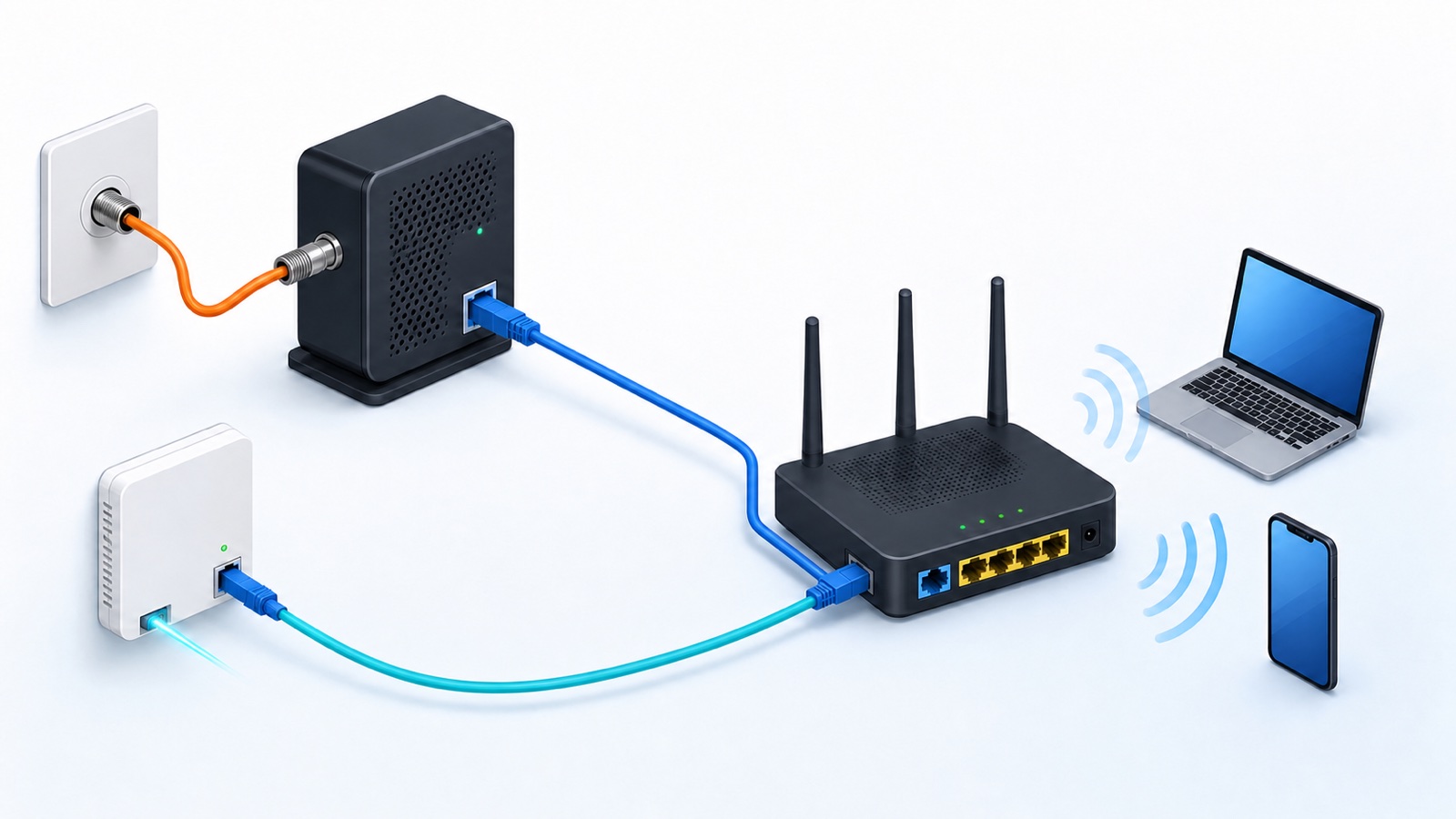
Check the equipment before moving it
| What you have | Stacking decision | Safer arrangement |
|---|---|---|
| Separate modem and WiFi router | Avoid direct stacking unless both manuals allow it | Place side by side with vents clear |
| Provider gateway in one box | It is already a combined unit | Keep the one enclosure open and ventilated |
| Router with vents on top or bottom | Another box can block its cooling path | Use the supported base and leave the vented faces open |
| Equipment inside a closed cabinet | Stacking adds to an existing heat problem | Move it to open air or improve the supported cabinet layout |
| Wall-mountable devices | Do not improvise from cable tension | Use the approved mounting points and orientation |
The label is not always obvious. A modem connects a cable or phone service, an optical network terminal handles a fiber handoff, and a router creates the home network. A provider gateway combines more than one role. Our modem, router, and ONT guide can help identify each box.
Why direct stacking can cause trouble
Air needs room to move through the openings in each case. Another warm box pressed against it can cover those openings or slow the airflow. TP-Link tells Deco users not to place the unit on another running electronic device and to keep it uncovered in an open space.
Exact limits depend on the model. An older NETGEAR installation guide explicitly tells owners not to stack equipment and to leave airspace. Treat the manual for your own modem and router as the authority rather than copying a spacing number from unrelated hardware.
Use a side-by-side layout
- Place both devices on a hard, stable, dry surface.
- Keep the top, bottom, side, and rear vents visible and open.
- Leave enough room for plugs to enter straight without sharp bends.
- Keep the power adapters in open air rather than wedged between the boxes.
- Avoid direct sun, radiators, television exhaust, game consoles, and other heat sources.
- Use only an orientation and wall mount supported by each manual.
There is no universal minimum distance between a modem and router. They are designed to connect by cable and can normally sit near each other. Leave space for cooling and cable access, following both manuals.
Do not sacrifice the router’s WiFi position
The modem may need to stay beside the provider’s coax, phone, or fiber handoff, but the WiFi router often has more freedom. Linksys recommends a central, open location away from large metal objects, appliances, and other sources of interference. TP-Link also advises keeping a router away from heat and direct sunlight.
If the modem is in a corner, low cabinet, or utility area, use a suitable Ethernet cable to place the router in a more useful open position. Do not sharply bend fiber, force a provider cable, or create a trip hazard. Ask the provider before relocating equipment that belongs to it.
Small-space alternatives to a device stack
A narrow shelf can hold one device above another without direct contact if each has its own stable surface and the layout follows both manuals. Separate wall shelves, a ventilated equipment stand, or approved wall mounts can also save desk space. Keep shelves open enough for air and service access.
Do not balance a device on bottle caps, cardboard, soft fabric, or an improvised spacer. Do not drill the case, add ice or moisture, or aim an unprotected household fan into exposed connectors. A supported open layout is safer and easier to troubleshoot.
Test whether heat or placement is involved
Warm equipment is not automatically faulty. Check the manual for normal operating conditions and warning lights. If the devices are stacked now, photograph the cables, power them down according to provider instructions, move them side by side, and reconnect each cable to the same port.
Observe the same devices and tasks over a comparable period. Note unexpected restarts, lost provider lights, WiFi drops, or a case that becomes unusually hot. If stability improves only after separation, keep the safer layout. If a burning smell, discoloration, swelling, melted plastic, or damaged power adapter appears, unplug the equipment when safe and contact the provider or manufacturer.
When stacking is not the cause
Separating the boxes will not repair an outside line, failing power supply, damaged Ethernet cable, overloaded service plan, or weak signal in a distant room. Check whether the modem or ONT loses its provider link, whether wired devices also fail, and whether only one room has poor WiFi.
If the open side-by-side layout changes nothing, use the router replacement and placement checklist before buying new equipment. Report the model numbers, light states, cable layout, time of failure, and any heat or power symptoms to support.