
The USB port on a router may let people on your home network share a drive, stream media or use a USB printer. Some routers also accept a compatible cellular modem or use the port for limited power. The available features depend on the router’s hardware and firmware, not just the connector.
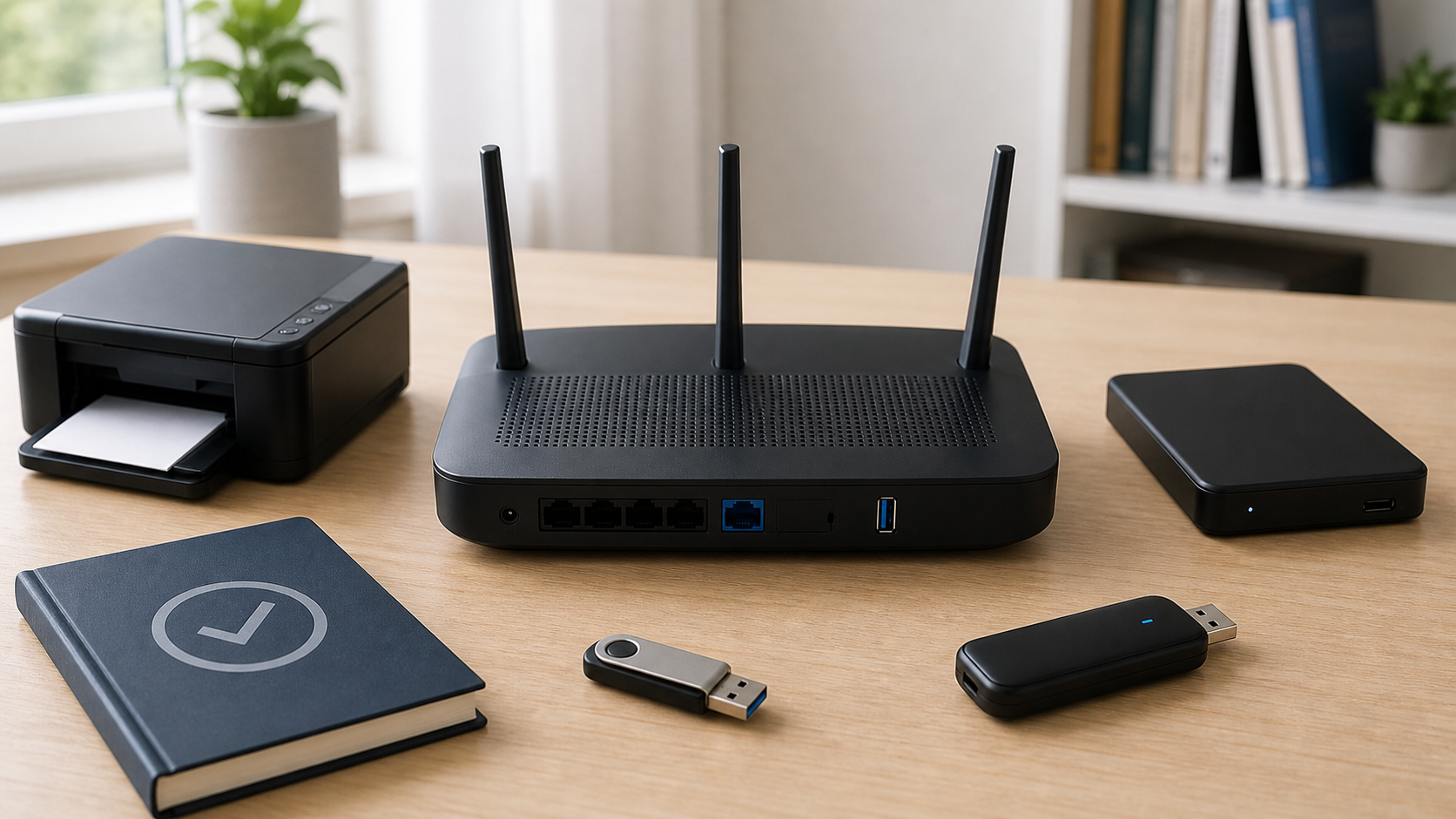
Check the model before you plug anything in
Find the exact model and hardware version on the router label. Open the manufacturer’s specification page or manual and look for USB applications, storage sharing, print server, media server or mobile broadband. A USB 3.0 label describes the connection standard, not every possible use.
| Possible use | What the router must support | What to verify |
|---|---|---|
| Shared storage | USB storage and file sharing | Drive type, format, capacity and permissions |
| Media library | Media or DLNA server | Supported files and playback devices |
| USB printer | Print server | Printer compatibility and required utility |
| Cellular backup | USB modem or tethering support | Modem, carrier and plan compatibility |
| Device power | Adequate USB power output | Port current and device requirements |
| Downloads or backups | Built-in download or backup service | Firmware feature and storage limits |
1. Share a USB drive around the home
Storage sharing is one of the most common router USB features. A flash drive or external hard drive becomes available to connected computers and, on some models, phones or smart TVs. TP-Link and NETGEAR both document local sharing for supported routers, while ASUS provides model-specific USB disk tools.
Before connecting a drive, check the supported file systems, partition sizes and capacity limits. Some portable hard drives need their own power supply. Use the router’s safe-removal control before unplugging a drive when the manual provides one.
A router share is convenient for household files, but it is not automatically a full network-attached storage system. Speed depends on the router processor, USB version, drive, sharing protocol and whether the client uses WiFi or Ethernet. Keep another backup of anything important.
2. Stream photos, music or video
A router with a media-server feature can index files on a USB drive and present them to compatible players on the local network. ASUS, for example, documents a media server on supported models. This can be useful when several devices need the same family photo or music library.
Media-server support does not guarantee that every television, format or subtitle file will work. Check the playback device and router manual. Large high-bitrate video may also expose limits that ordinary file access does not.
3. Share a USB printer
Some routers act as a print server, allowing several computers to use one USB printer. The feature may require a router utility on each computer. Scanning, ink status and other multifunction controls can be limited even when basic printing works.
A printer with its own Ethernet or WiFi connection usually does not need the router USB port. Connecting it directly to the network often preserves more of its normal app and scanning features.
4. Add a cellular modem or backup connection
A smaller group of routers supports selected USB cellular modems for primary internet or failover. The router must recognize the modem and carrier settings. A port that accepts a storage drive may still reject a 4G or 5G modem, and phone USB tethering is not the same feature.
Check the router’s modem compatibility list and your mobile plan before buying hardware. If you are sorting out which box receives the provider connection, this guide to modems, routers and ONTs explains their separate jobs.
5. Run downloads or backups without a computer
Some router firmware can download files to attached storage or back up selected computers. This is not a standard USB function. Confirm that the feature appears in the manual and review its schedule, supported services and storage limits.
Router-based backups should not be the only copy. A drive plugged into the router can still fail, be unplugged or become unavailable with the router. Keep a separate backup that is not permanently attached to the same device.
6. Power a small accessory
A router USB port supplies some power, but that does not make it a general fast charger. The available current varies by model, and a bus-powered hard drive may draw more than the port can provide. Use the accessory’s normal power adapter when the manual calls for one.
Do not power an unknown fan, hub or high-draw accessory from the router just because the plug fits. An unstable accessory can disconnect repeatedly or affect the router’s reliability.
Set up storage sharing safely
- Install current router firmware from the manufacturer.
- Use a unique router administrator password.
- Create named users or restricted folders when the firmware allows it.
- Give write access only to people who need it.
- Leave internet-facing USB access off unless you understand and secure it.
- Keep a second copy of irreplaceable files.
Local sharing is enough for most homes. If remote access is required, prefer the manufacturer’s current secure method or a properly configured home VPN. Old HTTP or FTP exposure can put files and credentials at risk.
Why the router may not recognize a drive
The drive may use an unsupported file system, need more power, exceed a model limit or depend on computer-only software. Password-protected and encrypted drives can also be incompatible. Check whether the router sees the device in its USB page before troubleshooting file sharing on the computer.
Do not format the drive as a first step because formatting erases its files. Back up the data, then follow the router maker’s supported format guidance only if a change is necessary.
How you connect to a router USB drive
The router manual should provide a local network name or address for the share. Windows users may see a network folder, while macOS users may connect to an SMB address. Phones often need the router maker’s app or a compatible file app. Use the documented local address instead of copying an unfamiliar address from a forum.
If the share appears on Ethernet but not WiFi, check whether the phone or laptop is on a guest network. Guest isolation commonly prevents access to local devices. Move the client to the trusted home network rather than weakening guest isolation for everyone.
Router USB buying checklist
- Read the manual for the exact hardware version.
- Confirm the supported device type instead of relying on the USB connector alone.
- Check file systems, drive capacity and external-power requirements.
- Look for per-user permissions if several people share files.
- Confirm whether printer or modem support needs a compatibility list.
- Treat USB speed as one part of performance, not a guarantee.
When a dedicated device is the better choice
A dedicated NAS is a better fit for frequent backups, several users, higher performance or stronger storage management. A network printer is simpler when the household needs scanning and full printer features. A purpose-built cellular router is usually easier when mobile broadband is the main connection.
If your current router lacks the USB feature you need, compare the cost of a separate device with replacing the router. The router replacement checklist helps decide whether the rest of the network would benefit too.