
Yes, you can plug a router into an Ethernet wall jack if the provider or building confirms that the jack supplies internet and allows your router. Use the port marked Internet or WAN on the router. If the wall jack only runs to another room or to an unconnected cable in a closet, plugging in a router will not activate it. Ask what the jack connects to before you buy a modem or router.
Find out what the jack is for
Take a photo of the wall plate and any port number. Ask the property manager: “Is this Ethernet port active for my unit, and can I plug my own router into it?” If they tell you internet is included, ask who handles outages and whether you need an account or a registration step. Our internet-included-in-rent checklist covers the questions a lease may not answer.
| What the jack connects to | What to do |
|---|---|
| The building or provider supplies internet through this jack | Ask whether personal routers are allowed. If yes, connect the confirmed jack to the router’s Internet or WAN port. |
| The jack is connected to a router somewhere in your unit | Use it for a wired device. If you only need more Wi-Fi coverage, check whether your equipment supports access point mode. |
| The jack leads to an unconnected cable in a wiring panel | Ask the property manager or installer to identify and connect the correct run. The wall jack cannot start service by itself. |
| The building requires a login or device registration | Ask which devices are allowed and how to register them. Don’t reset your router or guess the building’s settings. |
You may not need a modem in your apartment at all. Google’s modem guide describes buildings that hand off service through Ethernet. If the wall plate has a round threaded coax connector, a telephone port or a fiber connector instead, confirm the service type and which box the connection needs. Don’t force a cable into the wall plate or open shared wiring.
Connect a router only after you confirm the handoff
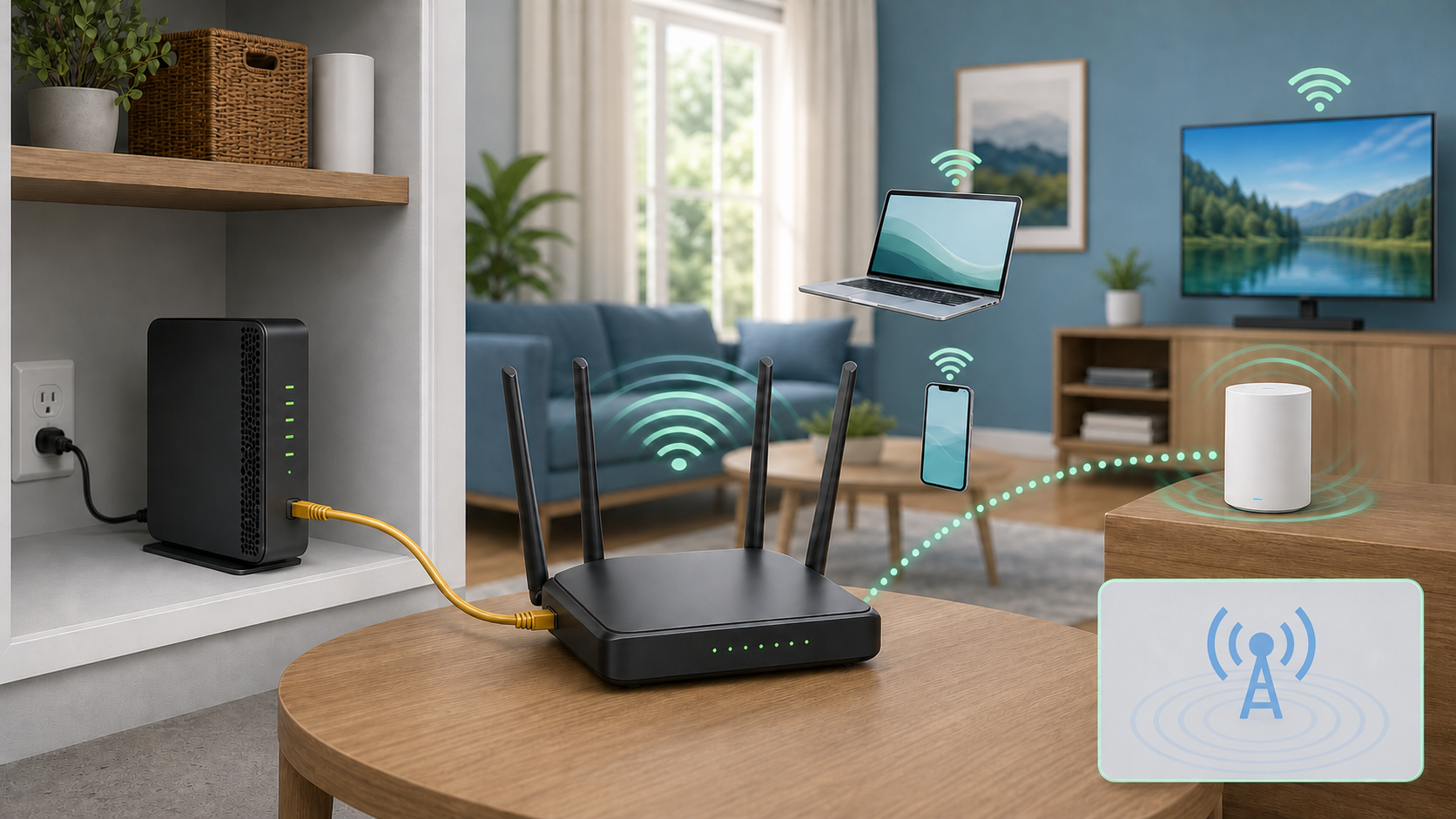
- Plug one known-good Ethernet cable from the confirmed wall jack into the router’s Internet or WAN port. Check the manual if its ports are unlabeled or adjust automatically.
- Power the router and follow its setup guide. If it asks for settings you don’t recognize, get them from the provider or building operator. Some networks assign settings automatically; others require account details, registration or a specific configuration.
- Connect your phone to your new Wi-Fi. If you can safely do so, turn cellular data off for a moment and open a webpage. That checks the apartment connection instead of letting the phone silently fall back to mobile data. Restore data afterward.
TP-Link’s setup guide shows where the wall cable goes on a supported model. If the wall jack already comes from your own main router, a second router in normal router mode adds another routing layer. Use your equipment’s documented access point mode when you only want coverage and the main router should stay in charge. Google’s wired setup examples show why the order of the devices matters.
If it connects but you still have no internet
Start with the router’s app or status light. If it reports no Ethernet link, try a cable you know works. A dark port after a cable swap is a reason to ask whether the jack is active or patched in, not a reason to factory-reset the router. A link light only means the ports detect each other; the building account or service may still be missing.
If the router shows a link but no internet, tell support the unit and wall-port label, the exact router message and whether another port in your unit works. Ask them to confirm the active port and any registration requirements before ordering a repair or replacement. If your move-in is still ahead, use the new-apartment internet checklist to confirm service and equipment before your first night.