
Setting up internet in a new apartment is easier when you split it into two jobs: confirm the service before move-in, then test the connection after the equipment is online. The exact wall jack, building rules, and provider availability can change from one unit to the next. Use this checklist to avoid ordering a plan that cannot be installed or discovering a missing cable on your first workday.
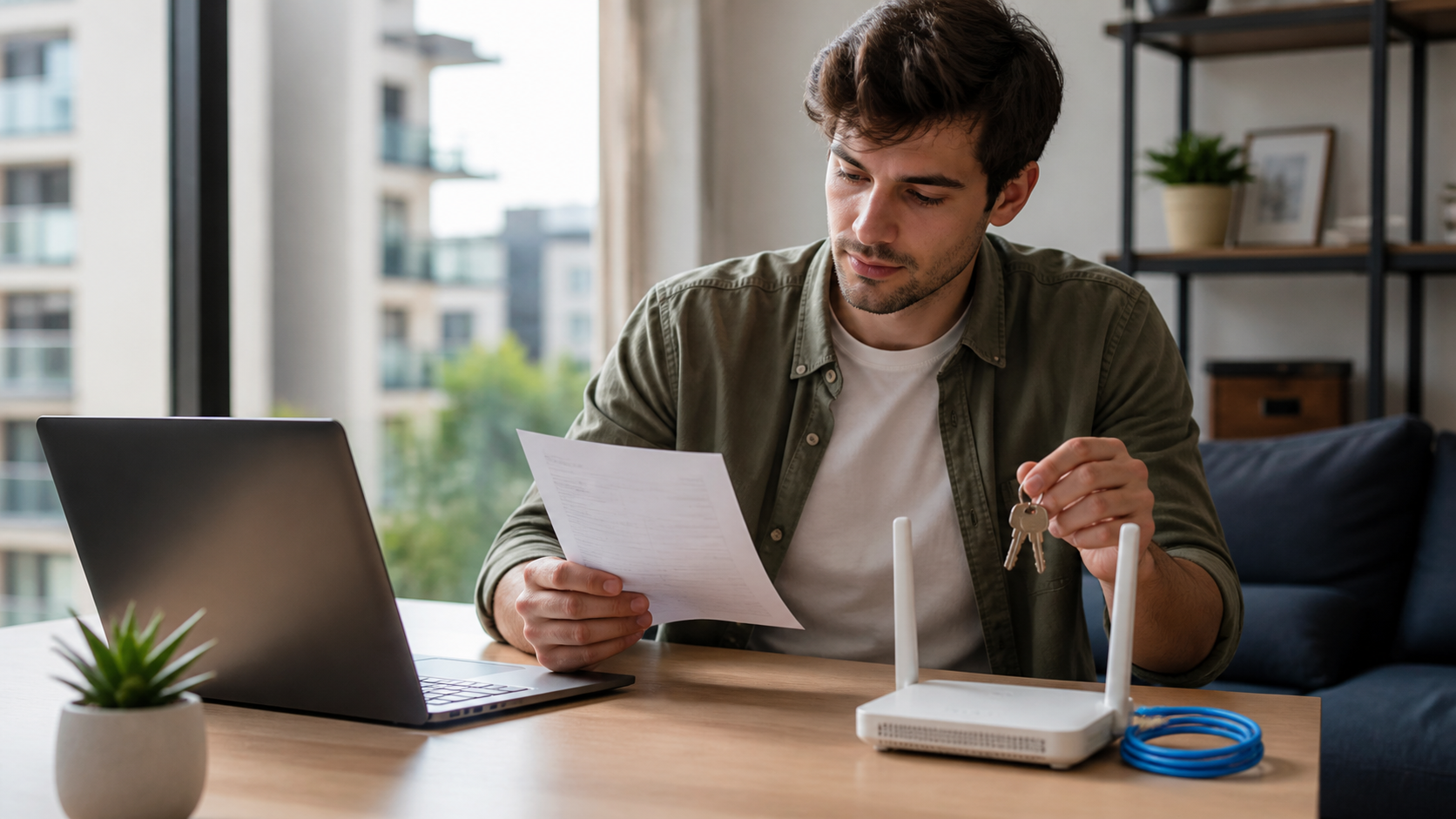
1. Ask the building what is already installed
Before choosing a provider, ask the landlord or building manager which companies can serve the exact unit. Find out whether the apartment has a coax outlet, fiber terminal, Ethernet jack, or a building-managed gateway. Some properties have a preferred or exclusive provider, while others require permission before a technician enters a utility room or runs a new cable.
Take a photo of each communications outlet when you move in. A photo helps the provider identify the installation type and gives you a record of the condition of the wall plate.
2. Check availability at the exact unit address
Enter the full street address, apartment number, and ZIP or postal code on provider websites. Do not rely only on a neighbor’s plan or a building advertisement. Availability can differ between floors, buildings, or service entrances. The FCC National Broadband Map is a useful first check in the United States, but the provider must still confirm the address and installation path.
If you are comparing cable, fiber, and 5G home internet, record whether the result says self-install, technician visit, or waitlist. Keep the confirmation number and the promised activation date.
3. Compare the order summary, not just the headline speed
| Check | Why it matters in a new apartment |
|---|---|
| Monthly price | Introductory rates may change after the first period. |
| Equipment | A gateway rental or required modem changes the total cost. |
| Installation | Building access or wiring can add a visit or fee. |
| Contract | A lease end date may arrive before the service term. |
| Data rules | Allowances or overage policies affect heavy streaming and backups. |
Use the provider’s broadband label where it is available. The FCC broadband consumer label guide explains where to find prices, one-time fees, data allowances, and performance information. Save the label, order email, and installation appointment together.
4. Prepare the apartment before the technician arrives
Clear access to the wall outlet, utility closet, and any existing equipment. Ask whether the technician needs the landlord present or a key to a locked room. If the provider sends a self-install kit, check that the box includes the gateway, power adapter, cable, and return instructions before you cancel the old service.
Place the gateway in an open, central location when the cable path allows it. Avoid a closed cabinet, a floor corner, or a spot directly beside large metal objects. The best place for the service line is not always the best place for WiFi, so plan for a short Ethernet cable or additional coverage if the layout is long.
5. Activate the gateway and secure the network
Connect the incoming line to the gateway’s labeled port, attach power, and wait for the status lights to settle. Follow the provider activation page or app. Change the default WiFi name and password if the provider allows it, and keep the new details in a password manager. Do not share the management password with guests.
If you use your own router, ask whether the provider gateway can use bridge or passthrough mode. Avoid connecting two routers until you know which device should handle routing, because double NAT can complicate gaming, port forwarding, and some work VPNs.
6. Test the connection in the rooms you actually use
First test a laptop near the gateway, then test the bedroom, desk, and living room. Record whether each test uses the 2.4 GHz band, 5 GHz band, or Ethernet. If wired or nearby service is stable but one room is weak, the issue is the local WiFi path rather than the service order. Our apartment internet comparison covers floor plans and coverage choices.
Test a video call, a download, and a normal web page at different times. A single speed test is useful, but it cannot show every busy-hour or room-to-room problem.
7. Keep a move-in record
- Save the order summary, broadband label, and activation date.
- Photograph the gateway serial number and wall outlets.
- Write down the WiFi name, password, and router mode.
- Keep the provider support number and equipment return steps.
- Note any weak room before buying extra hardware.