
Home security systems do not all need WiFi for the same jobs. A basic alarm may still detect an open door and sound a local siren when the internet is down. Remote app control, cloud video, phone alerts, and communication with a monitoring center may need WiFi, Ethernet, cellular service, or a paid backup feature.
Before buying, ask what happens during four separate failures: home internet, router or WiFi, household power, and cellular service. Product names such as wireless, smart, and cellular do not answer those questions by themselves.
This is a connection-planning guide based on official support documents checked on October 11, 2026, not a hands-on alarm test or brand ranking. Examples identify their document’s market and hardware; available monitoring plans and backup features can differ where you live.
WiFi and internet are not the same connection
WiFi connects devices to a local router. The internet connects that router to services outside the home. A security hub can stay linked to local sensors while the broadband service is down, or it can lose WiFi even though the internet connection at the modem is still healthy.
That distinction matters during troubleshooting. A phone that shows full WiFi bars may still have no internet access. An alarm hub using cellular backup may reach a monitoring service even when the home router is off, if the model, signal, subscription, and account support that path.
Map the system as four separate links
- Sensors communicate with a hub or base station.
- The hub connects to a router by WiFi or Ethernet.
- The hub may have a cellular path to a monitoring service.
- Your phone uses the internet to reach the account and app.
Cameras and video doorbells can add another path for live video, cloud recording, or local storage. Read the manual for the exact kit and plan because one brand may use several connection designs across its product range.
| Function | Possible outage behavior | What to verify |
|---|---|---|
| Door and motion sensors | May continue talking locally to the hub | Radio type and hub dependency |
| Keypad and indoor siren | May keep working locally | Hub power and offline design |
| Professional monitoring | May continue through cellular backup | Plan, activation and cellular signal |
| Phone notifications | May stop or use a backup path | Exact service documentation |
| Remote app control | Often unavailable without a cloud path | Local versus cloud control |
| Camera live view and cloud recording | Often interrupted | Local storage and model behavior |
What may keep working without WiFi
Door sensors, window sensors, motion detectors, keypads, and sirens may communicate locally with a base station using a dedicated low-power radio. When that local path and power remain available, the system may still arm, detect activity, and sound inside the home.
This is a product-specific capability, not a promise for every wireless alarm. Setup, account verification, firmware updates, or adding a new device may still require an app and internet connection even if the installed alarm later performs basic local tasks offline.
What usually changes when internet service fails
- Remote arming and disarming may stop.
- Push notifications can be delayed or unavailable.
- Cloud video uploads may pause.
- Live viewing from outside the home may fail.
- Voice-assistant routines may not run.
- Monitoring communication may switch paths or stop.
Do not assume that a loud local siren means the monitoring center received the alarm. Also do not assume that a missing phone notification means the local sensors stopped working. Those are separate functions.
Check whether cellular backup is included
Some systems include a cellular radio in the base station. Whether it is active depends on the hardware, region, signal, monitoring plan and account status. SimpliSafe’s UK WiFi requirement explanation, for example, separates WiFi from its cellular connection and ties monitoring features to eligible plans. It does not establish the terms of a plan sold in another country.
Ask whether cellular is the primary path, an automatic backup, or unavailable without a subscription. Confirm which events it can carry. A product may use cellular for alarm signals but not for continuous video or every app feature.
Ring’s GB Alarm outage documentation describes WiFi or Ethernet communication and cellular backup with a compatible subscription. Its separate US Alarm Pro backup-internet guide distinguishes Alarm Cellular Backup, which carries alarm alerts, from 24/7 Backup Internet for devices on Alarm Pro’s eero network. A cellular backup label alone does not mean cameras or the rest of the home receive internet access.
Do not confuse cellular backup with power backup
A cellular radio cannot help if the base station has no power. Check whether the hub includes a battery, what the manufacturer says it powers, how the app reports low battery, and how often the battery should be tested or replaced.
Cameras, WiFi access points, network switches, modems, and recorders may need separate backup power. A battery in the alarm base does not automatically keep every camera and router running.
Cameras need a closer look
Security cameras usually depend more heavily on the network than simple entry sensors. A camera may record to a local memory card or recorder while the internet is down, but remote viewing and cloud storage may stop. Another model may rely on cloud service for most useful functions.
Check what is recorded during an outage, where footage is stored, how it can be retrieved, and what happens when storage is full. Confirm whether local recording continues if the router is off, not merely if the provider connection is down.
Before intentionally switching off the router, review which household functions depend on a running router. Camera recording and the alarm’s local siren are not interchangeable backup features.
Professional monitoring has its own path
A professionally monitored alarm needs a working route from the home to the monitoring center. That route may use internet, cellular service, another supported connection, or more than one path. The details belong to the system and monitoring contract.
SimpliSafe’s US Gen 3 No Link to Dispatcher guidance defines the warning differently by plan. On supported professional monitoring plans, it means the base station has lost both WiFi and cellular communication. On its self-monitoring or basic app-control plans, the document describes a lost WiFi link. Check the plan before interpreting a status message.
Test outages without causing an alarm response
Use the manufacturer’s instructions for the exact system and contact the monitoring provider before simulating an outage. Do not trigger a real emergency event to see whether a phone call arrives. SimpliSafe’s US system-test instructions explicitly warn that Test Mode does not change monitoring status and a duress PIN can still be treated as an emergency.
A safe test can verify the local siren, app status, backup connection indicator, battery alert, and reconnection behavior. Record the date and result, then repeat the supported test on the schedule recommended by the provider.
- Ask the provider which outage checks are supported and whether any special monitoring arrangements are required.
- Confirm the normal internet, cellular and battery status using the documented indicators.
- Use only the provider’s approved procedure for the communication path being checked. Do not cut alarm wiring or remove backup batteries.
- Inspect the documented failover indicator and the expected app behavior.
- Use the exact sensor-test instructions only if the provider has approved that test. Never substitute a panic, duress, smoke or CO event for an internet check.
- Restore the normal connection, finish the provider’s procedure and confirm that fault messages clear.
If the provider does not publish a test procedure, contact support. Never assume that an app switch prevents emergency dispatch.
Check the home network before blaming the alarm
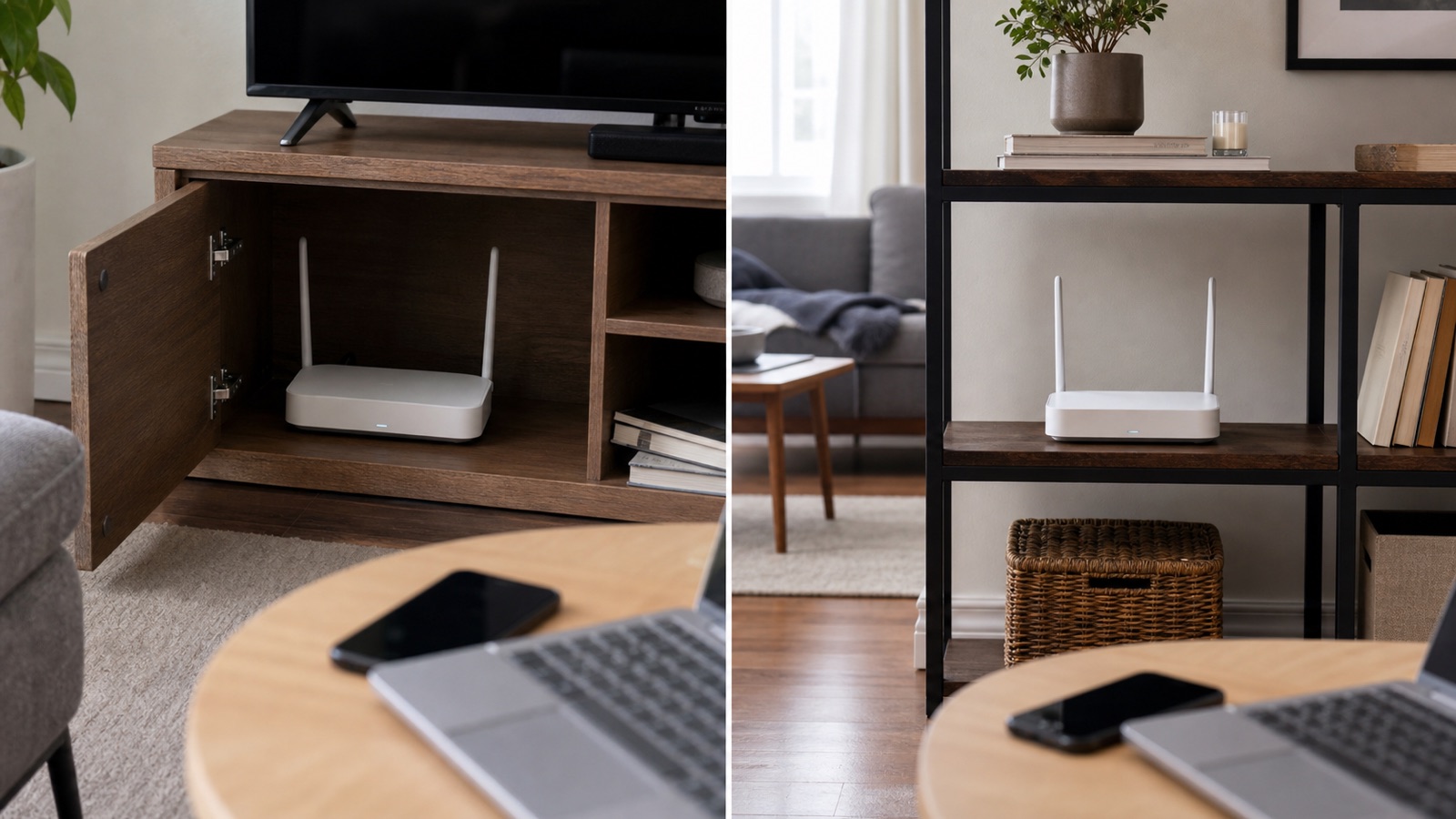
If the system loses WiFi often, check whether the base station is within reliable router range and away from large metal objects. Avoid hiding it beside a dense equipment cabinet or placing it where one wall or appliance blocks the only path.
Confirm which WiFi band and security mode the exact model supports. If several everyday devices also disconnect in the same area, use the router replacement checklist before replacing the security kit.
Estimate video use before choosing an internet plan
Cloud cameras can use upload capacity, especially when several record at once. Do not rely only on a plan’s advertised download speed. Ask the camera provider for current upload requirements and the internet provider about upload rate, data policy, and outage history at the address.
An unlimited plan does not necessarily promise a certain upload speed, latency, or uninterrupted service. Our guide to what unlimited internet means explains which plan details deserve a separate check.
Review privacy and account security
- Use a unique password for the security account.
- Turn on multi-factor authentication when available.
- Install supported app, hub, and camera updates.
- Limit account sharing and remove former users.
- Do not expose camera or hub administration ports to the internet.
- Use a separate IoT or guest network only when the products support it correctly.
Keep recovery codes, device serial numbers, floor plans, and camera locations private. If a system offers local storage, check whether footage is encrypted and what happens if the recorder or camera is stolen.
Compare the full cost beyond the starter kit
Ask which features require a subscription, whether cellular backup is included, how video storage is priced, and whether equipment remains useful after cancellation. Renters should also check mounting rules, removal, account transfer, and whether the kit can move to a new address.
Read the return window, contract term, cancellation process, warranty, and replacement-battery policy before installation. A low equipment price can lead to a poor fit if the connection or monitoring features you need sit behind a different plan.
Use this buying checklist
- Does the local siren work without WiFi and internet?
- How do sensors communicate with the hub?
- Which app and video features stop during an outage?
- Is cellular backup built in, active, and included in the chosen plan?
- What remains powered during a household outage?
- Can cameras record locally without the router or internet?
- How does the system report a failed WiFi or cellular link?
- What safe test mode does the provider support?
- What are the monitoring, storage, cancellation, and equipment terms?
Get the outage answers for the exact hardware, region and subscription before installing it. A working local siren, a phone notification and a received monitoring signal are three different results; verify the ones you need.