
Yes, iCloud Backup can use cellular data on supported iPhones when your carrier offers the option and Back Up Over Cellular is enabled. It does not always require WiFi. If your plan has a small allowance, check that switch before leaving home. Keeping device backup on while turning its cellular option off lets you retain a WiFi backup routine.
There is a separate question if your phone reports iCloud data use after you disable cellular backup. Photos and files can sync independently of the device backup. Start with the activity you want to control rather than turning off every iCloud service.
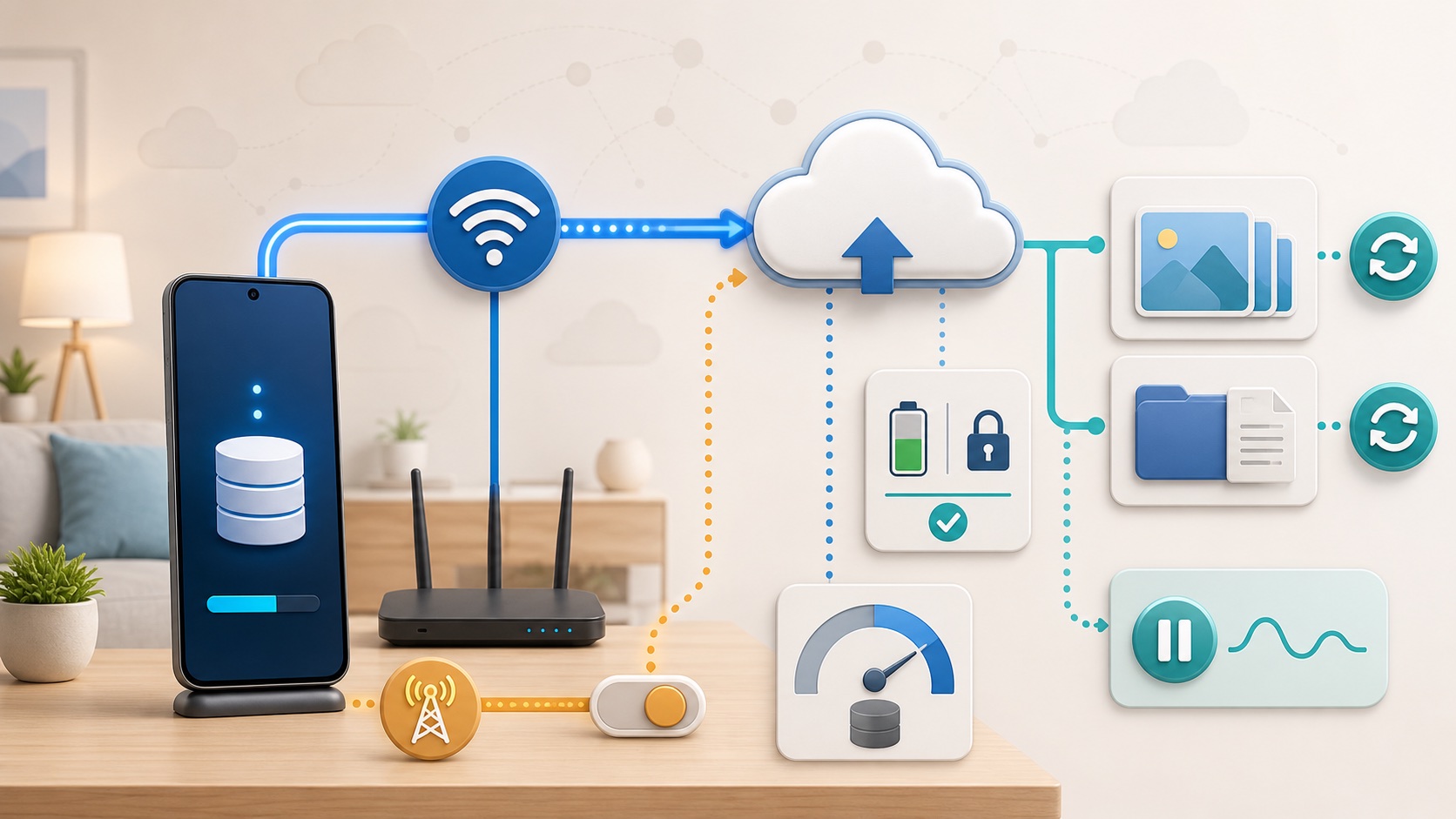
Check Back Up Over Cellular first
Open Settings, tap your name, then iCloud > iCloud Backup. Look for Back Up Over Cellular. Apple’s current iPhone backup guide says carriers may offer this control on models that support 5G. A missing switch is not proof that iCloud Backup is broken, and owning a 5G-capable phone does not guarantee the option appears.
For a limited plan, leave Back Up This iPhone enabled and switch Back Up Over Cellular off if it is available. These controls have different jobs. You are choosing the connection for a backup, not deciding that the phone no longer needs one. Check the last successful backup time after the next WiFi opportunity.
| What you find | What it tells you | Next check |
|---|---|---|
| Cellular backup is on | A supported mobile-data route is allowed | Remaining allowance and backup size |
| Cellular backup is off | You have disabled that route for the device backup | Keep WiFi backups working |
| No cellular-backup switch | Your device or carrier may not offer it | Use the documented WiFi procedure |
| Cloud data continues afterward | Another iCloud activity may be transferring data | Photos, Drive and app usage |
Review the separate 5G Data Mode
In Apple’s 5G settings explanation, Allow More Data on 5G permits higher-data activities, including automatic iCloud backups. Apple says this mode is the default with some unlimited plans, depending on the carrier. Do not assume every phone starts with the same configuration.
Look under Settings > Cellular > Cellular Data Options > Data Mode. With Dual SIM, select the relevant number first. Menu wording can differ by carrier. Standard and Low Data Mode are separate choices from 5G Auto or 5G On under Voice & Data: one menu governs data-use behavior, while the other selects how the phone uses 5G.
Changing to LTE alone is not a complete cloud-data strategy. Check the backup control and each service you use. Our guide to why data usage can rise after switching to 5G explains the difference between the connection and the activity carried over it.
Separate backup from Photos and Drive syncing
Apple’s guide to what iCloud backs up distinguishes periodic device backups from content that already syncs with iCloud. When iCloud Photos is enabled, those photos sync separately instead of also going into the daily device backup. Messages in iCloud follows the same distinction, and files stored through iCloud Drive are separate too.
If you do not use iCloud Photos, the device backup may include photos and videos. Avoid the opposite blanket claim that photos never count toward a backup. Whether a picture is in the backup depends on how you store and sync it.
This is why switching off Back Up Over Cellular does not settle every report of iCloud mobile use. Review the cellular controls for the relevant app or service without deleting the content. A setting for iCloud Drive is not a substitute for checking the device-backup setting.
Check size and usage before allowing a transfer
Apple’s backup troubleshooting instructions put Next Backup Size under Settings > your name > iCloud > Storage or Manage Account Storage > Backups > this device. The estimate can take a few minutes to calculate. The current iPhone guide also lets you view backup details by opening this iPhone under iCloud Backup.
Compare that estimate with your remaining carrier allowance, not with the phone’s total storage. It is not a guaranteed cellular-billing total: the phone can have other transfers in progress, and the carrier records usage on its own system. A larger iCloud storage subscription does not add mobile data to your phone plan.
- Before changing anything, note the last completed backup and the next backup estimate.
- Record the carrier’s remaining allowance and the iPhone’s current usage figures.
- Open Settings > Cellular and review the app list and System Services. For Dual SIM, confirm the selected data line.
- Compare later readings over the same period. Do not assume an old current-period total belongs to this month’s bill.
Apple’s cellular-usage guide explains these counters and says the carrier has the most accurate usage record. The phone cannot disable cellular access for individual System Services. Record your baseline before using Reset Statistics, which removes the local comparison history. You do not need to start a large backup just to test a limited plan.
Use Low Data Mode without forgetting the backup
Low Data Mode reduces background network activity. Apple says iCloud updates and automatic backups pause, along with iCloud Photos updates. You can set it separately for cellular service and individual WiFi networks. On a 5G line, find it in Data Mode; on a WiFi connection, open that network’s information button.
Use it when an allowance is tight, but schedule a chance to finish the backup. Leave the phone connected to suitable WiFi and power, with its screen locked, and check the backup date afterward. Do not treat a pause as a completed backup or turn off protection indefinitely to save a small amount of data.
A phone hotspot still uses the host phone’s carrier allowance even though the receiving iPhone sees WiFi. If you travel with two phones, check that connection too. Our guide to tethering and hotspot allowances separates connection methods from plan limits.
Finish on WiFi before deleting or buying anything
For a manual WiFi backup, Apple’s iCloud backup steps say to connect to WiFi, open iCloud Backup, tap Back Up Now and stay connected until it finishes. The same screen shows the last backup time. For the normal automatic routine, the phone needs WiFi, power and a locked screen, with enough iCloud space.
If the estimate exceeds available iCloud storage, changing networks will not create more space. If the upload is slow, Apple’s troubleshooting page recommends checking upload speed and leaving the phone on power and WiFi for 24 hours. A fast download result alone does not show that a cloud upload can finish quickly.
Do not start by excluding apps from backup: Apple warns that doing so also deletes their existing backup data from iCloud. Review what you would lose before accepting that change. For a small mobile plan, first disable the cellular backup route, preserve the WiFi routine and confirm a recent successful backup before relying on it for a replacement phone.