
Most wireless mice do not need WiFi or an internet connection. They send pointer and button input directly to a computer, tablet, or compatible device through Bluetooth or a dedicated USB receiver. Internet may be needed to download optional setup software, updates, or cloud profiles, but the basic mouse connection normally works while the router is offline.
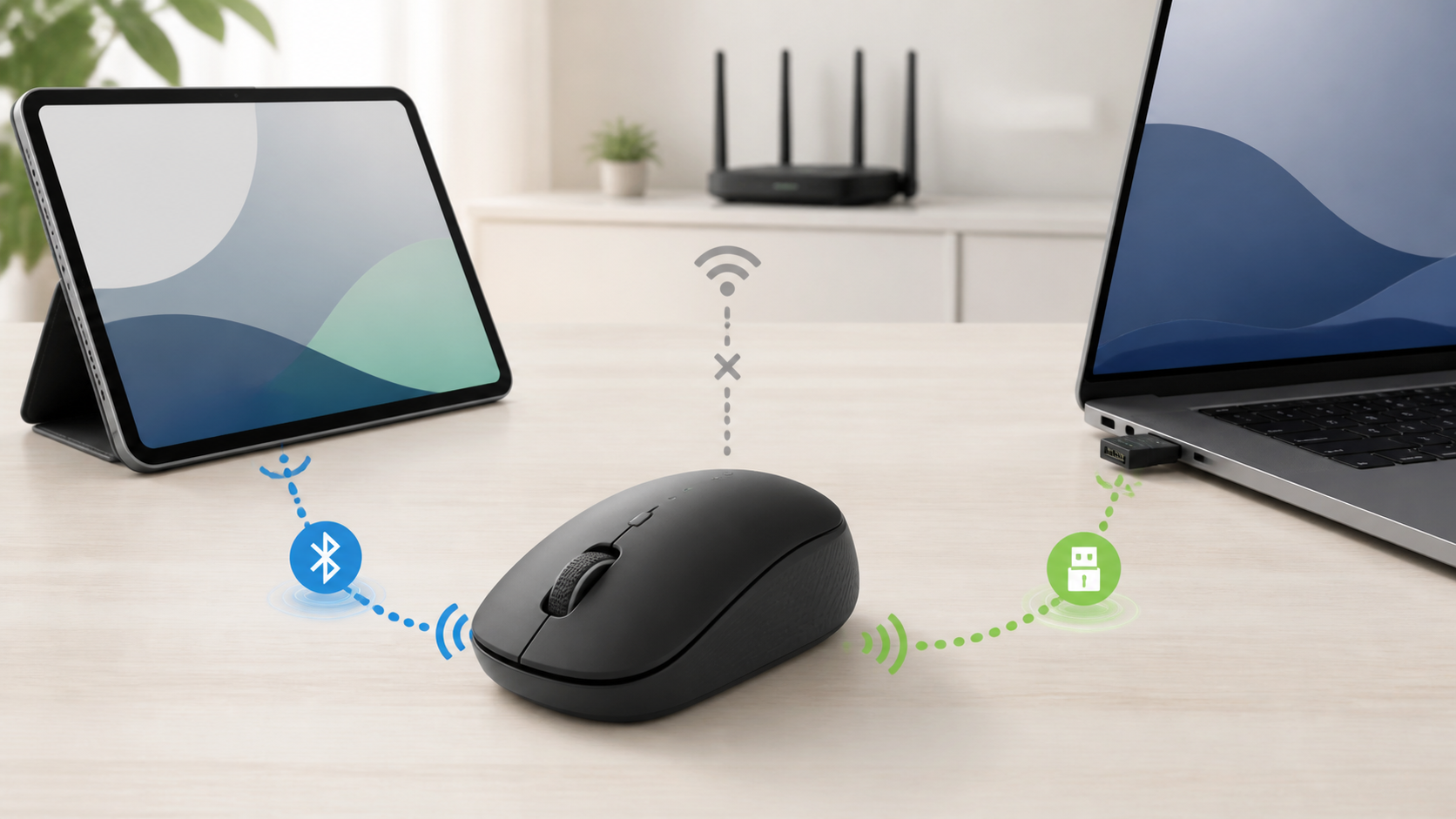
Wireless does not automatically mean WiFi
Wireless describes the absence of a cable between the mouse and the device. It does not name the radio method. A Bluetooth mouse pairs with Bluetooth built into the computer or tablet. A receiver mouse talks to its matching USB receiver. Neither connection needs to join your home WiFi network.
| Mouse type | What it connects to | WiFi or internet needed? |
|---|---|---|
| Bluetooth mouse | Bluetooth radio in the computer, tablet, or phone | No for normal pointer and button use |
| Mouse with a USB receiver | Its compatible receiver in a USB port | No for normal use |
| Dual-mode mouse | Bluetooth or its receiver | No after a local connection is ready |
| Wired USB mouse | USB port or compatible adapter | No |
| Mouse customization software | Runs on the computer | Sometimes for download, sign-in, updates, or cloud sync |
| Remote desktop mouse input | Local mouse plus a remote-session app | The remote session usually needs a network |
Bluetooth mice connect directly
A Bluetooth mouse does not need a separate mouse receiver when the device already has compatible Bluetooth. Put the mouse into pairing mode, open the device’s Bluetooth settings, and select it. Follow the mouse manual for the pairing button and timing. Microsoft’s Windows Bluetooth pairing instructions use this local connection, not a WiFi password.
The computer may need a USB Bluetooth adapter if it has no built-in Bluetooth. That adapter is different from a receiver supplied for one mouse family. Check the operating system, adapter, and mouse documentation before buying either part.
A USB receiver creates its own mouse link
Many wireless mice include a small receiver that plugs into USB-A or USB-C. The mouse communicates with that receiver, not with the WiFi router. You can use the mouse on an offline desktop as long as the receiver, port, operating system, and mouse are compatible.
Do not assume that any receiver will work. Some receivers are paired to one mouse at the factory. Others support a particular manufacturer system and may require supported pairing software. For example, Logitech says Bolt and Unifying receivers cannot be used interchangeably. Match the receiver family and supported mouse model, not just the brand or USB plug.
Bluetooth and a USB receiver are not interchangeable
A mouse labeled wireless may support Bluetooth, a dedicated receiver, or both. A receiver-only model cannot connect through the computer’s Bluetooth menu unless the maker explicitly includes Bluetooth. A Bluetooth-only model does not become a receiver mouse when you plug in an unrelated dongle.
- Look for Bluetooth in the connection specifications, not just the word wireless.
- Check whether a receiver is included, optional, or unsupported.
- Match the receiver’s plug to an available USB port.
- Confirm support for the computer, tablet, console, television, or phone you plan to use.
What works during an internet outage
The pointer, clicks, wheel, and supported local buttons should continue to work. Try scrolling a document already saved on the computer or opening its settings. A website may stop loading or a remote desktop may disconnect, while the pointer still moves. Some apps offer offline documents or games; others require a connection. That is an app requirement, not a mouse requirement.
If the mouse also stops during an outage, test the mouse on a local settings screen. Check its battery, power switch, selected connection mode, Bluetooth state, or receiver. Buying a new router rarely fixes a mouse that fails on every computer. The router replacement checklist is useful only when several network devices have trouble too.
When mouse software may use internet
Optional software may download updates or sync custom button profiles through an account. The mouse can still use a local Bluetooth or receiver link while the software performs those online tasks. Where settings are saved matters: an onboard profile may travel with the mouse, while a setting stored in a computer utility may not. Check the model’s documentation rather than assuming every extra button works everywhere.
Before installing a utility, get it from the device maker or the operating system’s trusted store. Read which features need an account. A basic office mouse may need no extra utility at all, while a gaming or productivity model may reserve some controls for its software. On a work or school computer, use only approved accessories and software. Do not bypass a blocked USB or Bluetooth connection.
Does a wireless mouse use mobile data?
The mouse input itself does not consume a phone’s mobile-data allowance. An online app controlled by the mouse can use data, and setup software may download updates. The same separation applies to a hotspot: the computer may use the hotspot for internet while the mouse stays connected locally.
Check data use by app when you need a precise answer. The word unlimited can still hide hotspot or network-management limits, as the guide to unlimited internet plan rules explains.
Can you use one with a tablet or phone?
Apple’s iPad mouse connection guide covers Bluetooth and USB, but notes that not all mice are fully compatible with all iPad models. For a supported Bluetooth mouse, put it into discovery mode, open Settings > Bluetooth, and select it under Other Devices. No router connection is part of that pairing process.
Once connected, a pointer that feels too fast or scrolls the wrong way may need a local setting change, not better WiFi. Apple’s iPad mouse settings guide explains tracking speed and Natural Scrolling under Settings > General > Trackpad & Mouse. Extra buttons and gestures still depend on the mouse and app.
Google also lists mice among supported Chromebook Bluetooth accessory types. Pair a compatible model from the Bluetooth controls and check that it appears under Currently connected. For Android phones, televisions, or other devices, check the exact model and operating-system support before buying.
A USB receiver may need an adapter or powered hub when the tablet has a different port. Do not force a receiver into a connector. If a case blocks the adapter or the tablet reports excessive power use, stop and use a compatible connection method.
Can you use one with a television or game console?
Some televisions and consoles accept a mouse for certain menus, browsers, or games. Support can differ by model and app. Confirm the exact device and title rather than assuming that a working USB or Bluetooth connection makes every screen mouse-aware.
What to check before buying
- Connection: Look for Bluetooth, a named receiver family, or both. If you have lost the receiver, Bluetooth is an alternative only when that mouse supports it.
- Port and device support: Check the available USB-A or USB-C port, any necessary adapter, and the supported operating systems.
- Controls: Confirm basic clicks, scrolling, secondary click, and any extra buttons you actually use. Pairing alone does not guarantee every feature.
- Software: Check whether custom controls need an installed utility or account, and where profiles are stored.
- Power: Check the battery type and whether the mouse can operate while charging. A charging cable does not automatically provide a wired input mode.
For a specific example of that last distinction, Apple’s Magic Mouse setup instructions for Mac say to disconnect its charging cable before using the mouse. Do not apply another model’s charging or wired-mode behavior to yours.
Buying a keyboard for the same offline setup? The guide to wireless keyboards without WiFi explains which typing functions stay local and which software features may need internet.
A quick offline test
- Save your work and open a local settings screen or saved document. Do not run this test during a call, remote session, or anything that needs a connection.
- Connect the mouse through Bluetooth or its receiver. Keep a trackpad, touchscreen, or another working input method available.
- Turn off WiFi on the computer without disabling Bluetooth. Do not use a general radio switch or airplane mode for this check.
- Move the pointer, click, scroll, and test the controls you need.
- Restore WiFi when finished.
If the pointer keeps moving, its basic connection does not depend on WiFi. Ethernet or cellular data may still keep that computer online, so this check alone does not prove the entire device is offline. If the pointer stops, check whether Bluetooth was also turned off before blaming the router. You do not need to unplug a shared router to test one mouse.
When the mouse will not connect
Replace or charge the battery, turn the mouse on, and choose the correct connection mode or device channel. For Bluetooth, follow the model’s pairing instructions and try a normal reconnect first. Before removing an old pairing, make sure a trackpad, touchscreen, keyboard, or spare mouse lets you finish the setup. Avoid removing your only usable input device.
For a receiver model, reconnect the matching receiver directly to a supported port and try another port if available. A lost receiver needs a compatible replacement, not a WiFi adapter. Test on another compatible personal device if you have one. If it fails there too, contact the mouse maker. If several working mice fail on one computer, check that computer’s Bluetooth, USB ports, and input settings, or ask its IT administrator.
Sources and scope
This is an explanation of connection types and buying checks, not a hands-on mouse review or a compatibility guarantee for every model. The linked Microsoft, Apple, Google, and Logitech instructions support the platform and receiver examples. Check your mouse manual for exact pairing steps, replacement receivers, charging behavior, and supported devices.