
Most wireless keyboards do not need WiFi or internet for typing. They connect to a compatible device through Bluetooth or a matching USB receiver, rather than joining the router. Set up the connection first; software downloads, updates and some extra features may still need internet. An online document can stop loading even while the keyboard itself works.
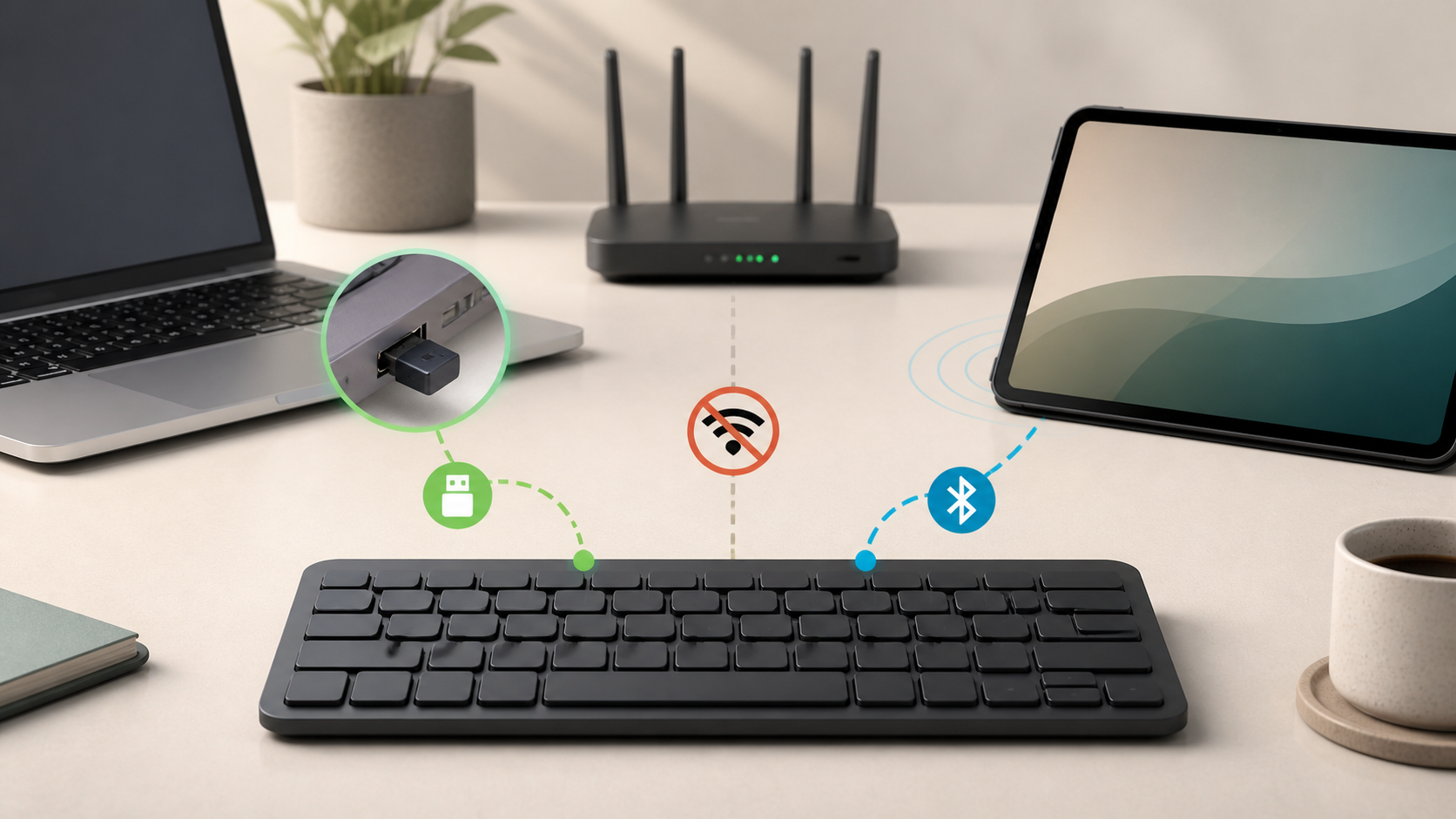
Check the connection type on the box
The word wireless does not tell you how the keyboard connects. Bluetooth keyboards pair with Bluetooth built into the device. Receiver keyboards talk to a matching USB receiver. Some models support both, and a smaller group also offers a wired USB mode.
| Keyboard type or task | Connection | WiFi or internet needed? |
|---|---|---|
| Bluetooth keyboard | Bluetooth built into the device or a compatible adapter | No for normal typing after setup |
| Keyboard with a USB receiver | Its compatible receiver in a USB port | No for normal typing after setup |
| Keyboard with several connection modes | The Bluetooth, receiver or wired modes listed for that model | No for supported local input; check each mode |
| Customization software | Runs on the computer | Sometimes for downloads, accounts, updates or profile sync |
| Online document or remote desktop | Local keyboard plus a network service | The service may need a connection; offline support varies |
Bluetooth keyboards connect directly
A Bluetooth keyboard does not join the router. Put it into pairing mode, open the device’s Bluetooth settings and select it. Microsoft’s Windows Bluetooth pairing guide lists keyboards among the supported device types. Follow any on-screen code prompt, and use the keyboard manual for its pairing button or shortcut. Do not copy a button-hold time from a different model.
If a desktop has no Bluetooth, you may need a compatible USB Bluetooth adapter. That adapter adds Bluetooth to the computer. It is not the same thing as a proprietary receiver supplied for a particular keyboard family.
For a model-specific example, Microsoft’s Bluetooth Keyboard setup instructions require a compatible Windows PC and Bluetooth support. They are not a compatibility promise for every keyboard or operating system. The same separation between Bluetooth and internet access appears in our wireless-headphones offline-use guide.
A USB receiver creates a separate local link
A receiver keyboard communicates with the small receiver plugged into the computer. The receiver may use USB-A or USB-C. This path works without a home router and can be useful on a desktop that has no Bluetooth.
Keep the supplied receiver with the keyboard. A receiver from another model may look similar but still be incompatible. Logitech’s Bolt and Unifying compatibility guidance, for example, says those two receiver families cannot pair with each other’s products. Some manufacturers allow a supported replacement to be paired through software. Check the exact keyboard and receiver family before buying.
The plug shape is a separate check. Logitech’s receiver identification guide shows USB-A and USB-C Bolt receivers alongside other receiver types. A connector that fits does not establish wireless compatibility.
A 2.4 GHz label does not mean home WiFi
Many receiver keyboards advertise a 2.4 GHz wireless link. Home WiFi can also use the 2.4 GHz band, but sharing a frequency range does not make the keyboard a WiFi client. The keyboard does not need the network name or password. Its receiver handles the local input connection.
If typing becomes unreliable near crowded radio equipment, move the receiver closer with a supported extension or try a different physical location. Do not weaken router security or expose a network just to repair a keyboard.
What works when the internet is down
You can type into local settings, installed applications, offline documents, file names and supported login fields. A cloud document may need offline mode configured in advance, while a remote session can lose its connection altogether. Test a local text field before blaming the keyboard for an app that stopped responding.
If the keyboard stops at the same time as an outage, open a local text field and test a few harmless keys. Check power, battery, connection mode, Bluetooth state, and the receiver. A new-router decision guide is relevant only when several network devices fail too.
Startup and recovery screens need extra checking
A keyboard that works after sign-in may not work in firmware setup, a recovery screen, a disk-unlock prompt, or before the operating system loads. Support depends on the computer and connection method. A receiver or wired mode may be supported earlier than Bluetooth, but this is not universal.
Logitech’s MX Keys for Mac setup guide warns that FileVault can prevent Bluetooth devices from connecting before sign-in. This is a scoped example, not a rule that all Bluetooth keyboards fail on every Mac. If startup or disk unlock matters, verify your exact computer, keyboard and connection method. Keep compatible wired input available, and do not disable encryption to make a keyboard work.
Can you use one with a tablet or phone?
Apple’s iPad Bluetooth accessory guide explains discovery mode and pairing in Settings > Bluetooth. Google’s Chromebook Bluetooth guide also lists keyboards and shows how to confirm a connection. Android support varies by device and operating-system version. Pairing alone does not guarantee every media key, shortcut or layout behaves as it does on a PC.
A receiver keyboard may require an adapter or powered hub on a tablet. Confirm that the tablet supports USB input and that the adapter fits. Do not force a connector or assume that a charging-only port carries keyboard data.
Televisions and consoles vary by app
Some smart televisions and game consoles accept a keyboard for search boxes, messages, browsers, or selected games. Others support only certain USB or Bluetooth models. A successful connection does not guarantee that every app or game accepts keyboard input.
Multi-device switching is local too
Some keyboards store several Bluetooth pairings or switch between Bluetooth and a receiver. A physical device-selector key changes which paired host receives the input. Check the supported number of devices and the setup steps for the exact model. Software-controlled switching and cross-computer clipboard features have separate requirements; do not assume they work merely because basic typing does.
Before giving away the keyboard, remove it from your own computers’ paired-device lists and follow its reset instructions. On shared computers, remember that a paired keyboard may reconnect when it is turned on and nearby. Google advises pairing Chromebooks only with devices you trust.
When software still needs internet
Optional keyboard software may download firmware, lighting effects, layouts, macros, or cloud-synced profiles. Some functions remain stored on the computer or keyboard, while others require the utility or an account. Review this before buying if you plan to use the keyboard offline or on a managed work device.
Download utilities only from the manufacturer or a trusted operating-system store. A basic keyboard often works without extra software, but special keys may depend on supported drivers or apps.
If the keyboard has a USB charging socket, check whether the manual explicitly supports wired data input. Being able to type while charging is not, by itself, proof of a wired typing mode. On a work or school device, use only approved receivers and software.
Does typing use mobile data?
Keystrokes sent through Bluetooth or a receiver do not consume a phone hotspot allowance. The website, cloud document, remote session, or software download can use data. The guide to unlimited internet plan limits explains why hotspot use may have different rules from on-device data.
What to check before buying
- Does the keyboard use Bluetooth, a receiver, a cable, or more than one method?
- Is the receiver included and replaceable?
- Does its USB plug fit the target device?
- Does the computer or tablet have compatible Bluetooth?
- Will it work at startup or only after the operating system loads?
- Does the key layout match your language and device?
- Which function and media keys are supported?
- Can it switch among the devices you own?
- Which features require software or an account?
- Does it use replaceable batteries or a rechargeable cell?
- Can it type through a cable while charging?
Run an offline test
- Save your work and open a local text editor, not a remote desktop or unsaved web form.
- Connect the keyboard through Bluetooth or its receiver and confirm typing works.
- When it will not interrupt a call, required connection or remote session, turn off WiFi without disabling Bluetooth.
- Type a harmless sentence and test the modifier keys you need.
- Reconnect WiFi after the test.
If local typing continues, the keyboard does not need WiFi for that basic input. If Ethernet or cellular data remains active, this checks WiFi independence, not completely offline operation. If typing stops, check whether airplane mode or a hardware switch disabled Bluetooth too, and confirm the keyboard has not switched to another host. For a receiver keyboard, check its own power and USB link instead.
Sources and method
This guide uses the official Microsoft, Apple, Google and Logitech documents linked above, checked in October 2026. It is not a hands-on test of every keyboard, receiver or startup screen. Brand and model examples keep their stated scope. Verify the connection modes, operating-system support and software requirements for the model you plan to use.