
Pack a mobile hotspot if you need internet away from Wi-Fi and have usable cellular coverage. Pack a travel router if your hotel or rental already provides a connection you can use and you want your devices to join one familiar network. Most travel routers need that existing connection. If you’re taking one laptop and your phone plan supports tethering, try the phone hotspot you already have before buying either device.
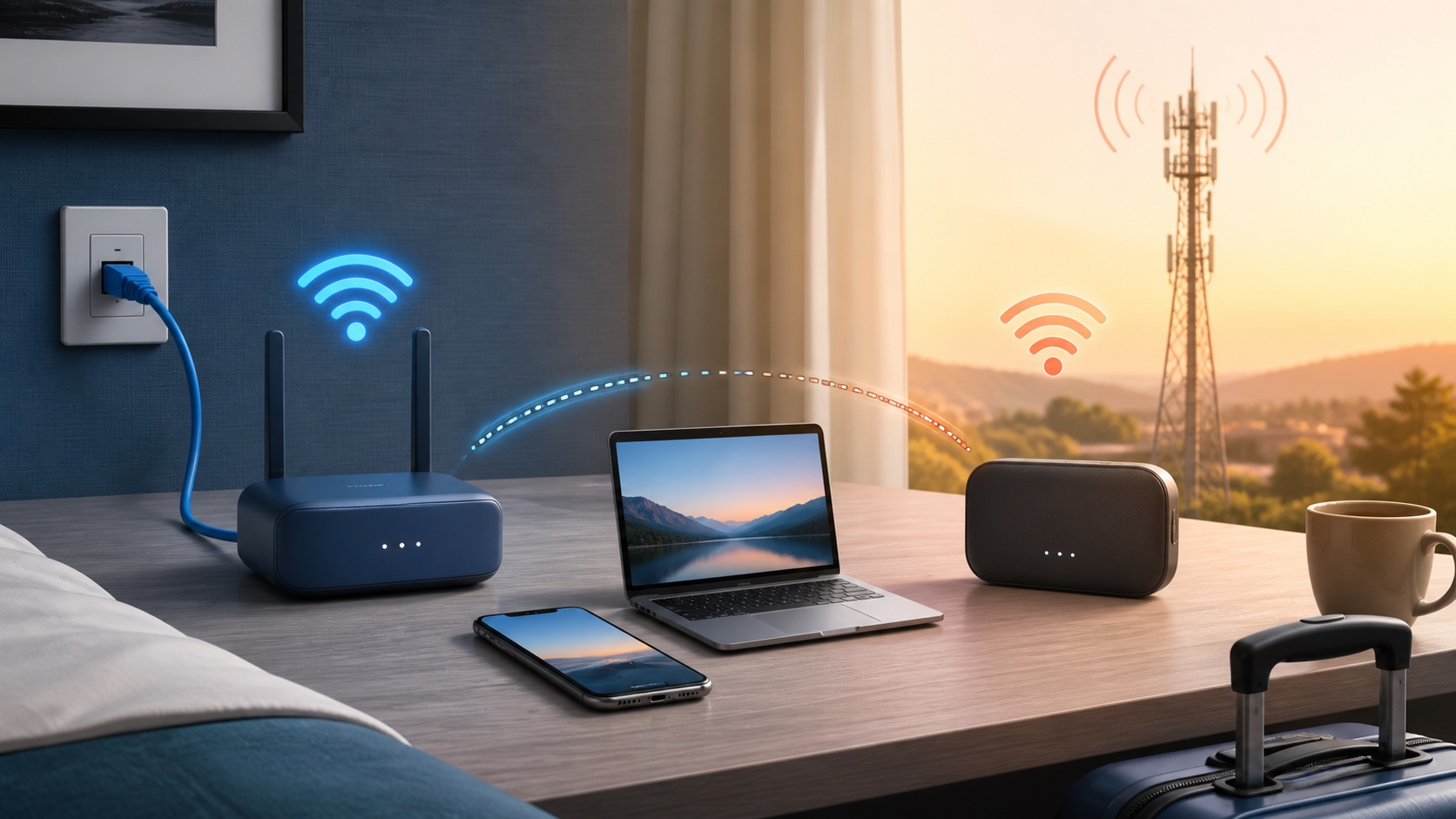
Start with where the internet comes from
| What you need | Usually start with | Check before you pack |
|---|---|---|
| One laptop online for a short stop | Phone hotspot | Coverage, tethering allowance and phone battery |
| Several devices on an approved hotel connection | Travel router | Hotel policy, available Wi-Fi or Ethernet, and support for the sign-in page |
| Internet away from venue Wi-Fi, without tying up your phone | Dedicated mobile hotspot | Supported carrier and data plan, coverage and battery life |
| A hotel connection plus a backup for calls | Use the hotel connection and keep your phone hotspot ready | Try both connections before the call. A travel router alone adds no second source. |
A travel router typically shares Wi-Fi, Ethernet or compatible USB tethering. It does not create cellular internet by itself unless your specific model has a cellular modem and active service. Look for that distinction in the spec sheet: a box advertised as portable Wi-Fi is not necessarily a SIM-based hotspot.
What matters at a hotel or rental
Ask whether the property allows routers and whether the room has active Ethernet. If you plan to share hotel Wi-Fi, check that your model can join an existing wireless network and handle the hotel’s ordinary sign-in page. TP-Link’s travel-router setup guide illustrates this on supported models. Sign in through the approved flow and follow the property’s device and payment rules. If the property doesn’t allow the setup, use its approved network directly or use cellular data where available.
Some travel routers let you keep the same private Wi-Fi name and password for your own devices between trips. That saves pairing work, but doesn’t replace the hotel’s network or improve its internet speed. The router is still using the same source. Follow the FTC’s public Wi-Fi guidance on the sites and apps you use, even if your device is connected to your own travel router.
What matters if you’ll rely on cellular
Check whether your plan allows tethering at the destination, includes a separate high-speed allowance, or changes speeds or fees after you reach it. Google’s Pixel tethering guide notes that carriers can limit tethering or charge extra. A travel eSIM offering data doesn’t necessarily allow hotspot use; check that package and region before purchase.
A dedicated hotspot can keep the connection available when your phone leaves the room. It may require a separate data plan and adds another device to charge. If the only problem is that a working phone hotspot does not reach the far side of the room, first see whether a compatible extender can repeat the hotspot. Neither an extender nor a noncellular travel router can improve the phone’s carrier signal.
Try the setup before you travel
- Use the devices you’ll take. Try a real call, upload or streaming session with your laptop or tablet on the connection you plan to use. A good speed result on the phone alone isn’t the same as using a laptop through it.
- Check power and total cost. Include the charger or power bank, any needed cable, hotel access charges and any extra hotspot data. Use the hotspot data worksheet if you expect to work or stream on cellular.
- Keep a backup for work. If the meeting can’t move, make a plan for a second connection. Don’t assume a different box will fix poor cellular coverage or an overloaded hotel network.