
To work out how much hotspot data you need, measure a typical laptop session, multiply it by the hours or days you expect to use it, then add downloads and a reserve. Check the hotspot allowance separately from your phone’s main data allowance. A plan advertised as unlimited does not by itself tell you how much tethering it permits.
For a short trip, the deciding factor is often video quality or an unexpected laptop download, rather than the number of connected devices. This guide uses official settings and published app guidance, with clearly labeled calculation examples. It is not a hands-on hotspot test or a ranking of phone plans.
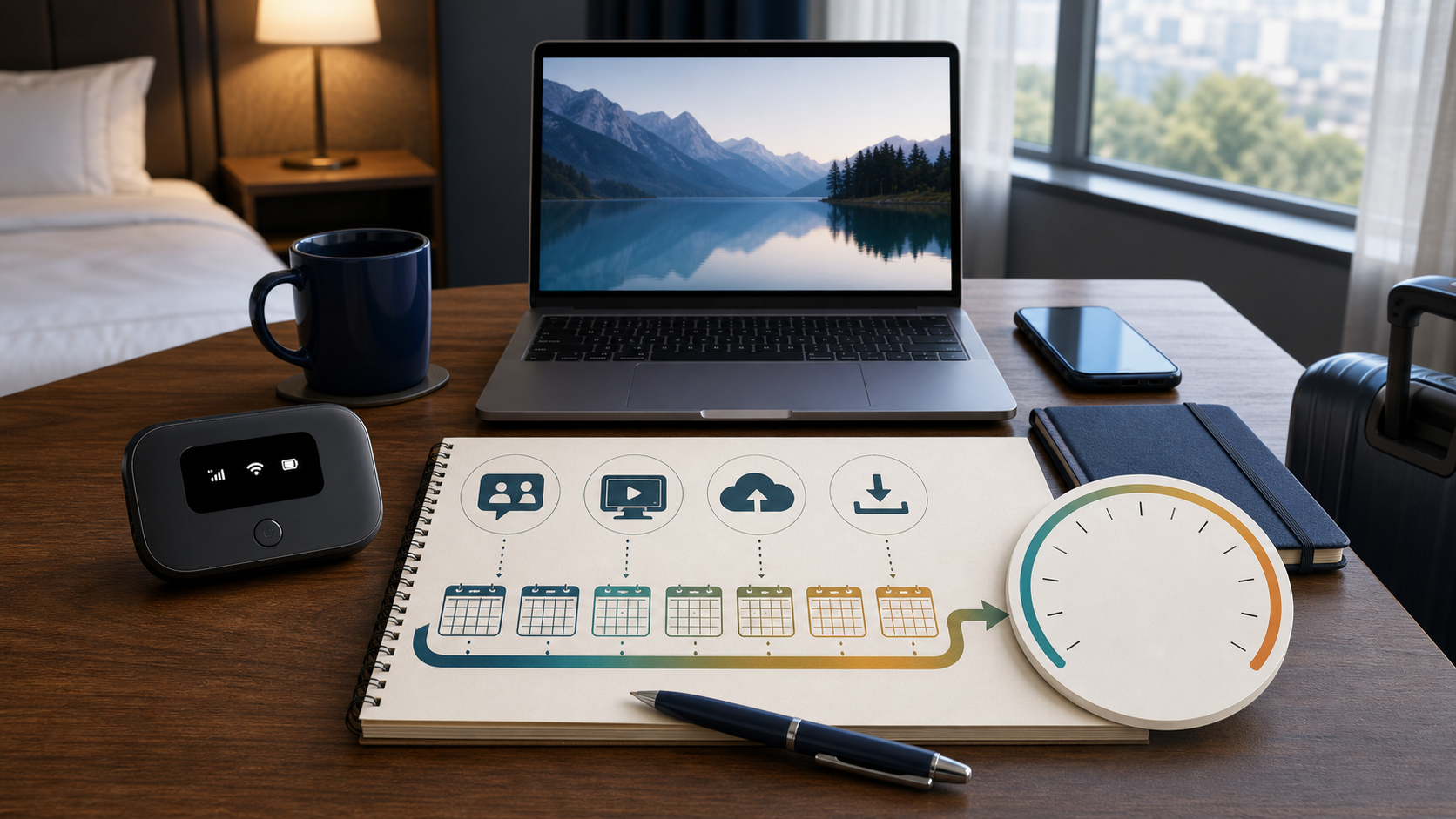
Start with the allowance you can actually use
Open your carrier account and find the hotspot or tethering terms for the exact line you will use. Record the remaining allowance, its renewal date, and what happens when it runs out. Look for a separate high-speed allowance, an ongoing speed limit, an extra charge or a stop in service. Do not assume your account’s main data total answers all four questions. If you have already reached the cap, see what happens when your hotspot data runs out.
Google’s Pixel tethering instructions warn that carriers can limit tethering or charge extra. The phone’s ability to turn on a hotspot is therefore not proof that your plan includes unrestricted use. Our guide to unlimited internet limits explains why the word unlimited needs its accompanying terms.
Match the dates too. A five-day trip might cross a billing reset, while a prepaid data pack might expire before you use it all. Ask whether the allowance belongs to one line or is shared. For travel outside the U.S., confirm that hotspot use is included at the destination instead of applying domestic terms abroad.
Measure a normal session before buying more data
Use the laptop or tablet you plan to take, with its usual browser tabs and work apps. Note the carrier’s hotspot reading before and after a representative session, allowing for any reporting delay the carrier specifies. Keep other connected devices out of that test so you know what you measured. Record both the amount used and the session length.
Include a real meeting if meetings are part of the trip. A quiet hour answering email is a poor substitute for a workday with video calls and large attachments. If the test already includes a call, do not add the same call again in your worksheet. Repeat an unusually light or heavy session before treating it as your normal rate.
For a supporting phone check, Apple’s cellular usage guide shows Settings > Cellular and explains Reset Statistics. Check the period covered before comparing it with a monthly bill. Apple advises contacting the carrier for the most accurate current-period usage. A phone total that includes the phone’s own apps is not automatically a clean measurement of the laptop’s hotspot use.
Use the carrier’s hotspot accounting for the plan decision, and your device readings to find surprising activity. If they disagree, check dates and reporting delays before deciding the plan is wrong. Do not buy another month merely because two counters cover different periods.
Build a budget for the whole trip
The following is a hypothetical five-day example, not an app benchmark. Suppose your own test found 0.2 GB per hour for laptop work excluding calls and entertainment. You plan two such hours per day. Add your other activities separately:
| Example activity | Calculation and allowance |
|---|---|
| Laptop work, excluding calls | 0.2 GB × 2 hours × 5 days = 2 GB, using the assumed measured rate. |
| Two one-hour video calls | At a hypothetical combined 2 Mbps upload and download: 1.8 GB total. |
| Two hours of Netflix at Medium | Up to 1.4 GB using Netflix’s published 0.7 GB per hour setting. |
| One known file download | Allow 2 GB for the example file, plus any transfer overhead. |
| Subtotal before a reserve | 7.2 GB. A 10 GB allowance leaves less than 2.8 GB for overhead, other devices and surprises. |
For a sustained transfer, estimated GB = combined upload and download Mbps × hours × 0.45, using decimal units. That is how the example calls become 2 × 2 × 0.45 = 1.8 GB. The 2 Mbps assumption is chosen to demonstrate the arithmetic; it is not a claim about every video call. Network overhead and changes in bitrate can move the billed total.
Zoom’s desktop bandwidth requirements describe an adaptive connection. Recommended network capacity is not a promise of a fixed number of gigabytes per meeting. Measure your actual setup when the allowance is tight.
Netflix publishes data usage by playback setting: up to 0.7 GB per hour at Medium, 3 GB for HD at High, and 7 GB for 4K at High, per device. The same ten-hour viewing schedule could therefore require up to 7 GB, 30 GB or 70 GB at those settings. These are Netflix figures, not universal rates for every streaming app.
This is why 10 GB or 20 GB cannot translate into one reliable number of hotspot days. Choose a reserve that covers a plausible extra work session or unavoidable download. If your estimate nearly fills the package, reduce an optional activity or compare a larger allowance before relying on it for a deadline.
Keep background downloads out of the travel budget
On a Windows 11 laptop, open Settings > Network & internet > Wi-Fi, choose the connected hotspot network, and enable Metered connection. Microsoft’s metered connection guidance says this reduces some app and system traffic, but it is not a hard data cutoff. Some updates may still download. If work manages the setting, ask IT rather than trying to override it.
On an iPhone or iPad connected to the hotspot by WiFi, open Settings > Wi-Fi, tap the information button beside that network, and enable Low Data Mode. Apple’s Low Data Mode instructions explain that this setting is separate from cellular mode and restricts background activity. Check the receiving device, not only the phone providing the connection.
Download the files and entertainment you need before leaving a connection whose allowance can cover them. Review cloud backup and game-launcher download queues on the laptop. Do not turn off security protection to save data; arrange required updates on a suitable connection. Disconnect unused devices so an old tablet cannot quietly join the same budget.
Decide whether hotspot is enough for the job
For occasional backup, budget the work you must finish during an outage and test the connection where you will use it. For a trip, total all travel days and devices. For regular home use, repeat the calculation across the full billing month rather than buying for a single good day.
If data is adequate but Wi-Fi drops in the next room, check whether an extender can repeat your phone hotspot. It won’t add to your data allowance or strengthen the phone’s carrier signal.
An adequate data allowance does not establish coverage or usable speed at your destination. Before depending on the connection for paid work, confirm coverage, tethering terms and the fallback available if service fails. Recheck the carrier meter during the trip. If it is rising faster than expected, look for the extra transfer before purchasing a larger plan.