
A Pixel Watch LTE can make and receive regular calls with your phone at home if the watch has an active carrier plan that includes calling and a usable LTE signal. Regular texts are different: Google’s watch help says the paired phone needs to stay online to relay them. If your Pixel Watch 4 or 5 came with two years of included data, that offer does not provide LTE voice calls.
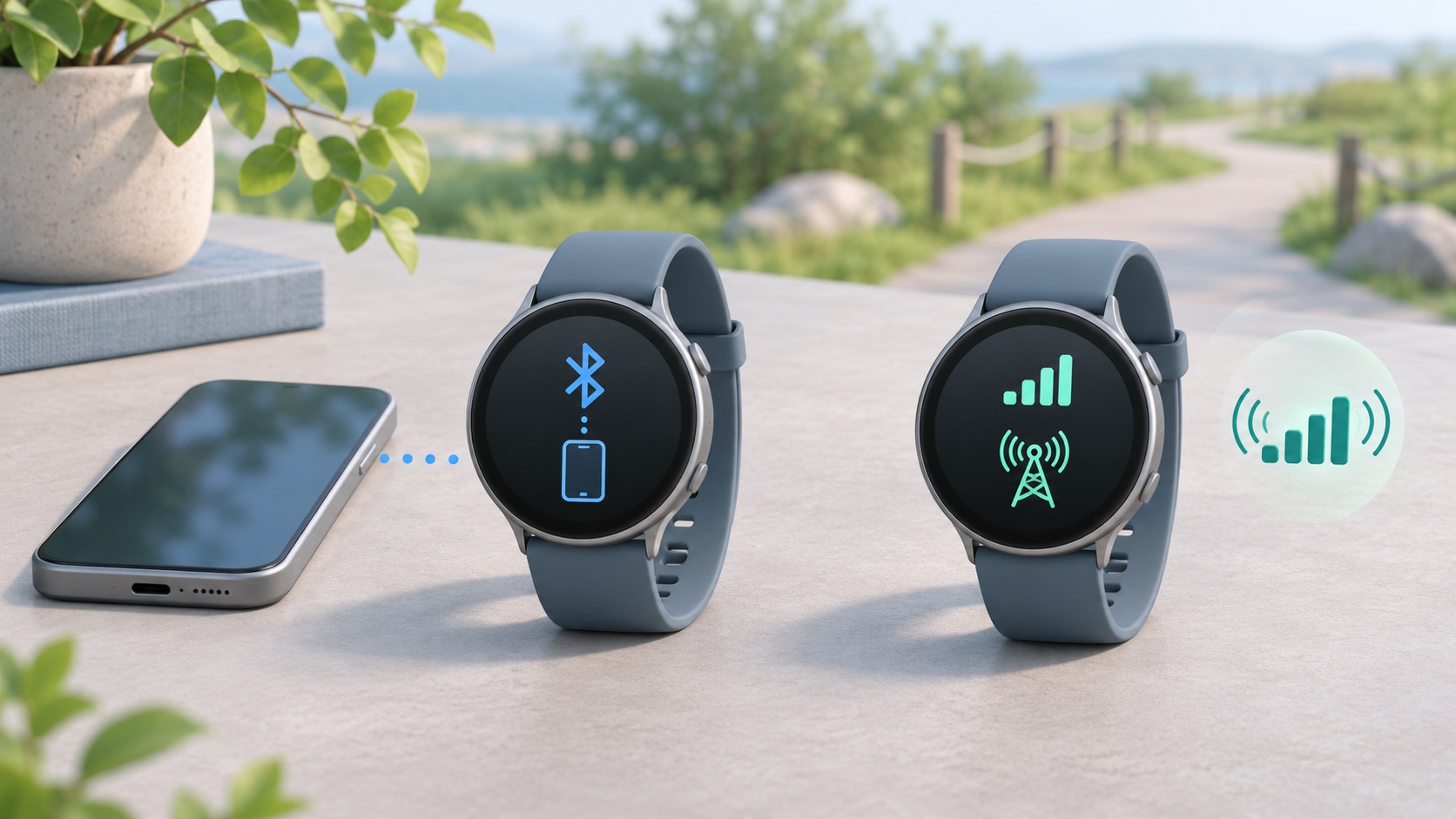
What still works when your phone is at home?
Leaving your phone on the kitchen counter is different from switching it off. With a full watch line, the watch can use LTE to place a call to a phone number. It still uses your paired Android phone to sync ordinary SMS and MMS. Signal bars alone don’t tell you whether calling is included or whether your phone is online.
| Your setup | Regular calls away from phone | Regular texts away from phone |
|---|---|---|
| LTE model with full carrier service; phone on and online | Yes, where the watch has service | Yes, if the phone can relay them |
| Same LTE service; phone off or offline | LTE calling can still work | Do not count on SMS or MMS |
| Eligible two-year Pixel Watch 4 or 5 data offer only | No regular voice calls over LTE | Requires an active phone plan and Messages by Google |
| Bluetooth/Wi-Fi model | Do not buy it for calling away from the phone; Google’s calling instructions require the phone nearby | Do not count on ordinary texting away from the phone |
Google’s Pixel Watch calling and texting requirements and its call and message troubleshooting guide make this distinction. Apps that use the internet have their own requirements, so a chat notification is not proof that ordinary texting works. Activity tracking and music already downloaded to the watch are examples of things you can use without paying for cellular service.
Buying an LTE watch: choose the service, not just the hardware
An LTE watch still needs a compatible Android phone for setup. The Pixel Watch 5 specifications list most phones running Android 12 or later, but carriers can set a higher minimum. For full calling, texting and data, Google’s carrier list by watch generation says the watch and phone must use the same carrier network. Make sure your provider supports the exact watch model and your specific phone plan, especially if you use prepaid service or buy a watch imported from another country.
Full service normally means adding a separate wearable line, even though calls use your existing phone number. Ask the carrier for the monthly watch charge after any promotion, the one-time activation cost and applicable taxes. Check whether watch coverage or roaming differs from the phone plan. A phone plan on the same underlying network does not automatically qualify. One U.S. exception to a separate monthly watch charge: Google Fi includes calling, texting and data for supported watches on its active phone plans. Its help page requires an eligible U.S. model paired with an active Android phone on Fi and says the watch cannot be activated on a standalone Fi plan.
The other offer is the two-year Pixel Watch 4 or 5 LTE data and texting benefit tied to an eligible U.S. purchase. Google says to activate within 60 days of setting up the watch to get the full two years. The Pixel Watch 5 offer terms say it includes up to 500 MB a month at regular LTE speeds, slows to 256 kbps after that and caps usage at 1 GB each month. Data is U.S. only. It does not renew or enroll you in a paid plan when it ends. It also cannot be combined with another carrier plan on the watch. If the reason you want LTE is to take regular calls on a run, pick full wearable service rather than choosing the data offer because it says Google Fi.
Set up and test calls before leaving the phone behind
- Read the device listing or box for 4G LTE. On the watch, swipe down and open Settings > Connectivity > Mobile. Set the mobile connection to Automatic. This menu is a check, not proof of an active line.
- On the paired phone, open the Pixel Watch app and go to Connectivity > Mobile network. Choose your carrier and follow its activation instructions. If it asks for the watch’s electronic SIM identifier, Google’s Pixel Watch cellular setup guide shows where to find the EID under Mobile > SIM status.
- Leave the phone on and online. With the watch away from Bluetooth range and familiar Wi-Fi, check for LTE service. Call a friend or family member, ask them to call back, and send an ordinary text in both directions. For a phone-off check, switch off the phone and repeat the regular call. Turn the phone back on before testing texts again.
If watch data works but calls fail, check whether you activated only the two-year data offer. If calls work but texts fail, check that the paired phone is online and that your messaging app is set up. If nothing works on LTE, ask the carrier to confirm that it activated the watch line and shared the right phone number before resetting the watch.
If you mainly want a watch that tracks a run or plays downloaded music, compare the cheaper Wi-Fi version first. If you are deciding whether to switch phone plans to get watch service, our Google Fi versus Visible comparison covers the main phone-plan trade-offs. Pay for the phone plan you need as well as the watch feature you will actually use.