
You can move Verizon 5G Home Internet if Verizon approves the new service address. Start a move request before you unplug the gateway. Verizon will check what service is available at the new address and tell you whether to bring your existing equipment or use a replacement. A Verizon 5G signal on your phone doesn’t tell you whether your new apartment qualifies for 5G Home Internet.
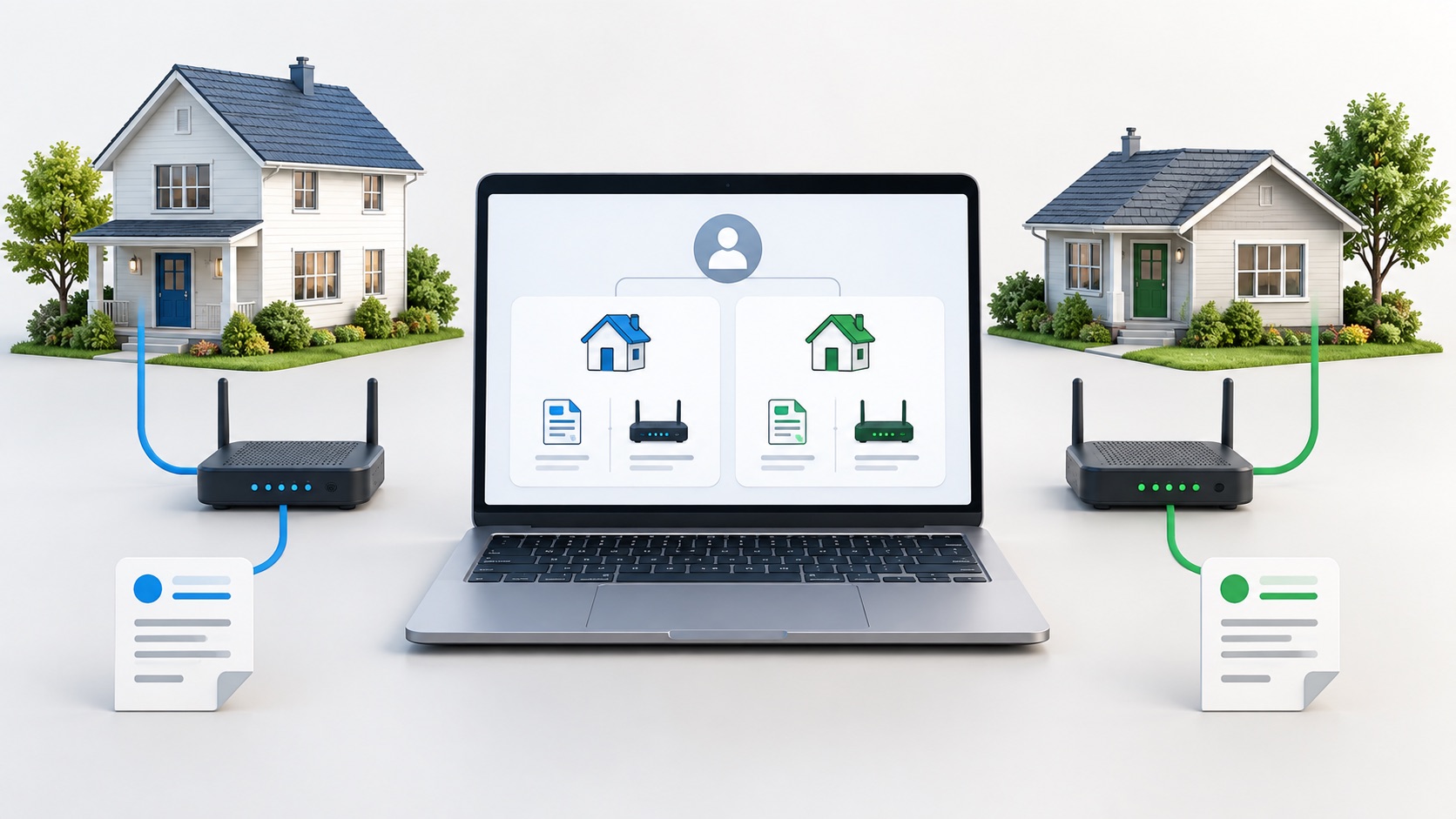
Ask Verizon to approve the new address
- In My Verizon, look under Manage Equipment for Move Home Internet address, or use the service-address option in Verizon’s moving guide. Use the exact street address and unit number.
- Choose your move-out and setup dates. The 5G Home Internet FAQ recommends contacting Verizon at least two weeks before moving. If you’re already at the new address, contact Verizon rather than waiting to see if the old gateway connects.
- Before accepting the order, check the service type, plan, monthly total, any fees and whether you need a technician. Ask whether your current rate or discounts carry over. An offer at the new address isn’t proof that your existing terms will stay the same.
The Verizon agreement for wireless home internet requires approval before moving service or equipment to another address. Don’t use a 5G Home gateway as a travel router or assume a weekend at a second home is covered by the same account. If you need a working connection in both places, see our two-address internet checklist.
Find out which gateway goes to the new home
If Verizon confirms that your existing gateway can move, take its power adapter and cables, and follow the setup directions in the move order. If Verizon sends a replacement, check which old device it wants back and save proof of return. For a switch to a different service type, such as Fios fiber, Verizon’s moving guide says it provides new equipment and requires the old equipment back.
If 5G Home is unavailable, ask what Verizon can offer rather than assuming you can move the old plan. If you decide to leave, request a confirmed end date and use our Verizon 5G cancellation and router return guide.
Confirm when internet and billing restart
Ask Verizon for three dates: when service stops at the old address, when setup is scheduled, and when billing resumes. The move FAQ says billing can restart on the earliest applicable date, such as your scheduled move-in, the gateway’s estimated delivery, or an in-store pickup. If the box will sit unopened for a few days, check the billing date on the order rather than counting from when you plug it in. Update your billing address separately.
If your move slips, change the order by the scheduled setup date. Verizon says the move order can lapse 30 days after that date. If the date has already passed, call to check whether you need a new order.
What to do if your dates change
If the new home is not ready when expected, compare the setup date in your move order with the revised move-in date. For example, if setup is scheduled for Monday but you cannot collect the keys until Friday, ask Verizon to change the order before the scheduled setup date and confirm the new billing start in writing. Do not assume leaving the gateway unplugged prevents a charge.
If the old connection must end before the new one is working, check your phone plan’s hotspot allowance and test it where you will use it. A hotspot may cover a short gap, but laptop updates and video calls can use the allowance quickly. Our temporary internet checklist covers other short-term options and the return dates to check.
At the new home, connect the approved gateway as directed and test it on the device you’ll rely on for work or school. If the order says a technician is required or the equipment won’t arrive by move-in day, arrange a temporary connection before the old one ends.