
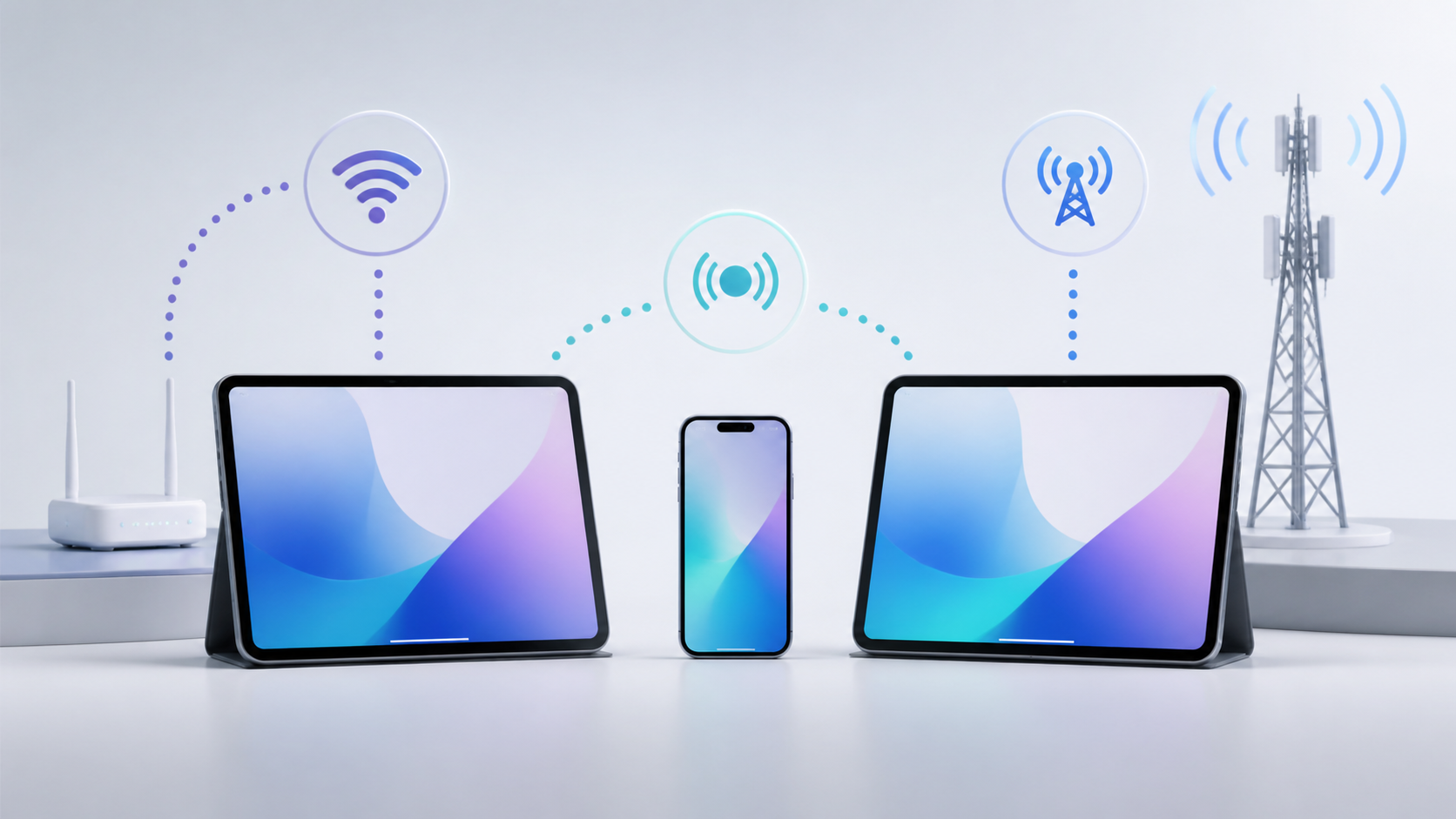
A Wi-Fi-only iPad doesn’t have built-in GPS. For built-in satellite positioning, choose an iPad sold as Wi-Fi + Cellular. You don’t need an active data plan to use its GPS receiver, but you do need to download maps ahead of time if you expect to drive without internet. A hotspot can get either iPad online; it doesn’t add a GPS receiver to the Wi-Fi-only model.
Which iPads have built-in GPS?
Check the Location section of the specs for the model you’re buying. Apple lists GPS/GNSS under Wi-Fi + Cellular for both the 11-inch iPad (A16) and iPad Air. For an older or used iPad, check that exact model and confirm the seller is offering the cellular version, not just an iPad that can join a hotspot.
| What you have | What to expect on the road |
|---|---|
| Wi-Fi-only iPad | You can view downloaded maps. Don’t rely on it to track your position away from known Wi-Fi networks just because a location dot appeared at home. |
| Wi-Fi-only iPad on a phone hotspot | You can load maps and online information if the hotspot has service. The iPad still doesn’t have its own GPS receiver. |
| Wi-Fi + Cellular iPad without a data plan | It has built-in satellite positioning. Download the map before leaving. Don’t expect live traffic or other updates when you’re offline. |
Apple’s Location Services explanation distinguishes satellite positioning from location estimates using nearby Wi-Fi and other signals. A location dot on a Wi-Fi-only iPad doesn’t prove the device has GPS.
Set up a cellular iPad for offline navigation
- On Wi-Fi, open Maps, tap your picture or initials, then choose Offline Maps > Download Map. Apple’s iPad offline map guide notes that downloads are available only in supported areas.
- Save the entire route, not just the destination. Include a little room for a detour. Check that Maps has permission to use your location under Settings > Privacy & Security > Location Services.
- Before leaving, test while parked: turn off Wi-Fi and turn off cellular data if it’s active. Open the saved area, check that Maps can find the iPad’s position, and start directions. If the position doesn’t appear, try a clearer view of the sky. Bring another way to navigate if you can’t confirm it works.
If you already have the Wi-Fi-only iPad, use a GPS-equipped phone for live directions and the tablet for the map or itinerary when stopped. If you’re still deciding what to buy, our Wi-Fi versus cellular tablet cost guide covers the separate cost of keeping a tablet online away from a hotspot.