
Google Maps can guide you offline after you download the area you need. For a road trip, save the full driving route before losing service, then test it without a connection. A downloaded map does not provide live traffic, and it does not stop other apps from using your phone plan.
Google and Apple instructions checked October 22, 2026. This guide covers the Google Maps phone app on Android and iPhone, not a car’s built-in map storage. It is documentation-based guidance, not a measured data-usage or navigation test.
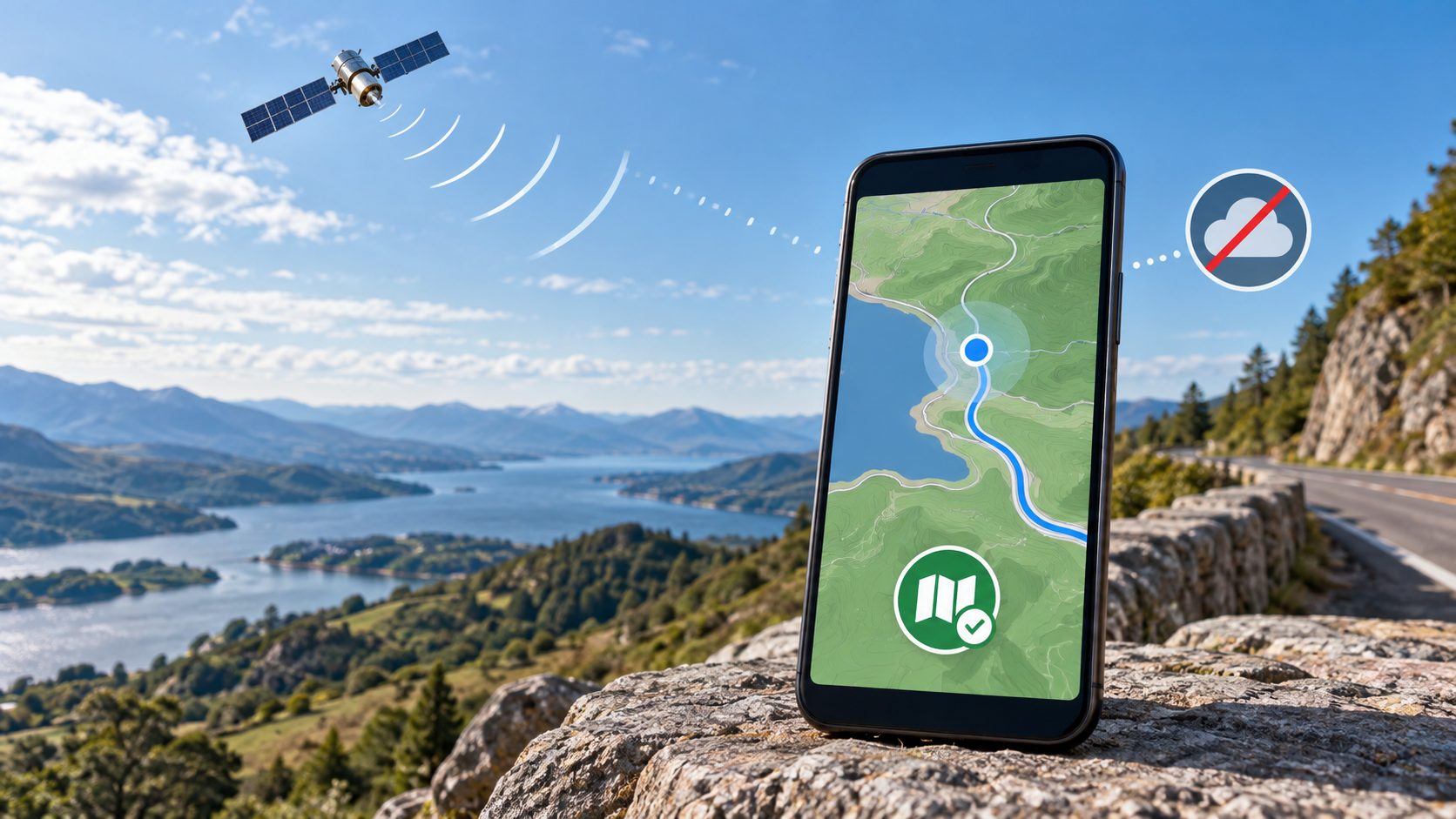
Download the area on iPhone or Android
Google’s offline-map walkthrough uses the same basic area-selection method on both platforms. Do this on a reliable WiFi connection before departure:
- Open Google Maps and tap your profile picture or initial.
- Open Offline maps, then Select your own map.
- Adjust the rectangle to cover the trip. Check the estimated download size.
- Tap Download and wait until the saved area is available.
- Reopen that area from the offline-map list to check its boundary before packing the phone away.
The current Android instructions require an internet connection and a signed-in account for downloading. On iPhone and iPad, Google says to leave Incognito mode. Downloads are unavailable in some countries or regions, so check your destination while you can still make another plan.
Choose an area around the journey, not just the destination pin. For a hypothetical airport-to-hotel trip, include the airport exit roads, the hotel entrance and nearby streets where you might stop for fuel. A tightly cropped city center is little help if the first part of the drive falls outside it. Check any separate overnight stop too.
Know what Google Maps can do offline
| What you need | Offline limitation |
|---|---|
| Driving directions | The entire route must fit within the downloaded area. |
| Live traffic and alternate routes | Unavailable without a connection. |
| Walking, cycling or public-transit directions | Unavailable offline in Google Maps. |
| Current road conditions | Do not treat a saved map as a live road report. |
This matters when a trip changes halfway through. A saved driving area is not a substitute for checking the bus home, and a road drawn on the map does not prove it is open now. Follow signs and closures at the location rather than treating the phone as the final authority.
Google’s walkthrough also warns that an offline travel-time estimate lacks live congestion information. Allow your own buffer for an appointment or flight instead of assuming the displayed arrival time includes current traffic.
A downloaded map does not turn mobile data off
Saving an area and disconnecting an app are different choices. Google describes offline maps as a fallback when the connection is slow or missing. If your goal is to prevent cellular use, check the phone’s data controls as well as the download. Review Google Maps’ download preferences before a large update; the current Android help places them under Settings, Offline maps.
On iPhone, Apple’s cellular-data settings let you disable cellular access for individual apps. Find Google Maps under Settings, Cellular and turn its access off if you want it to use WiFi for internet data. Leave Location Services available for navigation. Other apps can still use cellular data unless you restrict them separately.
On Pixel, Google’s mobile-data controls are under Settings, Network & internet, SIMs. Turning Mobile data off affects the whole connection, including other apps. App-level controls vary on other Android phones; do not assume an iPhone-style Maps switch exists on every model. Check the manufacturer’s settings before relying on one.
To check your own usage, note Google Maps’ app-data reading before a normal trip and compare it afterward for the same SIM and reporting period. iPhone lists app totals in Cellular; Pixel offers App data usage under SIMs. The carrier’s counter is the better reference for your billed allowance. Do not erase your existing statistics just to run this check, and do not use a high-data speed test as a substitute.
For international travel, downloading a map is only one part of the plan. Calls, other apps and the second SIM can still have their own charges. Compare travel eSIMs and carrier roaming before deciding which connection to keep active. Offline navigation alone does not make the whole phone free to use abroad.
Run a short offline check before leaving
Test somewhere familiar while stationary. The aim is to find a missing map or permission now, rather than beside an unfamiliar road. Do not change phone settings while driving.
- Record your current connection settings, then temporarily switch WiFi and mobile data off. This avoids confusing a working WiFi connection with an offline test.
- Keep location enabled and open a saved area. Ask for a short driving route inside its boundary.
- Check that the map, destination and route are available. A blue location dot by itself does not confirm a usable route.
- Restore whichever connections you need afterward. If the check fails, resolve it before relying on the download away from coverage.
Keep your accommodation address and an essential contact somewhere you can open without a connection. Carry a charger, and arrange another navigation option if a phone failure would leave you stranded. A map download is not a way to send a message or contact help.
Fix a missing map or a missing location separately
If the streets are missing or the route fails, first compare the requested journey with the saved boundary. Check that the download finished and that you selected driving directions. Reconnect somewhere suitable to update an expired area. Google says it tries to refresh expiring maps over WiFi when 15 days or less remain; check the saved map rather than assuming an automatic update succeeded.
If the map appears but the location dot is absent or wrong, use Google’s location-accuracy guidance for Android or iPhone. Maps combines satellite and network location information; buildings or underground areas can interfere. A gray dot can show the last location rather than your current position. Check location permission and follow the app’s accuracy warning instead of repeatedly downloading the same map.
On iPhone, Google directs you to Settings, Privacy & Security, Location Services, Google Maps. Allowing location while using the app is an available option; this guide does not require permanent background access. If the phone still cannot locate you in a suitable outdoor spot, stop depending on it until you have resolved the problem.
Need offline walking directions? Check another option
For an iPhone trip involving walking or transit, Apple Maps’ offline feature is worth checking before departure. Apple lists downloaded driving, walking, cycling and transit directions in supported areas on iOS 17 or later. Availability varies by region. Download and test the actual destination rather than assuming Google’s and Apple’s offline features match.
For a trip that needs live updates, you may still want a suitable data connection as a backup. Our mobile hotspot and fixed-internet comparison explains why portable data has different coverage and allowance limits. A hotspot cannot supply live updates where its own cellular network has no service. Keep the offline map, even if you also buy connectivity.