
A wireless printer can print without internet if it supports local printing and is already set up. Your phone or computer still needs a connection to it: home WiFi, WiFi Direct or a supported USB cable. Ricoh distinguishes wireless printing from internet access. But check your model’s requirements first. HP+, cloud services and some account-based setups have internet requirements that a local connection does not remove.
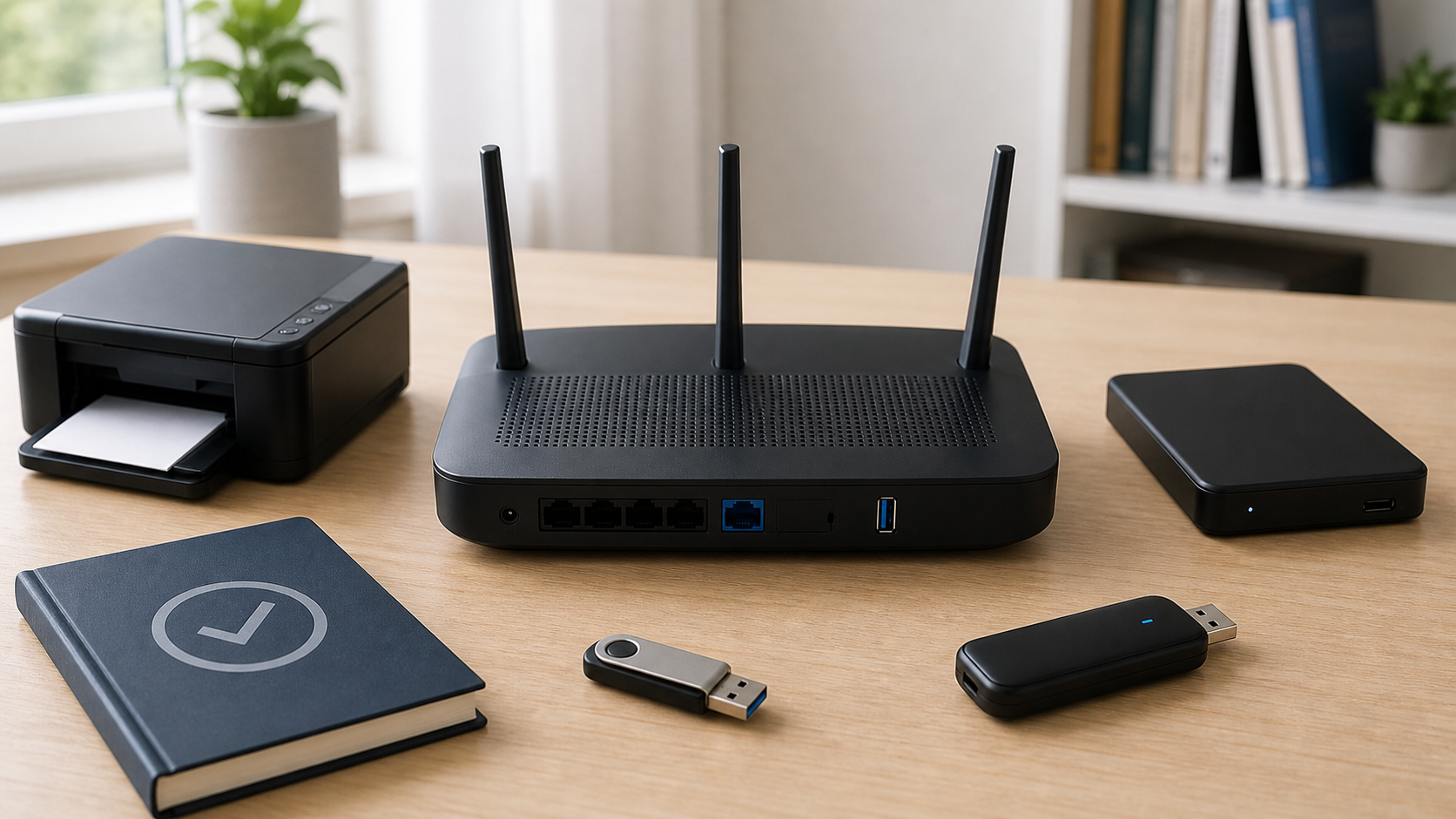
Internet and WiFi are not the same thing
Your router can keep a local network running even when the modem or internet provider is offline. A computer and printer connected to that router may still be able to find each other and exchange a print job. The outside internet is a separate connection.
| Connection | Can it print without internet? | What to check |
|---|---|---|
| Home router WiFi | Yes, if local printing is supported | Working local network, completed setup and no ongoing internet requirement |
| WiFi Direct | Yes, on supported models | Compatible device, printer password and locally available file |
| USB to a computer | Yes, on supported models | Correct data cable, installed driver and no account restriction blocking use |
| Remote or cloud printing | Not for a job that depends on an online service | Internet access to the service and any required account |
Check the manual for your exact model. Wireless is a broad label, not a promise that every connection method is included.
What can still work during an internet outage?
If the router’s local network still works, the printer supports local jobs and setup is complete, printing from a computer on that network may continue. A document saved on the computer does not itself need the internet to reach the printer. Router power alone is not enough: the printer must be reachable and its software must allow the job.
- Printing a locally saved document over the home network may work.
- WiFi Direct may work without the router or internet on a supported printer.
- A USB connection may work after the printer is installed on the computer.
- Scanning to a computer on the local network may work if the printer’s software supports a local path.
- A web page, cloud document or email attachment must be available on the device before it can be printed offline.
A faster internet plan does not improve a print job that travels only across the local network. If you are choosing service for streaming, calls and downloads, use the separate guide to home internet speed needs.
When a printer really does need internet access
Printers have added services that go beyond local printing. These features can depend on the internet even when the printer can handle a basic local job without it.
- Sending a job to the home printer while you are away
- Scanning directly to a cloud storage account or email service
- Downloading firmware, printer software or a new driver
- Completing account-based setup in a manufacturer’s app
- Using subscription supplies or service features that require account checks
- Printing a document that exists only in an online service
Some internet requirements are not just optional cloud features. HP’s HP+ FAQ lists an internet connection among its requirements. A WiFi Direct or USB port does not prove that an HP+ printer is suitable for ongoing offline use. HP+ and an Instant Ink subscription are also different services. Check the exact model and how it was activated rather than applying advice for a standard printer to every HP printer.
Option 1: Print through the home WiFi network
The printer joins the router’s WiFi, and phones or computers on the same trusted network can discover it. If that local network stays available during an ISP outage, it can still carry a print job. This depends on local discovery, printer support and completed setup, not just a WiFi symbol on the screen.
Apple’s AirPrint instructions require a supported printer and the sending device to be on the same WiFi network; AirPrint also supports compatible wired-network printers. On an iPhone or iPad, open the file, use Share or the app’s actions menu, choose Print and select the printer. Not every app includes a Print option.
If the printer is too far from the router, moving it or improving coverage can help discovery and reliability. Compare a mesh system and WiFi extender before buying hardware. Do not upgrade internet speed to fix a weak in-home printer signal.
Option 2: Use WiFi Direct without the router
WiFi Direct lets a compatible printer create a local wireless connection. The phone or computer joins that connection and sends the job directly, without your home router. HP’s WiFi Direct setup guide describes wireless printing without internet on supported printers. Check the instructions for your operating system and model; this does not override a printer’s separate HP+ or account requirements.
While connected to the printer’s WiFi Direct network, the sending device may lose its usual internet path. Download the file first. When printing finishes, reconnect the phone or computer to the normal home network if it does not switch back automatically.
Use the printer’s documented WiFi Direct name and password. Do not leave an open direct network active if the printer supports password protection. Menu names and setup steps differ by model.
Option 3: Keep a USB fallback
A USB cable gives one computer a direct path to a compatible printer. It can be the simplest fallback during a router problem, especially for a desktop computer beside the printer. The computer still needs a suitable driver or built-in operating-system support.
Not every printer includes a data cable, and not every mobile device supports USB printing. Confirm the printer port and cable type before buying an adapter. Install any required driver while internet is available. A printer connected by USB to a computer does not automatically become an AirPrint printer for your phone; Apple says AirPrint uses WiFi or a wired network, not a USB connection.
Why the printer is online but still cannot be found
Local printing fails when the sender and printer cannot see each other, even if both show a WiFi symbol. Check these points before blaming the internet provider:
- The phone or computer may be on a different WiFi name.
- The printer may have rejoined an old router or guest network.
- A guest network may isolate devices from one another.
- A VPN or security app on the sender may interfere with local discovery.
- The printer may have a new local address after a router restart.
- The print queue or printer software may be paused or offline.
Compare the WiFi names and use the printer’s network-status screen or report to check its connection. Only connect devices to a trusted network they are authorized to use. Keep intentional guest isolation, VPN requirements and firewall protections in place. If those rules prevent discovery, use an approved direct or USB method, or ask the network administrator. Do not expose the printer’s administration page to the public internet.
How to print during an internet outage
You do not need to disconnect household internet to prepare. While service is working, save a small document locally, confirm normal printing and find your printer’s direct or USB instructions. This checks the setup, but does not prove that every feature will work during an outage.
- During a real outage, keep the router and printer powered. Confirm that the local WiFi still works.
- Open the saved document rather than an online-only file. Check that it opens completely on your device.
- Try the operating system’s Print menu with the correct local printer selected. Check for a paused queue, paper or ink error.
- If local WiFi printing fails, use the model’s documented WiFi Direct method with its password, or a supported USB connection with an installed driver.
- If the printer reports an account or internet requirement, follow its manual or contact the manufacturer. Do not factory-reset it or bypass security protections.
A phone saying “no internet” on a printer’s direct WiFi network does not necessarily mean the print connection has failed. After printing, reconnect it to the usual home network. If no documented offline route works, keep the file and print when service returns.
Buying checklist for offline printing
- Does the exact model allow ongoing local printing without internet, not just offer a WiFi port?
- Is an account or online activation required, and is that requirement ongoing?
- Does it support WiFi Direct from your phone or computer?
- Is there a USB printer port and a driver for your operating system?
- Can your device’s local Print menu work without a cloud app?
- Which scan, fax, cloud and subscription features require internet access?
- Does it support AirPrint or the print service used by your devices?
- Can you install and save the required drivers before an outage?
Look for the exact model’s manual, not only a retailer’s wireless badge. Two supported local connection options are worth checking if offline printing matters to you, but they do not cancel an account or service requirement.
Frequently asked questions
Can I print if the router has no internet?
Often yes. If the router’s local network still works and both devices can communicate on it, a locally saved document may print. Cloud documents, remote printing and account services can still fail.
Can I use a wireless printer with no router?
Yes on a model that supports WiFi Direct or another documented direct connection. USB is another option for a compatible computer and printer. Check the model manual because support is not universal.
Why does the printer app say offline during an outage?
The app may depend on an account or cloud service even when the printer can accept a local job. Try the operating system’s local print menu, WiFi Direct or USB if the manufacturer documents those methods.