
Yes. FaceTime audio and video calls use internet data. A call carried over WiFi uses that network’s internet connection; a call over cellular uses your mobile plan. To work out how much FaceTime takes from your allowance, check your own iPhone’s app counter rather than treating an online MB-per-hour figure as a fixed rate.
This guide uses Apple’s current instructions, checked November 4, 2026. The usage example is hypothetical arithmetic, not a test result. Settings can differ by iOS version, carrier and whether you use one SIM or two.
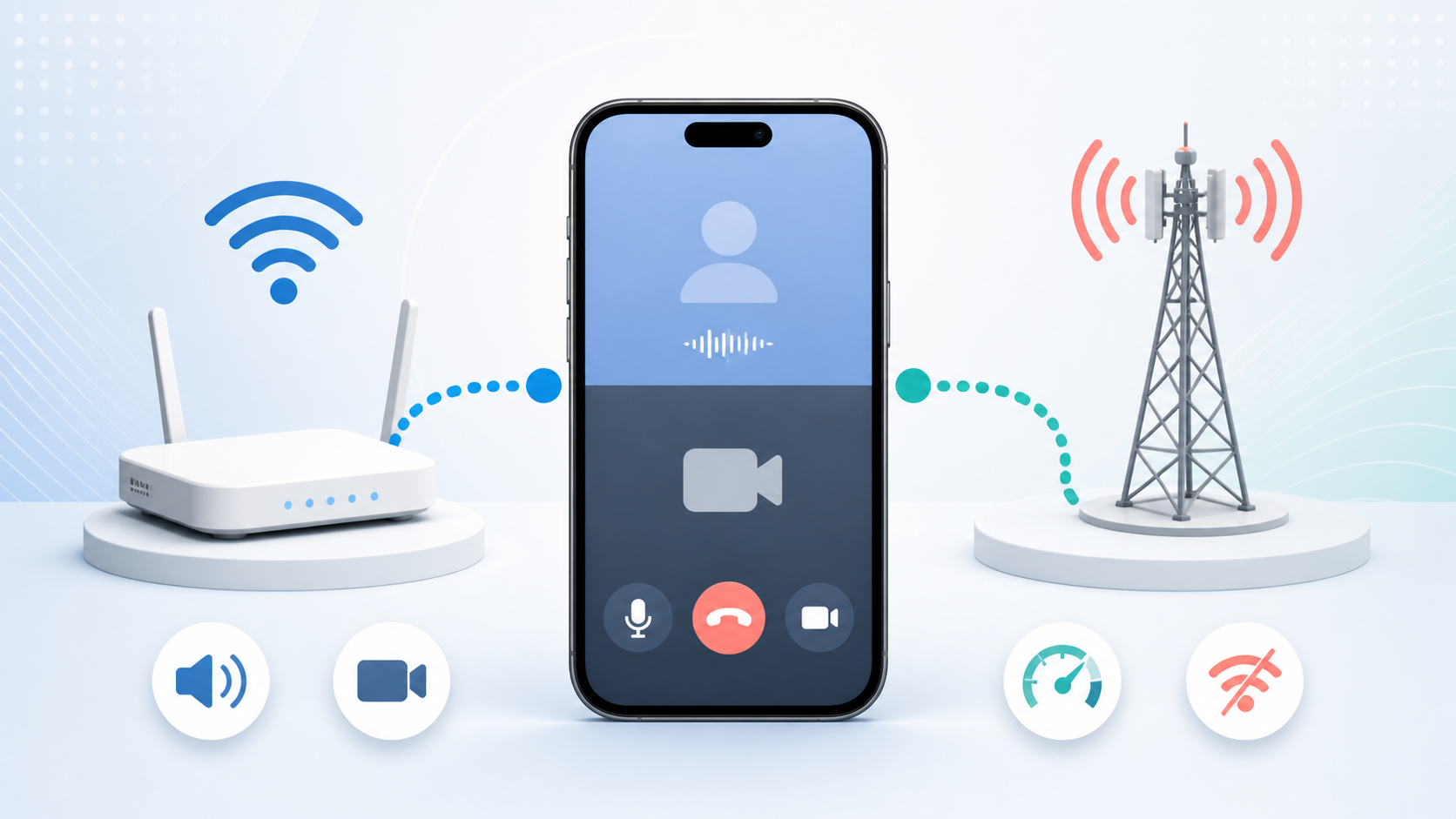
Does FaceTime use WiFi or cellular data?
Apple’s FaceTime calling guide confirms that calls need internet and can use cellular data. Starting FaceTime from a contact does not make it an ordinary carrier voice call. Check which call option you chose before comparing it with your phone plan’s calling allowance.
WiFi also does not necessarily mean home broadband. Apple’s Personal Hotspot explanation confirms that a hotspot shares the providing device’s mobile connection. An iPad or Mac on your phone’s hotspot can therefore consume the phone plan’s data even though the receiving device connected over WiFi. Check the supplying plan’s hotspot rules, not just the iPad’s cellular counter.
For a long call, identify the connection you intend to use before dialing. At home that might be your router; while traveling it might be a mobile hotspot or a roaming line. The person at the other end also needs their own working connection.
How to check FaceTime data use on your iPhone
Follow Apple’s cellular usage instructions. This counter measures cellular use, not the total internet traffic your calls generated over every connection.
- Open Settings, then Cellular. Some regions call it Mobile Data.
- Find the apps and services list, tap Show All if needed, and locate FaceTime.
- Read the cellular-data amount below the app.
- Check the statistics period and whether you have reset it since your billing period began.
- If using Dual SIM, confirm which number supplies cellular data. Compare the phone’s total with that line’s carrier meter.
A counter covering several months cannot tell you what FaceTime used this month. Apple provides Reset Statistics at the bottom, but save any totals you still need before resetting. You can also note two readings and subtract them without resetting anything. For accurate current-period billing usage, Apple directs you to your carrier.
Estimate an hour from a call you actually make
Record the FaceTime counter before and after an ordinary call, along with its duration. Only measure a cellular call if you intend to use mobile data and your plan allows it. There is no reason to spend roaming data just to run this check.
Label the sample as audio or video and avoid mixing several calls into one reading. Wait for the counter to update. If you switched connections halfway through, that sample does not represent a full call carried over cellular.
For example, suppose the counter rises by 90 MB during a 15-minute video call. That works out to 6 MB per minute, or 360 MB for an hour if the same rate continued. Using decimal units, a 1 GB budget would theoretically cover about 2.8 hours at that sample rate. These are sample calculations, not measured FaceTime performance.
Replace 90 MB with your measured change. Leave room for other apps and for your next call to behave differently. If you mostly make audio calls, measure audio separately instead of applying a video sample to them.
Reduce use without blocking every call
Check Data Mode before changing plans. Apple’s 5G settings documentation distinguishes the following options on supported iPhones and plans.
| Data Mode | What matters for FaceTime |
|---|---|
| Allow More Data on 5G | Allows higher-quality FaceTime and other higher-use features. |
| Standard | Uses standard quality for video and FaceTime. |
| Low Data Mode | Reduces background activity; FaceTime optimizes video bitrate for lower bandwidth. |
Apple’s Low Data Mode guide also explains the tradeoff: automatic downloads and backups can stop, and iCloud Photos updates pause. This is not a FaceTime-only setting, a hard data cap or a promise to save a fixed percentage.
For 5G, open Settings > Cellular > Cellular Data Options > Data Mode and choose Low Data Mode. With Dual SIM, select the relevant number first. LTE/4G options may show a direct Low Data Mode switch. For a particular WiFi network, use its information button in WiFi settings and enable Low Data Mode there.
If you do not need a picture, choose FaceTime Audio where available. A useful check is to compare similar calls before and after changing a setting, rather than changing several controls at once. If overall use rose after a network change, our guide to why data use can rise on 5G separates the network label from what your apps actually do.
Keep FaceTime off cellular when the allowance is tight
Apple’s FaceTime guide documents a direct control: open Settings > Cellular and turn off FaceTime under Cellular Data. FaceTime then needs WiFi on that iPhone. It will not keep working over the mobile plan when you leave WiFi, so tell anyone who relies on reaching you this way.
Also check Apple’s current Connectivity Assist setting if you expected WiFi to keep all traffic off cellular. It can use cellular data alongside weak or unusable WiFi. On current software it appears in Settings > WiFi and replaces Wi-Fi Assist, which was previously in Cellular settings. Apple says Connectivity Assist is not used while internationally roaming, in cellular Low Data Mode or with some third-party streaming apps. That is not a guarantee that all other roaming traffic stops.
For a strict mobile-data budget, use the per-app restriction rather than relying on a WiFi icon or Low Data Mode alone. Then watch the carrier meter over the next billing period. If FaceTime is only a small share of your total, investigate the larger apps before paying for a bigger allowance.