
A NAS can store and share files inside your home without internet service. The NAS, local network equipment and your device still need power and a working connection. Local access can continue during a provider outage if you have already configured it; cloud-dependent apps may behave differently.
Internet is still needed for remote access from outside the home, cloud backup or sync, online account services, downloads, and some apps. Check each feature instead of treating the NAS as fully offline or fully cloud dependent.
A NAS lives on your local network
NAS stands for network-attached storage. It is a storage computer connected to a local network, usually by Ethernet. Phones, computers, televisions, and other clients reach it through the router, switch, or access point inside the home.
TP-Link’s current home NAS explanation separates local file access from internet service. The files remain on the NAS rather than traveling to a cloud provider for every local read or write.
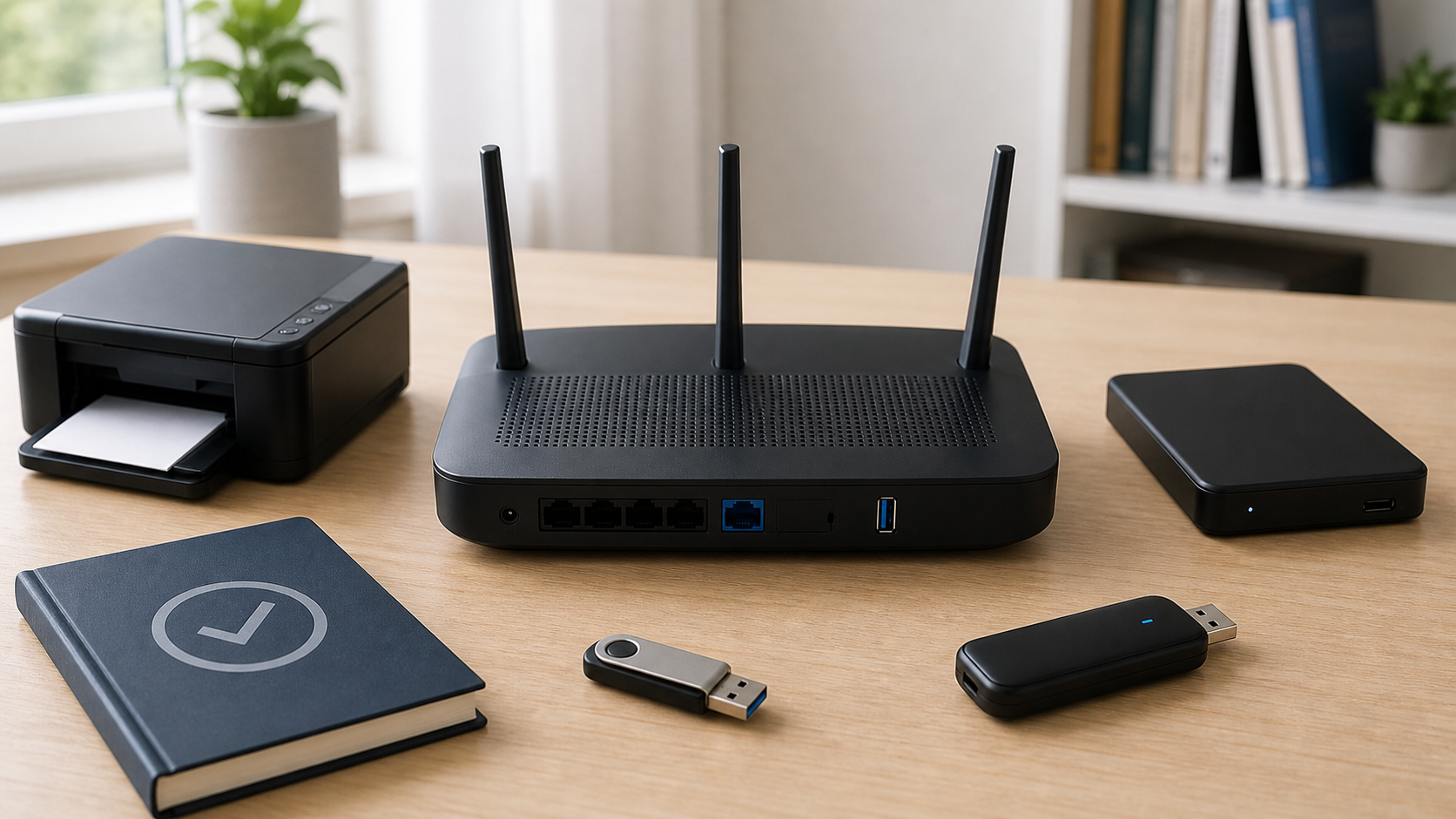
Some routers can share a USB drive, but that is a different storage option from a standalone NAS. Check the router’s supported storage features before treating it as a substitute.
What can work without internet
- Opening shared folders from a computer on the same network.
- Saving a local computer backup to the NAS.
- Copying photos or documents between local devices and the NAS.
- Playing locally stored media through a compatible local app.
- Opening the NAS administration page by its local name or address.
- Using local services that do not require a vendor account or outside server.
The exact result depends on the NAS software and the app on the client device. A television app may insist on an online sign-in even when the video file is local. Test the feature you care about with the internet path disconnected before relying on it.
What stops when internet service is down
- Remote access from a phone or computer outside the home.
- Cloud backup, cloud sync, and off-site replication over the internet.
- Vendor relay addresses and account portals.
- Package, app, security, and operating-system downloads.
- Online media metadata, streaming accounts, and web services.
- Notifications that travel through an outside push service.
Synology’s current external-access guide describes QuickConnect as a way to reach a NAS over the internet. That remote path is different from opening the NAS directly on the home network.
Internet outage, router outage, and power outage differ
| What failed? | Useful comparison |
|---|---|
| Provider connection | Try an already configured local file share. |
| Router or switch | Check the local path between the device and NAS. |
| NAS power or hardware | Check the storage device even if WiFi works. |
| One computer or phone | Compare another local client before changing the NAS. |
A strong WiFi signal does not prove that the NAS is reachable. WiFi only connects the phone or laptop to the local network. Check the NAS power, Ethernet link, network equipment, and client connection separately.
You can use WiFi even when the NAS uses Ethernet
Most home NAS units connect to the router or switch by Ethernet. A laptop or phone can still reach them over WiFi because the router bridges wired and wireless devices on the same local network.
QNAP’s QTS 4.4 NAS access documentation lists same-network browser access and shared folders through Windows Explorer or macOS Finder. Follow your installed version’s instructions. A wired NAS can serve wireless clients when their network permits local communication.
Does a NAS need a router?
A router is the easiest home setup because it supplies local addresses, connects wired and wireless devices, and gives the NAS an internet path when needed. The router can keep a local network running even when its provider connection is down.
A switch can connect several wired devices on the same network, but it does not automatically replace every router function. A direct NAS-to-computer cable can work with the right addressing and configuration, yet it is not the simplest choice for a household with several clients.
Initial setup may still need internet
The basic storage system may support local setup, but a new unit can need internet to download current firmware, install apps, register an optional account, verify a license, or fetch documentation. Some setup apps also look for the NAS through a vendor service before offering a local address.
Read the exact model’s setup guide before buying for an offline location. Confirm whether the installer, firmware file, desktop discovery tool, mobile app, and required licenses can be obtained in advance.
Save a reliable local access method
Bookmark the NAS local name or address after setup and map the shared folders on the computers that use them. Keep the administrator login separate from ordinary file-sharing accounts. Write down recovery information in a secure offline place.
A reserved local address in the router can make bookmarks and mapped shares more predictable. Follow the router and NAS manuals so you do not accidentally assign the same address to two devices.
Remote access needs a working outside path
Opening files from another home, hotel, office, or cellular connection requires internet at both ends. The home router must be online, the NAS must be reachable through the chosen service, and the remote device must also have internet.
Do not expose the NAS administration page or file-sharing ports because a random tutorial says to forward them. QNAP’s security guidance recommends avoiding direct internet exposure. Use a supported remote service or a properly maintained VPN gateway with suitable access controls. Apply official updates and stronger sign-in protection where supported.
A NAS is not automatically a backup
Moving the only copy of a file from a laptop to a NAS does not create a backup. Drive redundancy can keep a system running after some drive failures, but it does not protect every file from deletion, malware, theft, fire, electrical damage, or a bad update.
Keep another copy of important data on a separate device or approved off-site service. If the second copy uses cloud storage, that backup waits for internet even though local NAS access keeps working.
Plan for safe shutdowns
An internet outage does not remove power, but a household power outage can stop the NAS, router, switch, and client devices at once. Sudden power loss during a write can risk unfinished data or system problems.
If outages are common, check the NAS maker’s compatibility and shutdown guidance for a suitable uninterruptible power supply (UPS). Synology’s UPS documentation explains that Standby Mode stops services and unmounts volumes for safe shutdown. Battery power does not promise uninterrupted file access. Do not assume a router-sized battery can run a multi-drive NAS.
Test local access before an outage
- Choose a quiet time when nobody relies on internet calling, alarms or remote work. Do not interrupt updates, recovery or important backup jobs.
- Keep the NAS, router or switch, and client powered.
- Open the NAS by its supported secure local address or mapped share.
- Read a non-sensitive test file. Write a disposable test file and open it again.
- Only if you can identify a separate router WAN Ethernet cable, briefly disconnect that outside cable, leaving LAN and NAS cables connected. Do not unplug fiber or alter provider equipment; ask support if unsure.
- Repeat the local file tests, then reconnect the cable and check the normal connection and cloud jobs.
Do not pull a NAS power cable to simulate an internet outage. The goal is to remove the outside connection while keeping the local network and storage running normally.
When the router is the failed layer
If local access disappears whenever internet service fails, check whether the provider gateway also rebooted, lost power, or stopped its local network. A separate router may give you more control, but it does not solve a NAS power or configuration problem.
Use the router replacement checklist before buying new equipment. If the NAS is far from the router, compare wired paths with the Ethernet versus wireless backhaul guide rather than expecting the internet plan to improve local file transfers.
Questions to ask before buying a NAS
- Can setup and local access work without a vendor cloud account?
- Which phones, computers, televisions, and backup apps are supported?
- Can you download firmware and app installers for offline use?
- How will you reach the NAS locally if the vendor relay is down?
- Which features stop when internet service fails?
- How long does the manufacturer provide security updates?
- What separate backup will protect the files?
- Which drives, memory, UPS models, and network speeds does the maker support?
- Will remote access require a subscription or added service?
- Can the unit shut down safely during a longer power outage?
Before relying on offline access, test your actual file-sharing and media apps. Keep a supported local way to reach the NAS, a separate backup and a safe shutdown plan. An internet outage and a storage failure need different responses.