
Most trail cameras do not need home WiFi to take photos or videos. A standard model saves captures to a memory card for collection in person. A WiFi model may transfer files to a nearby phone, while a cellular model uses a mobile network and vendor service to send images remotely. The product name alone does not tell you which connection it uses.
Choose based on how often you can visit the camera, whether the exact location has cellular or home WiFi coverage, and what ongoing plan or storage costs you accept.
Compare how each camera gets photos to you
| Camera connection | How you collect photos | What to check before buying |
|---|---|---|
| Memory card only | Visit the camera and read or swap its card | Supported card, visit frequency and storage capacity |
| Direct WiFi to a phone | Stand within the camera’s local wireless range and use its app | Whether WiFi means a nearby phone connection rather than remote access |
| Cellular | The camera uploads through a mobile network to a vendor service | Coverage at the camera, regional model and transmission plan |
| Router or dedicated hub system | A supported home-network connection carries images to the app | Whether a separate hub is required and how it reaches your router |
Some products combine more than one path, but you should confirm every feature for the exact model. Terms such as wireless and connected are too broad to settle the question.
Standard trail cameras work without WiFi
A basic trail camera detects motion, records to a compatible memory card, and keeps waiting for the next event. You visit the site to swap the card, connect a reader, or view files on a built-in screen if the model has one.
This design avoids WiFi coverage and a transmission plan. It also means you cannot see new images from home. If the camera is stolen, damaged, or filled before your next visit, you may not have a remote copy.
Direct WiFi may work only when you are nearby
Some trail cameras create their own short-range WiFi connection. You stand near the camera, connect the phone to that network, and use the manufacturer’s app to review or transfer files. The camera does not need to reach your home router for this local exchange.
For example, GardePro’s E8 2.0 product FAQ says this model uses its own Bluetooth and WiFi hotspot for direct app connections and does not join a home WiFi router. Its WiFi connection does not require a transmission subscription. That describes this model, not every camera sold as wireless.
Direct WiFi is not remote internet access. Once you leave the camera’s usable range, the phone cannot keep collecting new images through that local link. Check whether the app needs internet for sign-in, setup, maps, firmware, or account functions.
Check whether home-network access needs a separate hub
Do not assume that a WiFi label means the camera connects directly to your router. GardePro’s Link 1.0 connection instructions, for example, describe cameras that communicate through a dedicated Hub. The Hub connects to the home router by Ethernet; the cameras cannot connect directly to home WiFi.
If another model’s manual explicitly supports joining a normal WiFi network, check its supported band, security mode and usable coverage at the camera. For a hub system, check the camera-to-hub link and the hub’s power and router connection separately. Trees and buildings can limit an advertised wireless range. Do not weaken router security to make a camera connect. The router and placement checklist helps when other devices also struggle with the home network.
Cellular cameras do not use your home WiFi
A cellular trail camera connects to a mobile network near its installation site. SPYPOINT’s current cellular transmission explanation says its camera stores captures on the memory card and later sends them through the cellular network to SPYPOINT servers, where the app can retrieve them.
That example explains the path but does not define every brand. A cellular camera may use an embedded connection or another supported SIM arrangement. It may also send previews differently from original files or video. Read the exact manual and plan terms.
A cellular camera also may not offer WiFi as a fallback. Reolink’s 4G camera support guide lists KEEN Ranger PT among models that use cellular service and cannot connect to WiFi. Confirm this before buying for a location with weak mobile reception.
Test coverage at the exact installation spot
A coverage map is a starting point, not a field result. Trees, slopes, buildings, distance from a tower, network changes, and camera placement can affect the link. Confirm which mobile networks the camera can use in your country and test the device where it will remain.
Your phone’s carrier does not automatically have to match the camera’s service. The camera’s own supported network and plan determine its connection. Check return terms before mounting it permanently in a marginal location.
Understand what happens when cellular service disappears
Some cellular cameras can continue recording to local storage while they cannot upload, but that behavior is model specific. Ask whether unsent captures queue for later transmission, whether settings remain available locally, and how the camera reports a failed connection.
Do not equate a missing app image with a failed camera trigger. The local recording path, radio connection, vendor cloud, phone internet, and app account are separate stages.
Check the data plan before buying
Cellular products may require activation and a transmission plan. Compare the number or type of uploads, video handling, original-file requests, overage rules, renewal, cancellation, and whether each camera needs its own plan.
Save the current plan page and order summary. The word unlimited may describe only part of a service, so use the unlimited data-plan checklist when a vendor applies that label.
Separate transmitted previews from stored originals
The image shown in an app may be a smaller transmitted copy. The memory card may hold a different photo or video file. Ask which version arrives automatically, whether a full-resolution request costs data or battery, and what happens if the card is missing or full.
Use the memory-card type, capacity, speed class, and formatting process listed by the manufacturer. A physically fitting card is not necessarily supported.
Plan for battery and solar limits
Wireless transmission uses power in addition to sensing and recording. Battery life can change with upload frequency, signal quality, temperature, night illumination, video use, event activity, and settings. Manufacturer estimates may use conditions unlike your location.
A solar accessory may reduce service visits, but it does not remove the need for compatible batteries, suitable placement, weather protection, and periodic checks. Use only power equipment approved for the exact model.
Do not use a phone hotspot as a permanent shortcut
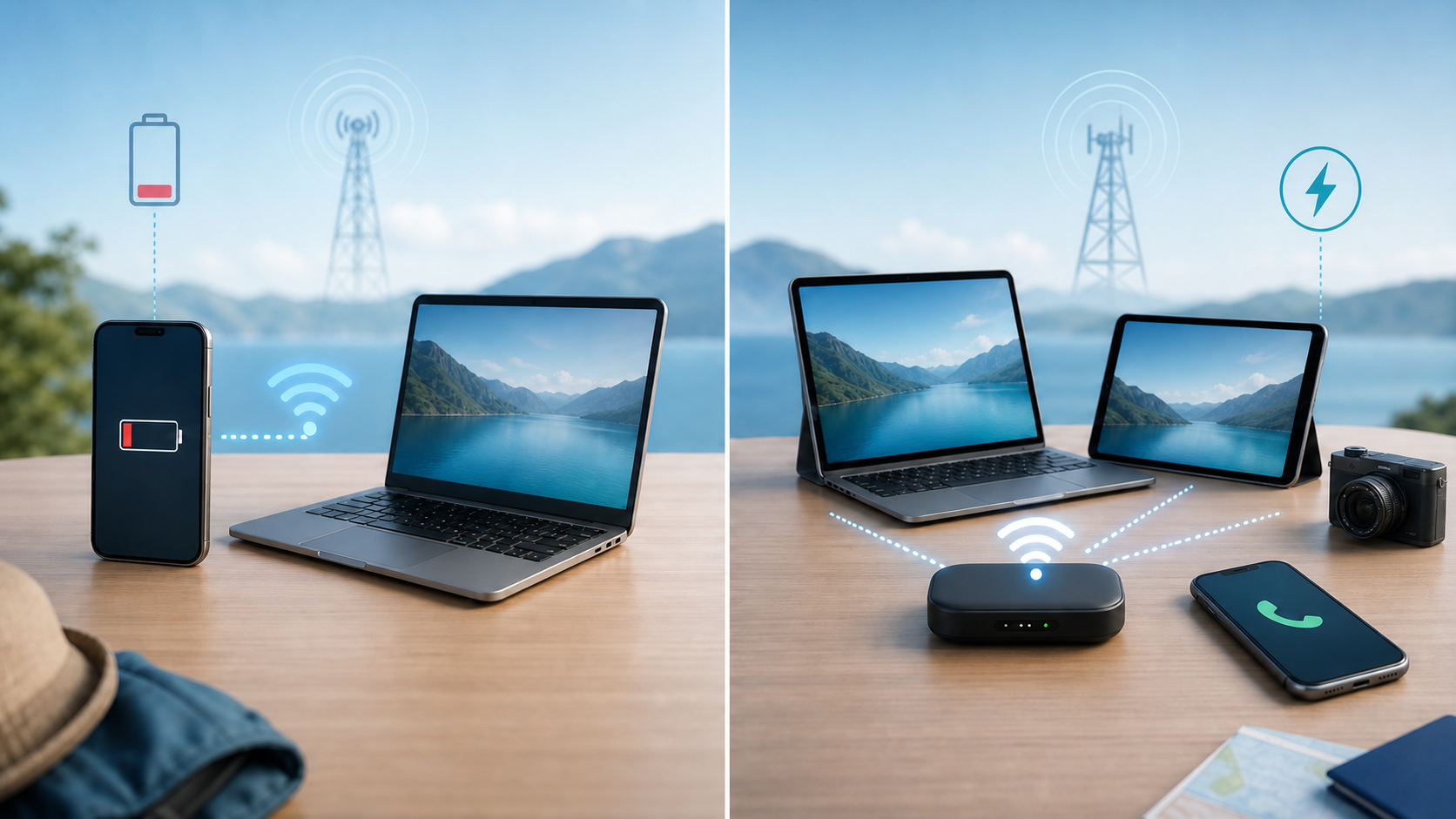
A phone hotspot can help with a brief setup or comparison if the manual supports normal WiFi. It is rarely a practical permanent connection because the phone must stay nearby, powered, within its data policy, and configured to keep the hotspot active.
A cellular trail camera is different. Its own radio reaches a supported mobile network without leaving your phone at the site.
Match the camera to the job
- For a garden you visit often, local memory or direct phone WiFi may be enough.
- For a distant cabin, compare supported cellular coverage and plan costs before choosing remote uploads.
- For a property near your home network, a compatible hub system may be another option. Confirm its wiring and wireless coverage.
For a yard or building, also compare a trail camera with a purpose-built security camera. Security products may handle continuous power, alerts, local recorders, multi-camera viewing, and account access differently.
Protect privacy and follow location rules
Point the camera only where you have permission to record. Avoid neighboring homes, private areas, public paths, and locations where people reasonably expect privacy. Rules for hunting, public land, wildlife research, signs, audio recording, and camera placement vary by location.
Check the current landowner and local authority rules rather than relying on a forum answer. Secure the vendor account with a unique password and multi-factor authentication when available. Do not publish precise coordinates for a private property, vulnerable animal, or valuable equipment.
Mount and service it safely
Use the manufacturer’s mount on a stable location you can reach safely. Do not climb an unstable ladder or mount near utility lines to improve signal. Check weather rating, operating conditions, attachment rules, and theft protection for the exact site.
Bring a spare supported memory card and batteries during service visits. If the manufacturer provides a test mode, follow its instructions to check framing and connection. Use your own phone for setup, review account access, and remove personal test photos you do not want to retain.
Use this buying checklist
- Does it record to a memory card without any connection?
- Does WiFi mean nearby phone access or a home router?
- Which cellular networks and countries does the exact model support?
- What arrives in the app, and what stays only on the card?
- What plan, activation, renewal, and cancellation rules apply?
- What happens when service is lost or the card is full?
- Which memory cards, batteries, and power accessories are approved?
- Can you test coverage before the return period ends?
- Do landowner, privacy, hunting, or public-land rules affect placement?
Before paying, find the manual’s answer to one question: how will you get new photos when you are away from the camera? Nearby WiFi, cellular uploads and a router-connected hub solve different problems. Confirm the retrieval method, then check coverage and ongoing costs.
Sources and model examples
This is a connection guide based on manufacturer documentation checked on October 11, 2026, not a hands-on camera test or product ranking. GardePro examples use its UK product pages; supported hardware, services and plans can differ by market.