
Most game controllers do not need WiFi to send button presses to a nearby console, computer, phone or tablet. They usually connect through a cable, Bluetooth, a USB receiver or a console-specific wireless link. The game or service may still need internet for online multiplayer, cloud streaming, downloads, sign-in or updates.
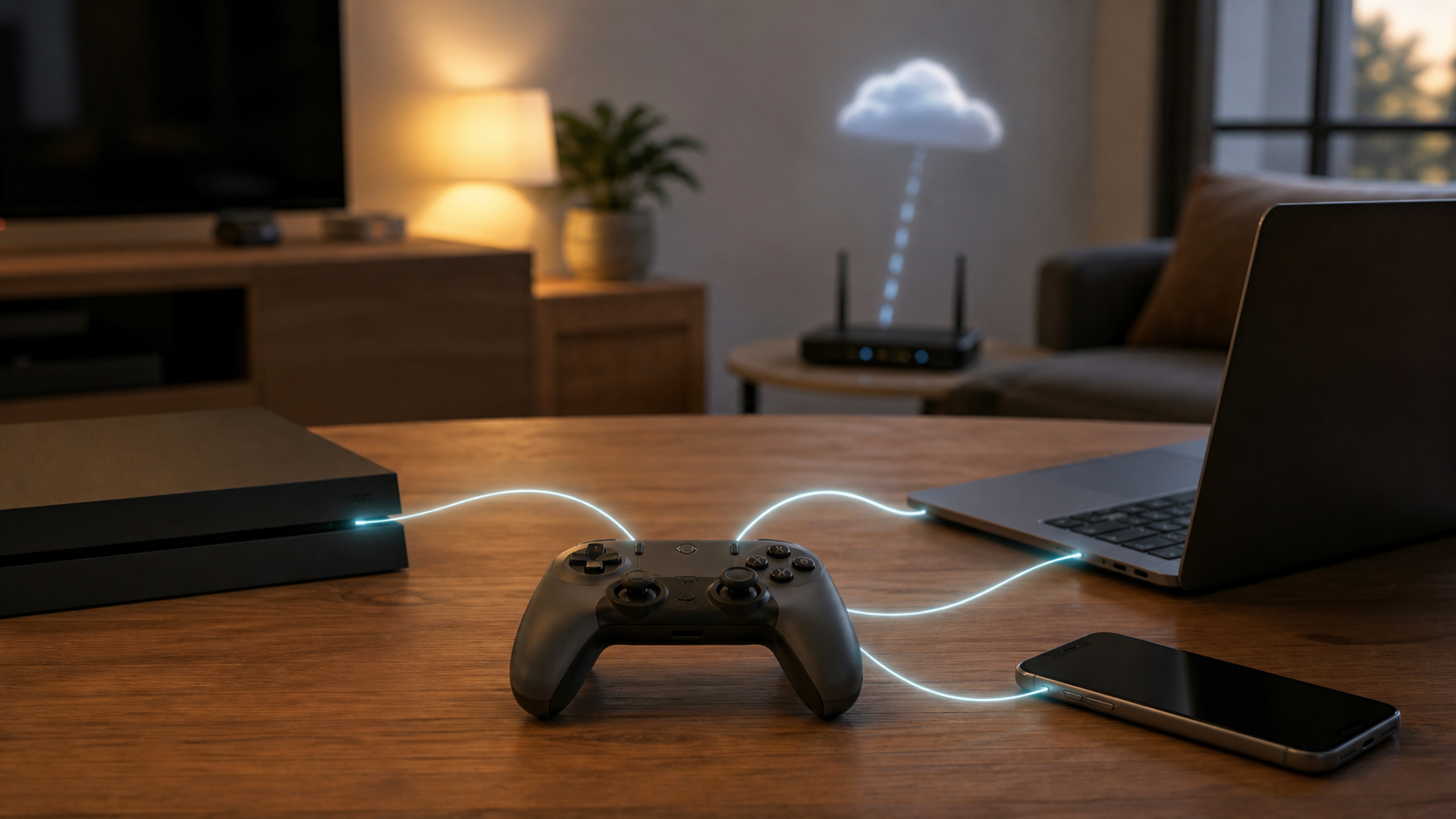
The controller connection and internet connection are separate
A controller sends local input to the device running the game. WiFi usually connects that device to the router and internet. Losing internet can stop an online match while the controller remains paired and responsive in the console menu.
| Controller connection | Needs home WiFi for input? | What to verify |
|---|---|---|
| Wired USB | No | The controller, device and cable support data, not charging only |
| Bluetooth | No | The host supports that controller and its required features |
| USB wireless receiver | No | The receiver is compatible with the controller and host |
| Console-specific wireless | No home WiFi in normal local use | The controller is supported by that console |
| Cloud-linked or unusual model | Possibly | Read the exact product and service requirements |
When a controller works without internet
A compatible controller can usually navigate local menus and control an installed game without internet when the console, computer or mobile device supports offline use. Wired and Bluetooth controllers are direct examples. PlayStation documents both Bluetooth and USB connections for DualSense controllers on supported devices.
That does not guarantee that the game will launch offline. A downloaded title, subscription catalog, account or license may have its own rules. Test the complete setup before a trip or planned outage.
For example, PlayStation’s PS5 Console Sharing and Offline Play guide describes how purchased and downloaded games can be available offline on an enabled console. That setting is separate from pairing a controller, and it can be enabled on only one PS5 at a time. Check your existing setup before travel. Do not deactivate a family’s other console just because a controller will not connect.
When the game still needs internet
- Online multiplayer needs a path to the game service. Local multiplayer may have different requirements.
- Internet cloud gaming streams the game from a remote service, even if the controller connects to your phone over Bluetooth.
- New downloads and online updates need a connection. A game installed from other media can have its own installation requirements.
- Some accounts, subscriptions or licenses require an online check.
- Online voice chat, cloud saves and online leaderboards depend on their services.
The controller may be working perfectly in all of these cases. Check whether it can move through a local menu. If it can, troubleshoot the game or network path instead of pairing the controller again.
Bluetooth controllers do not use your WiFi password
A standard Bluetooth pairing happens in the console, computer, phone or tablet’s Bluetooth or controller settings. You do not enter the home’s WiFi name or password into the controller. Apple documents direct Bluetooth pairing for compatible wireless game controllers on its devices.
Bluetooth support alone does not prove game compatibility. The host operating system must recognize the controller, and the game must support it. Some controller functions may also work only with certain devices, games or connection types.
Check the features you actually need, not just whether the controller appears as paired. PlayStation lists DualSense haptic feedback on PC as requiring USB and support from the game; the same feature is not supported on Mac or mobile devices in that guide. A cable can change feature support without changing the game’s internet requirements.
A USB cable can be the simplest offline option
A wired connection avoids wireless pairing and does not need WiFi. It can also help when a controller has lost its saved console pairing. However, not every charging cable carries data, and not every controller supports wired play through its charging port. Confirm both points before relying on a cable.
Apple’s Mac guide covers compatible controllers through Bluetooth or a wired connection. Other hosts have their own support lists and adapter requirements. Test button presses in the game, not just whether a charging light appears. If the battery charges but input does not work, check the cable’s data support, the port and the controller’s wired-mode instructions.
Console wireless is not necessarily your home WiFi
Some consoles use their own local wireless method for controllers. The console can therefore lose its internet connection while the controller stays connected. A controller’s wireless label does not tell you which radio it uses, so check the manual instead of trying to add every controller through the router.
There are model-specific exceptions
A used Stadia Controller is a reason to check firmware before buying. Google’s Stadia Controller connection guide says wireless use with other services requires the Bluetooth-mode firmware change; USB can work without that conversion. The Stadia service shut down in January 2023. Do not assume that an unconverted controller can use its original WiFi service, or that you can convert it now just because an old guide shows the steps. Ask the seller to demonstrate Bluetooth operation on a supported device.
The Stadia hardware specifications also distinguish wireless input from headset audio: its headset jack does not work over Bluetooth. This is a model-specific limitation, not a rule for every controller.
Check the exact model before pairing
Read the model number on the controller, then find its official host and connection list. A USB receiver, Bluetooth radio and WiFi adapter are not interchangeable. If the controller needs its own receiver, check whether that receiver is included and supported by your computer. Do not buy an unrelated dongle just because its plug fits.
Third-party controllers may follow a different process from the console maker’s controller. A familiar button layout does not prove that pairing, audio, motion, vibration or remapping will work.
If the controller will not connect offline
- Charge it with the maker-approved method.
- Confirm the correct console, computer or mobile mode, including the selected device slot if it has one.
- Disconnect this controller from its previous host if that host keeps reclaiming it. Keep a touchscreen, remote or another working control available before forgetting a pairing.
- Use the documented pairing sequence for the intended host. Button combinations and indicator meanings vary.
- Try a known data-capable cable if wired play is supported.
- Check whether a required firmware update was missed before going offline. Get updates from the maker, not an unofficial driver or flashing tool.
Do not reset the router just because a controller will not pair. If other devices still have internet and the controller uses Bluetooth or USB, the router is not the first place to look.
Test offline play before travel
- Install the game and finish any required supported updates while you still have internet.
- Pair the controller and test the buttons and features you need. Keep another control method available.
- Prepare a compatible data cable or receiver as a fallback. Open the game under the account you will use and check the platform’s offline-use instructions.
- Save your progress and close online sessions. Do not interrupt a download, update, call or remote session to run this test.
- Disconnect this device from internet using its supported network controls. Check Ethernet and cellular data as well as WiFi, and leave Bluetooth on if the controller needs it. Do not switch off a shared router or use airplane mode if it also disables Bluetooth.
- Restart the game device if safe, launch the title again and test actual play, not just its opening menu. Restore the internet connection when finished.
This test checks the controller, game, account and license together. A controller-only test cannot prove that an online-dependent game will work away from home.
Buying questions that prevent the wrong controller
- Does the exact controller support my console, computer, phone or tablet?
- Does it use Bluetooth, a receiver, a cable or console-specific wireless?
- Is the required receiver included?
- Does wired mode carry input or only charge the battery?
- Which features are unavailable on my platform?
- Can firmware updates be installed without owning another device?
- Does the game I want support controllers on this platform?
For an online-only game or cloud service, controller compatibility is only half of the purchase decision. Check the service’s connection requirements and your plan. An unlimited internet plan may still have policy details worth reading.
Do you need a new router for a controller?
Not for a controller that connects locally through Bluetooth, USB, a receiver or console wireless. Consider the router only when the actual problem is online play, downloads, cloud gaming or another internet service. Before spending money, use the checks in Do I Need a New Router? to separate router faults from the device, service and internet connection.
Sources and scope
This guide explains connection and offline-use checks using the linked PlayStation, Apple and Google support documents. It is not a hands-on controller review or a promise that every game works offline. Check the controller, host device, game and account requirements for your own setup before buying or traveling.