
Most digital cameras do not need WiFi or internet to take, save or review photos. A conventional compact camera, DSLR or mirrorless camera records images to its memory card or supported internal storage. WiFi is useful for extras such as phone transfer and remote control, not for the camera’s ordinary shutter button.
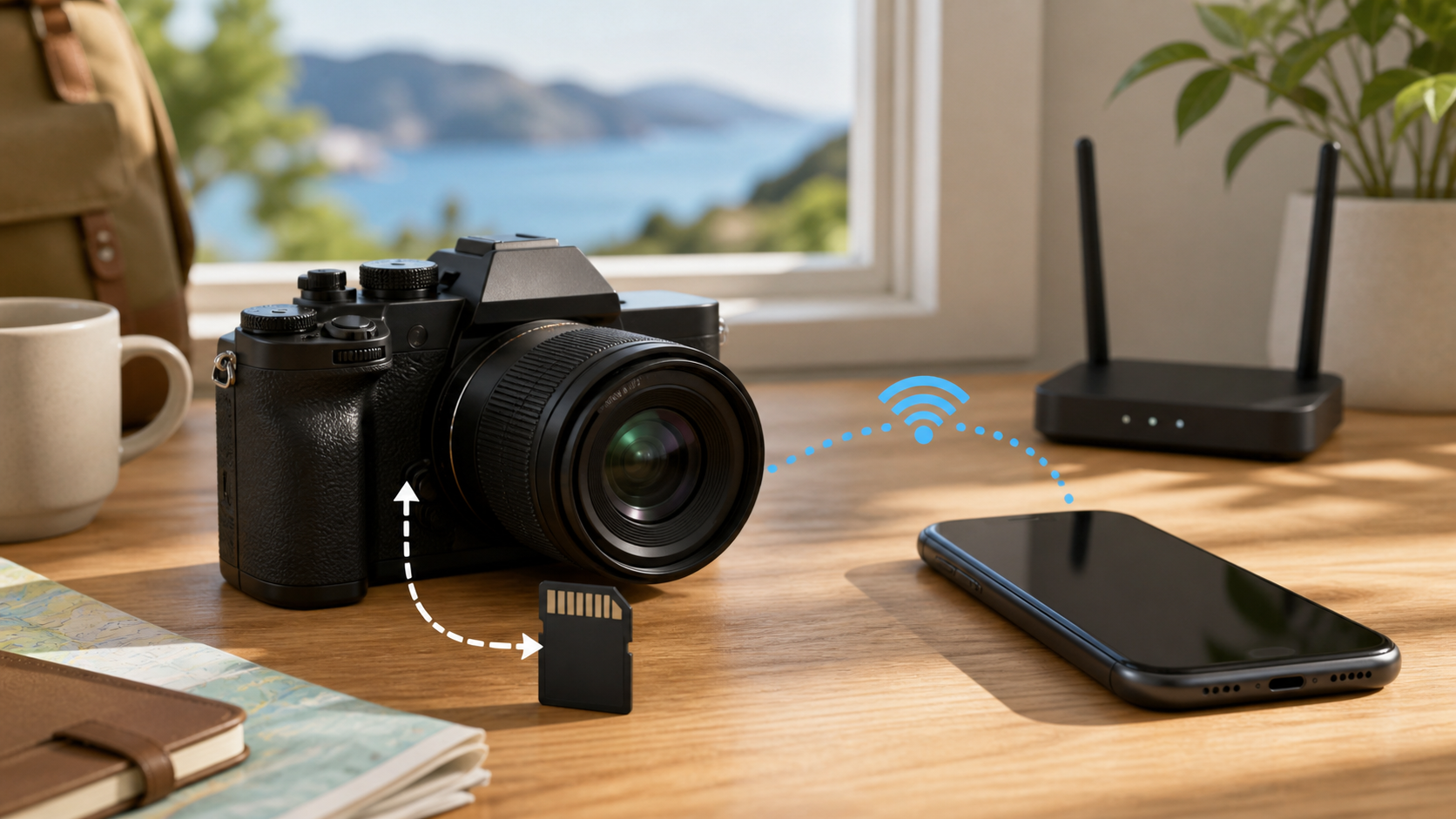
This guide covers ordinary photography cameras, not home security cameras, webcams or dash cams. A wildlife camera has a different setup; see our trail-camera local and remote photo guide for that distinction. For a camera you carry on holiday, check shooting, file transfer and online sharing as separate tasks.
What works without WiFi
| Camera task | Needs WiFi or internet? | What to check |
|---|---|---|
| Take and review local photos | No, on a conventional camera | Battery, storage and local controls |
| Record video locally | No, if the model supports that recording mode | Card requirements and storage |
| Copy files with a card reader or USB | No internet for the copy itself | Reader, cable, import mode and file support |
| Transfer directly to a phone wirelessly | May use local WiFi or Bluetooth without home internet | Exact camera, app and phone support |
| Use phone-based remote live view | Needs the camera’s supported local connection | Available controls and connection method |
| Upload to a remote cloud service | Internet required, through WiFi or another supported path | Account, service availability and upload completion |
You can take photos with no internet
The sensor, shutter, lens controls and storage are local parts of the camera. Once a charged battery and compatible memory card are installed, an ordinary digital camera can keep working without a router, phone plan or online account.
Before buying a screen-free or app-controlled model, verify whether first setup, settings changes and image review work without a phone or online account. Do not assume a product has all of a conventional camera’s local controls just because the listing calls it a digital camera.
The memory card matters more than WiFi for shooting
Check the manual’s card type, capacity and recording-mode requirements. A card that cannot keep up with a selected video mode is a storage problem, not proof of weak WiFi. Follow the exact camera’s setup instructions if it requires formatting, and back up everything important first: formatting erases the card. Do not format a working card merely because wireless transfer has failed.
Bring a spare card for travel and confirm that the camera can read it before leaving home. Wireless transfer is useful, but it is not a substitute for reliable local storage.
What WiFi does on a digital camera
Camera WiFi can create a direct connection to a phone rather than join your home router. Nikon’s built-in camera WiFi guide explains that supported cameras and phones can make their own connection without a hotspot. It also distinguishes apps for different camera models, so check the manual before installing one.
Sony’s Imaging Edge Mobile features include photo transfer, remote control and phone-supplied location information on supported cameras. That is not a promise that every Sony camera uses this app or supports every feature. The camera-to-phone WiFi link can carry files and commands without supplying an internet connection to the phone.
Bluetooth and WiFi are different features
Bluetooth and WiFi are different local connection methods. A camera’s Bluetooth badge does not guarantee that it can transfer full-size photos or show remote live view over Bluetooth. Check the exact camera and app’s feature list rather than treating either radio as a universal phone-transfer feature.
Grant only the permissions needed for the feature you plan to use. If location tagging is unimportant, check whether the camera app can work without continuous location access.
Transfer photos without WiFi
A compatible card reader gives you a transfer route without pairing a camera app. Wait for the camera to finish writing and follow its power-off and card-removal instructions before taking the card out. Check that the reader and destination device support the card and the photo or video format. Keep the original files until you have opened and checked another copy.
Many cameras also support USB import. Use a cable that carries data, not charging only, and the camera’s documented import mode. Apple’s Photos on Mac camera-import instructions describe connecting a camera, selecting the appropriate mode and importing its images. Choose to keep the originals during your first test rather than deleting them after import. A local USB copy does not itself need internet, although acquiring new software or uploading those files later may.
Phone transfer can work without home internet
Sony’s original ZV-E10 transfer guide, for example, describes using Imaging Edge Mobile to select images saved on the camera after connecting the devices. This is an example for that camera, not instructions for the ZV-E10 II or every newer model.
The image copy can be local while other tasks need internet: getting a new app from an online store, signing in to an online service, downloading new firmware or sharing to the cloud. Set up and test the supported app before a trip. Check the transferred file’s dimensions and format, since a phone copy may be smaller than the original on the card.
Cloud backup does need an internet path
A camera cannot upload to a remote cloud service without reaching the internet, either directly or through a phone or computer. Local shooting can continue on a conventional camera while the cloud is unavailable. If you use a phone hotspot for uploads, check its allowance rather than assuming an unlimited internet plan includes unlimited hotspot data.
Do not treat a cloud copy as your only backup until you verify that the full files arrived. Keep the card until you have checked another copy on a separate device.
WiFi does not automatically mean GPS
A WiFi badge does not guarantee GPS. Sony describes phone-supplied location information for cameras with a compatible linkage feature. Check the exact model and whether the phone must stay connected. If you do not want location attached to your photos, review the setting before sharing them.
Should you pay extra for camera WiFi?
Built-in wireless is useful if you often send a few photos to a phone, use remote framing or want automatic location linking. It matters less when you import everything through a card reader and edit on a computer.
Compare the app as well as the camera specification. Check recent phone support, file formats, original-size transfer, video limits and whether the feature works without an account. A WiFi logo alone says little about the quality of the workflow.
Prepare a camera for travel without WiFi
- Charge the battery, pack the approved charger and test a compatible card.
- Check the date, time and image format.
- With the camera’s wireless functions disabled as its manual allows, take a photo and review it on the camera. This checks local shooting separately from phone transfer.
- Install and pair the official phone app before leaving if you need wireless transfer. Check whether your required file type and original size can transfer.
- Test your alternative USB cable or card reader with an actual photo, keeping the original on the card. Open the copied file on the destination device.
- Confirm that any copy you rely on is complete before reusing the card. A thumbnail is not proof that the full original has been backed up.
Follow airline crew and venue instructions about electronic devices and wireless radios. Test only your own camera and phone; do not switch off the shared router to simulate an outage or interrupt a firmware update for the test.
When camera WiFi will not connect
Confirm that the app supports the exact camera and phone software, then follow the maker’s pairing instructions. Remove an old pairing only if you can set it up again. Review the documented Bluetooth, local-network and photo permissions for the feature involved. On a managed phone, ask IT rather than removing a required VPN or changing security policies.
A phone may warn that the camera network has no internet. That can be normal for a direct connection: verify the network name and follow the camera manual rather than assuming the home broadband has failed. Finish the local transfer, then return to your normal network. Do not enter a camera password on a public sign-in page or install an unofficial app to bypass a connection error.
Sources and scope
- Nikon guide to built-in camera WiFi
- Sony Imaging Edge Mobile features and compatibility limits
- Sony original ZV-E10 phone transfer help
- Apple Photos on Mac camera-import guide
This guide uses the linked manufacturer and software documentation, not hands-on tests of every camera or a ranking of camera apps. The Nikon overview was revised in June 2022; its connection explanation is useful, but do not treat its model and app lists as a current buying compatibility guarantee. Check the exact camera manual and current app support before relying on wireless features.