
No. An AirTag does not join your home WiFi and does not contain a cellular plan or SIM. It sends a Bluetooth signal. A nearby device participating in Apple’s Find My network can detect that signal and relay the location to iCloud, where the owner sees it in Find My.
The tag can therefore be far from your router while its location appears in Find My. That is not continuous live tracking. A fresh report depends on a nearby participating device and its connection, not on a WiFi password stored in the tag.
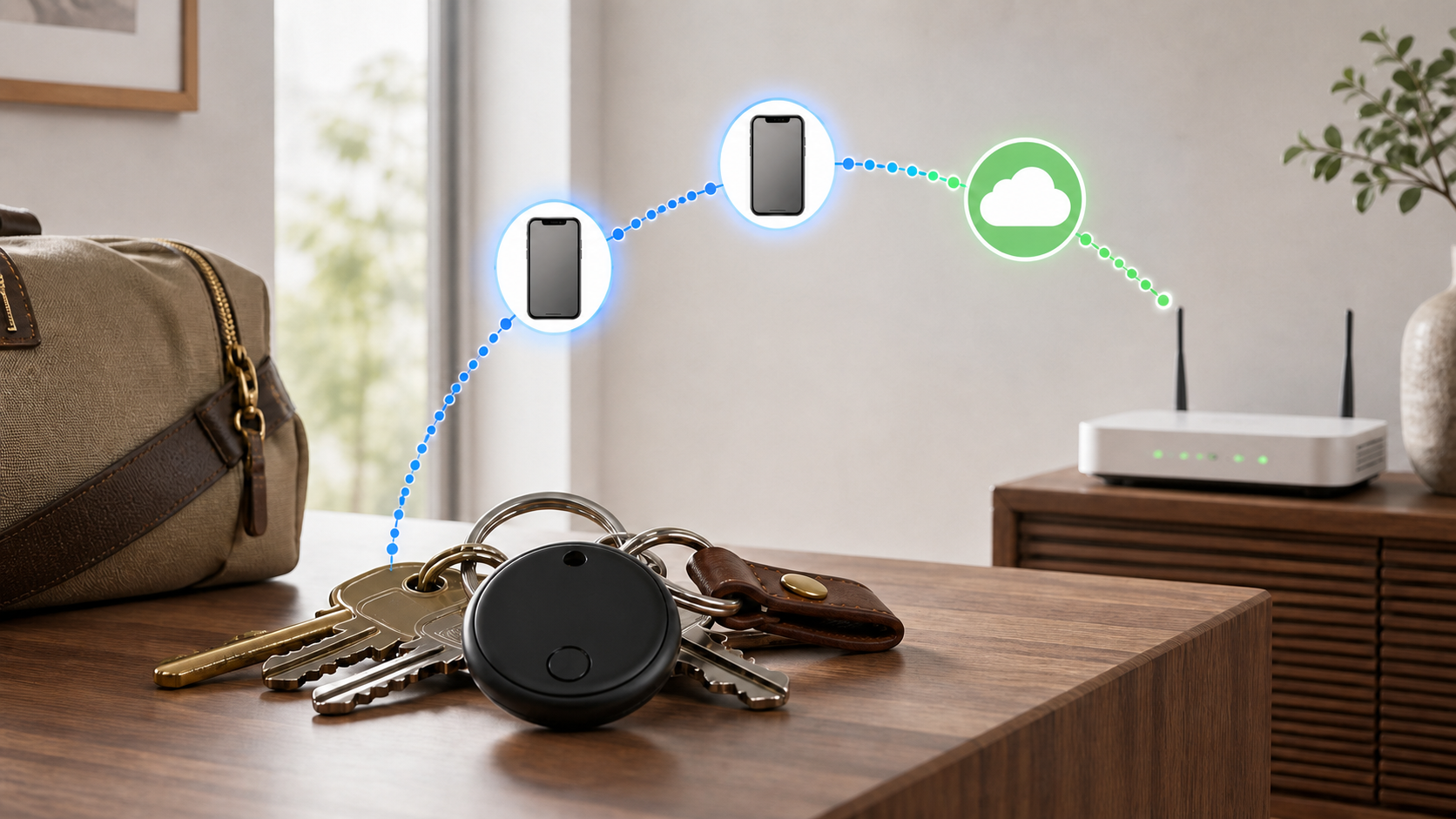
AirTag, nearby device and internet: who does what?
| Part | Connection used | Job |
|---|---|---|
| AirTag | Bluetooth signal | Makes the tag detectable nearby |
| Nearby participating device | Bluetooth plus its own network connection | Reports an approximate location |
| Owner’s supported Apple device | Its available internet connection | Retrieves reports in the Find My app |
| Home WiFi router | No direct AirTag connection | May provide internet to a phone or computer |
| NFC-capable phone | Tap, then a web page | Can show contact details if the owner provided them |
The AirTag does not connect to WiFi itself
Apple’s AirTag product explanation says the tag sends a secure Bluetooth signal. Nearby devices in the Find My network can detect it, send the location to iCloud and keep the process anonymous and encrypted.
You therefore do not enter a WiFi name or password into an AirTag. Moving the router closer does not directly extend the tag’s signal, and a guest-network setting does not add the AirTag as a client.
Does the owner’s phone need internet?
The phone, tablet or computer used to view Find My needs an internet connection to load current cloud information. That connection can come from home WiFi, public WiFi or cellular service. The AirTag itself does not use the owner’s mobile-data plan directly.
A map point is not proof that the item is still there. In Apple’s Find My location guide, missing current information can lead to a last-known location or No location found. Check the displayed time before acting on a remote report.
What happens during a home internet outage?
The AirTag can continue broadcasting its short-range signal while the owner’s home internet is down. The owner may be unable to load a new map update on a WiFi-only device until that device reconnects. A different participating device with working internet can still relay a detection from somewhere else.
Restarting or replacing the home router does not reset the AirTag. Fix the owner’s internet access separately, then reopen Find My and check the time shown for the location.
What happens in a place with no WiFi?
Apple’s Find My network explanation describes nearby devices using their own network connection to report a detection. That connection can be mobile data rather than local WiFi. This is why a tag away from home can still appear on the map.
In a remote area with no nearby participating device, the owner should not expect a fresh location. The tag is not a satellite messenger and cannot upload its own position through a cellular tower.
AirTag is not the same as a GPS tracker
Do not read the map as a live GPS route. A report from a nearby participating device differs from a tracker that uploads positions through its own mobile service. For a dedicated tracking product, check its coverage, subscription and update policy separately.
Choose a product by the job. AirTag is designed to help find personal belongings. It should not be described as a guaranteed live vehicle tracker, emergency beacon or person-tracking service.
Can you find an AirTag nearby without home WiFi?
For keys in the room, open Find My, choose Items and select the AirTag. Play Sound can help when the tag is in range. Apple’s nearby-finding guide explains Precision Finding, which needs a supported iPhone with Ultra Wideband and the required location settings. Walls and objects can affect performance.
These are local-radio features, not a promise that every function works with the owner’s device completely offline. Keep Bluetooth and the documented Find My permissions available. A missing Find Nearby button is a compatibility or range check, not a reason to reconfigure a WiFi network on the AirTag.
What Lost Mode changes
Lost Mode lets the owner mark the item as missing and receive a notification after a network detection. Contact details are optional: consider what you want a stranger to see before publishing them. A finder can tap the tag with an NFC-capable phone and open its information page; do not assume the whole contact-information step works without internet.
Lost Mode does not add a WiFi or cellular radio to the AirTag. It changes how Find My handles detections and what a finder can see after a supported tap.
Will a better router make AirTag updates faster?
Usually not. The router does not communicate directly with the AirTag. Better home WiFi may help the owner’s phone load Find My normally, but it cannot create nearby Find My network devices around a lost item.
If every app on the owner’s phone struggles at home, check the home connection before replacing equipment. The router replacement checklist separates one-device trouble, weak coverage and a failing internet path.
Does AirTag use your mobile data allowance?
The tag has no separate mobile-data line. Apple describes the reporting process as data efficient, but that is not a guarantee of zero phone data use. The owner’s phone can use mobile data to retrieve reports away from WiFi.
If data limits matter, check Find My under the phone’s per-app cellular statistics rather than relying on a universal estimate. The guide to unlimited internet and data limits explains why phone data and home internet allowances can follow different rules.
Setup and updates still need a compatible Apple device
Apple’s AirTag setup instructions use an iPhone or iPad, a completed Apple Account setup and a working WiFi or mobile-data connection on that device. Bluetooth and Find My settings also matter. Those requirements belong to the setup device; the tag still does not join WiFi.
Check the generation before buying, especially with an older phone. Apple’s September 2026 setup guide specifies iOS or iPadOS 26.2.1 or later for AirTag (2nd generation), distinct from the original tag’s minimum. Follow that support guide rather than assuming every AirTag works with every iPhone. For normal owner location viewing, use the Find My app on a supported Apple device: AirTag is not shown at iCloud.com/find.
Apple’s AirTag firmware page says firmware updates are delivered periodically while the AirTag is within Bluetooth range of the owner’s iPhone. There is no manual WiFi network to configure on the tag.
Privacy and unwanted-tracking alerts
AirTag is for your belongings, not for following people or someone else’s property. Apple’s Find My privacy notice explains anonymous, encrypted network reporting. That privacy protection does not make unwanted tracking acceptable.
If a phone reports an unknown tracker moving with you, use Apple’s current unwanted-tracking safety instructions. Do not simply turn off your own Bluetooth and assume the unknown item is disabled. Follow the on-screen identification and disable steps, and contact local law enforcement if you believe your safety is at risk.
Questions to ask before buying
- Do you want to find belongings rather than track a person or pet?
- Will compatible Find My network devices commonly pass through the places the item may be lost?
- Do you have a compatible Apple device and Apple Account for setup and viewing?
- Do you need occasional location updates or a dedicated live-tracking service?
- Will the tag and attachment suit the item’s size, weather exposure and handling?
Check current compatibility, battery and safety information on Apple’s product and support pages. Avoid using a general range number from a forum because walls, radio conditions and nearby participating devices change the practical result.
Sources and scope
This guide explains Apple’s documented connection requirements. It does not report hands-on range tests, an update interval or a success rate. Check the linked setup and nearby-finding instructions for your tag generation and Apple device before relying on a particular feature.