
If 5G home internet works during the day but slows at night, test a laptop by Ethernet directly at the gateway when the problem happens. Compare it with WiFi in the room where you notice the slowdown. If a wired connection also slows, look at the gateway’s cellular signal and repeat the test before blaming the tower or paying for an upgrade.
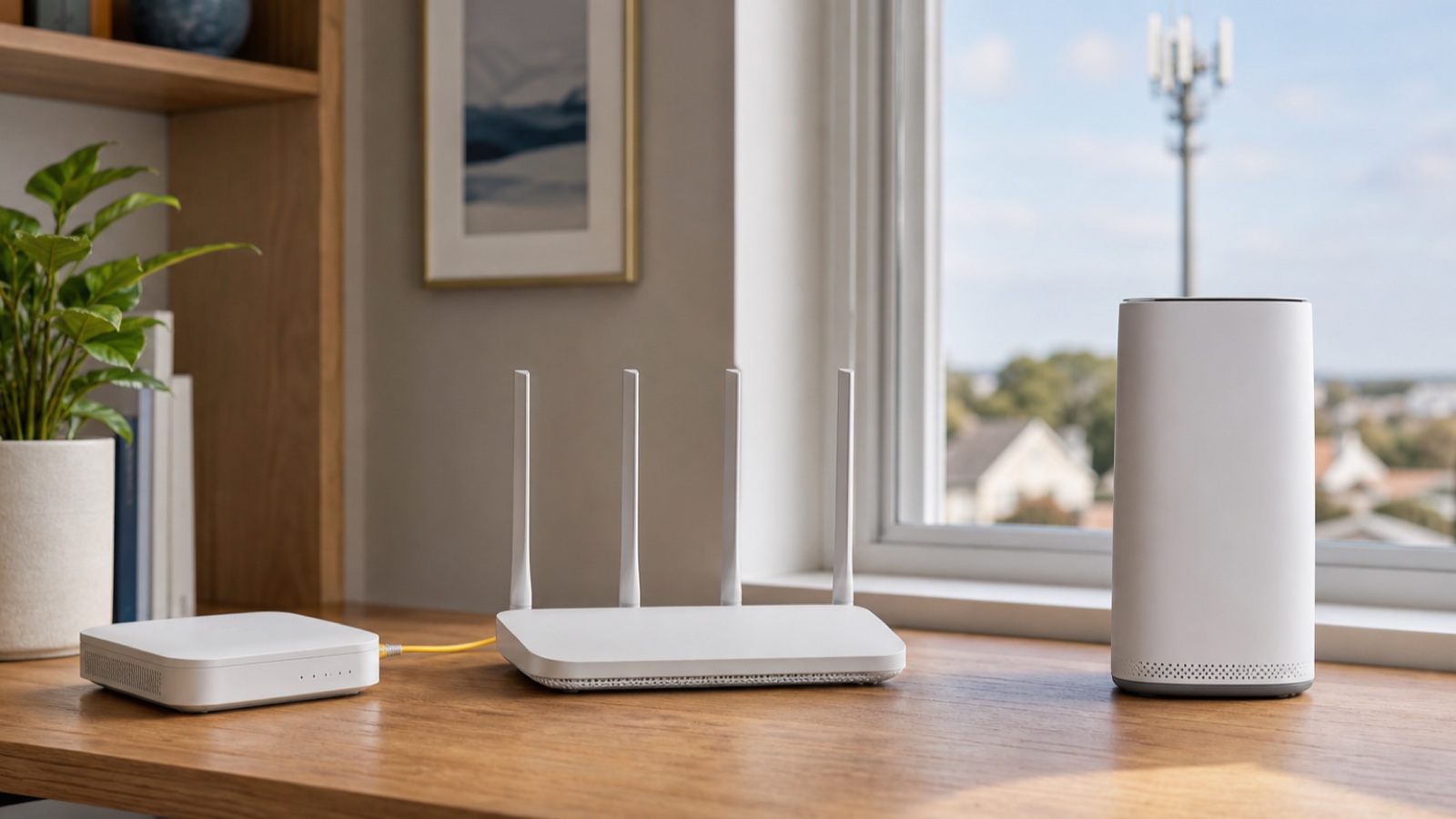
Use the same device and gateway in both tests
Start with a daytime reading at the gateway. Use the same laptop, cable and test service again at the time the connection usually struggles. If the laptop has Ethernet and WiFi both active, confirm that the test is using Ethernet. Leave the gateway in the same spot for this first comparison.
If you cannot connect by cable, try WiFi close to the gateway, then in the room where the slowdown shows up. That helps identify a room problem but cannot rule out WiFi interference. Check you are connected to the 5G gateway or its mesh, not the old router or a phone hotspot.
Pause any large download or cloud backup you control for one test. Write down the time, gateway signal reading, connection type and what you saw: a stalled call, slow upload or buffering video. Use the same speed-test server if the tool lets you choose. Repeated speed tests use data, so a small real task may be better if your allowance is limited.
What the evening results can tell you
| What you see | What to try next |
|---|---|
| Ethernet stays steady; distant WiFi slows | Compare WiFi near the gateway and in the affected room. Check home coverage before changing service. |
| Ethernet and WiFi slow; gateway signal drops | Try a better gateway location using the carrier’s placement instructions. Repeat the evening check. |
| Ethernet and WiFi slow; signal looks similar | Pause your own large transfers, repeat during the problem window, then ask the provider to check the connection. Similar bars do not prove congestion. |
| Only one app or device is affected | Try a second app or device before treating it as a 5G service problem. |
The WiFi bars on a phone show its connection to the gateway, not necessarily the gateway’s connection to the cellular network. T-Mobile’s gateway speed guidance recommends Ethernet when possible and offers placement help in T-Life. Verizon’s 5G Home signal and speed instructions explain where to look for readings in My Verizon. Record the actual label and reading your model shows rather than assuming every screen measures the same thing.
Change one thing before calling support
If the gateway shows a weak signal, try another safe indoor position using T-Mobile’s home internet troubleshooting guide or your own provider’s instructions. Make one change at a time. Then compare wired speed again in the same evening window. If that improves the connection but leaves a weak room, solve the room coverage separately rather than moving the gateway back and losing the better cellular signal.
If wired and nearby WiFi speeds both drop across several evenings, share the times, connection type and signal readings with your provider. Ask it to check for a local incident, equipment issue or a restriction on your line. A slow evening by itself does not show which one applies. A mesh kit can help reach another room, but it does not give the gateway a better link to the tower.
If you are still testing the service before switching, keep your existing connection until you know how 5G handles the work calls, streaming or uploads you really use at night. Check the trial deadline and return rules in writing. Our fiber versus 5G home internet guide has a switch checklist. Already considering a new T-Mobile gateway? Check your equipment and exchange terms before placing a new order.