
Use screen mirroring when you want people to see the same photos or app screen you see on your phone. Choose Samsung DeX when you want a desktop-style workspace with app windows on a compatible display. DeX is not simply higher-quality mirroring, and it is not available on every Galaxy device.
This comparison uses Samsung’s U.S. documentation checked November 7, 2026, U.S. date. It is a feature and setup comparison, not a hands-on display-quality or gaming-latency test. Exact options depend on the device, software and display.
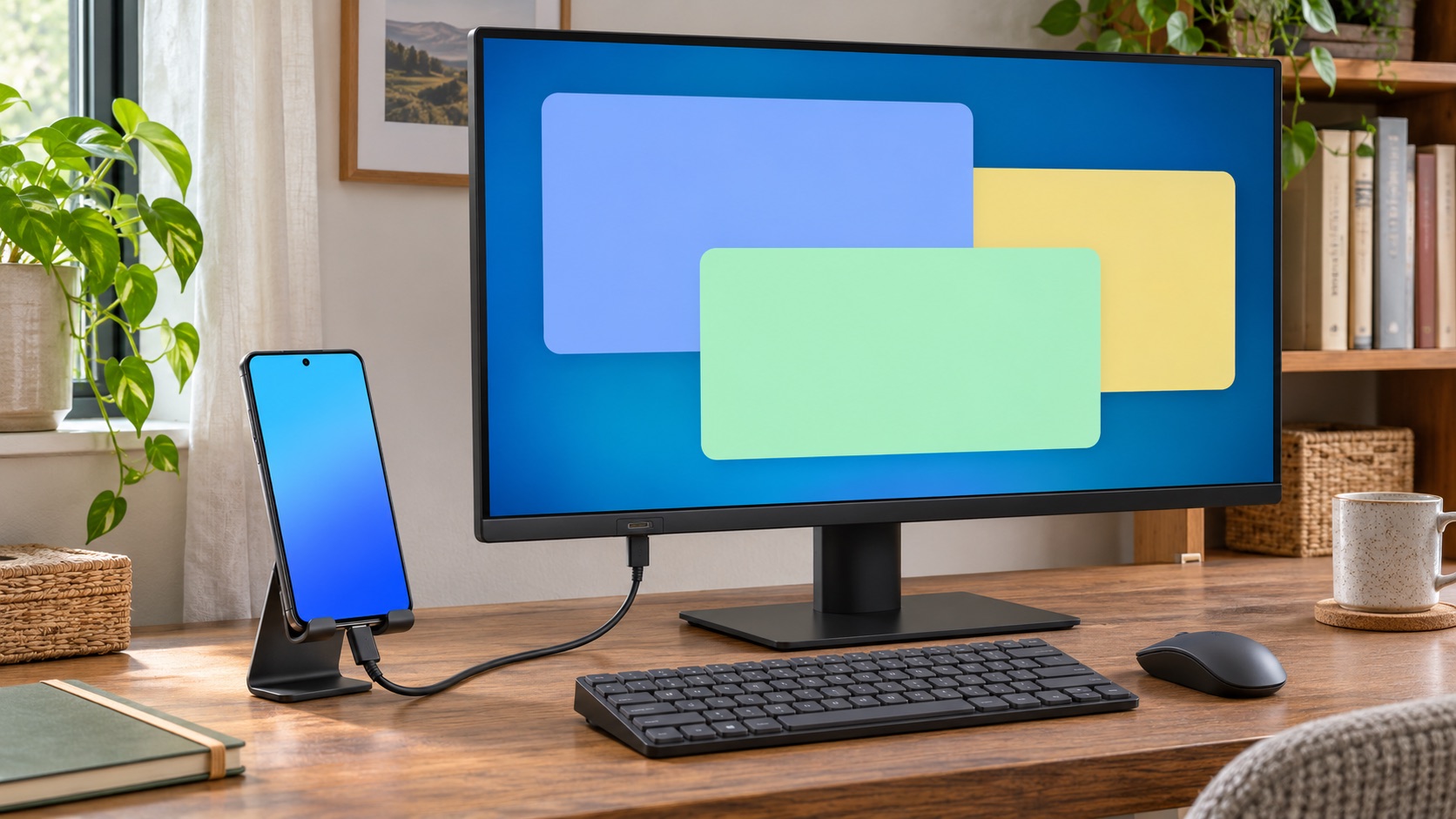
DeX and Smart View do different jobs
Samsung’s current DeX overview describes resizable app windows and a desktop workspace. Its screen-mirroring guide describes Smart View as showing your phone’s screen on the TV, including the actions you take on the phone. Pick the view you need rather than the name that sounds more advanced.
| Your task | Start with | Reason |
|---|---|---|
| Show a photo album or demonstrate a phone app | Smart View mirroring | The audience sees the phone’s screen and navigation |
| Arrange app windows for writing or comparing documents | DeX | The desktop layout is designed for working across windows |
| Watch a subscription movie on the TV | The service’s supported TV app or playback method | A display mode alone does not settle playback restrictions |
For a family photo session, mirroring is often the simpler starting point. For a desk session with a keyboard and several app windows, try DeX. These are task-based recommendations, not a claim that one mode always looks sharper or runs faster.
Check the exact model before buying a cable
Check the mode-specific list in Samsung’s DeX compatibility FAQ. It excludes Galaxy Tab S9 FE and S10 FE models from HDMI output and wireless DeX. A tablet’s own DeX interface does not prove external-display support.
The FAQ also excludes the Z Flip7 FE and earlier Flip models from external DeX connections. Check the full model name; “Z Flip” alone is not enough. Confirm with Samsung if official compatibility lists disagree.
For used docks, the FAQ says DeX Pad and DeX Station are not supported on Android 16 with One UI 8. Check current software support before buying, even if an older photo shows the same phone.
Connect to a TV or monitor, not the old PC app
Samsung’s DeX setup instructions describe a compatible USB-C-to-HDMI connection to a TV or monitor’s HDMI input. Select the appropriate TV input and follow the phone’s DeX prompt. Some devices start in mirroring mode; the DeX notification or Quick settings control changes the mode.
Wireless DeX needs a compatible display with Miracast support. On a supported device, open Quick settings, select DeX or Wireless DeX, choose the display and follow the Start now prompt. Approve the request on the display if it asks. Samsung recommends keeping the devices close for the wireless connection.
DeX for PC is a different route. Samsung’s FAQ says it is no longer supported on devices released with or updated to One UI 7 or later, and points users toward Link to Windows instead. Do not follow an old Windows DeX download tutorial to troubleshoot a supported phone’s direct TV connection.
Switch modes deliberately
For ordinary Smart View, Samsung’s mirroring guide says to put the phone and TV on the same Wi-Fi network. Open Smart View in Quick settings, select the TV, then follow its Start now and permission prompts. Smart View is a built-in control on supported devices, not an app you need to download from an advertisement.
Samsung’s current DeX overview gives a wired-mode path through Settings > Device Connections > Samsung DeX > Connected Display > Screen Mirroring. It also says you cannot switch to mirroring mode while wireless DeX is connected. End that session before starting the other mode instead of expecting both controls to operate together.
Before mirroring, close anything you would not want on the television. Show a harmless local photo first and check the result from the audience’s position. For DeX, open the apps you intend to use and check their text size and window behavior before committing to a long session.
If the display is missing or the video is black
Use a local photo or a simple app screen to separate connection trouble from a particular video’s restrictions. Samsung’s Smart View troubleshooting guide says DRM-protected content cannot be mirrored. DRM is the content provider’s copy protection. Do not assume buying a DeX adapter will make a restricted movie play.
- If Smart View cannot find the TV, check the Wi-Fi network and approve the TV’s connection request. Confirm that both devices support the connection you selected.
- If the connection still fails, restart the phone and TV and check their software updates. For a wired connection, recheck the HDMI input and the exact device’s output support.
- If photos work but one video does not, check that service’s supported TV playback options rather than repeatedly replacing cables.
If watching shows is the main goal, compare the TV’s existing apps before building a phone-based setup. Our guide to whether a smart TV needs a streaming stick covers that separate buying decision. For DeX, try your actual apps first; a desktop-looking interface is not a promise that every app will behave like its computer version.