
Google Authenticator can bring codes to a new phone through account sync or an export from your old phone. Check which route applies before resetting or trading in the old device.
This guide uses Google’s instructions checked November 9, 2026. It covers your own accounts and a planned phone upgrade, plus the recovery route when the old phone is unavailable. We have not performed an account-recovery test.
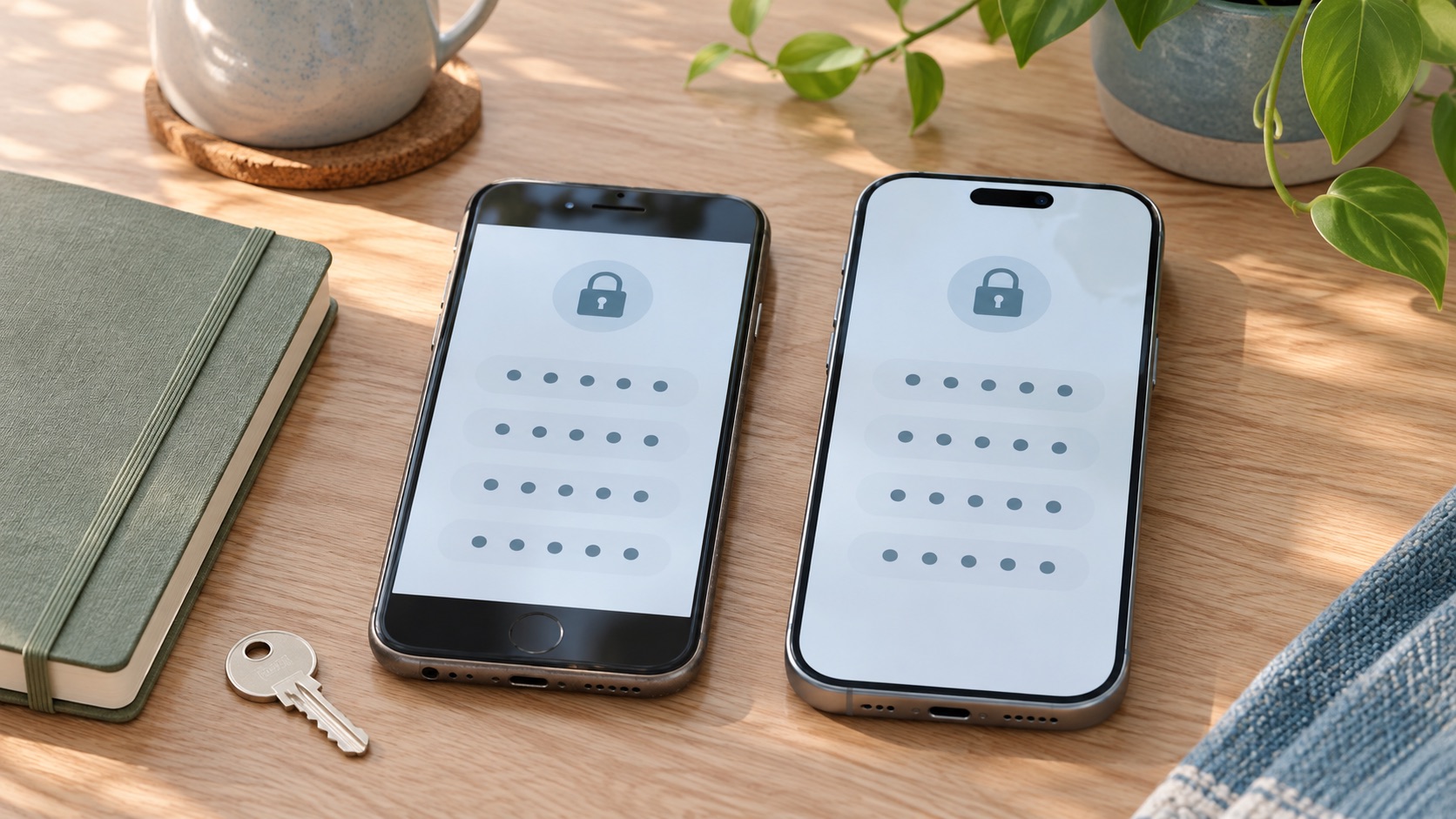
Choose the transfer route before wiping the old phone
| Your situation | Start here |
|---|---|
| Codes saved to a Google Account | Sign into that account in Authenticator on the new phone |
| Device-only codes, old phone available | Export on the old phone and import on the new one |
| Old phone unavailable and no synced copy | Use each affected service’s recovery process |
Google’s Authenticator transfer instructions distinguish syncing from manual transfer. For the manual route, update the app and keep both phones available:
- On the old phone, choose Menu, Transfer codes, then Export codes. Unlock it and select the accounts.
- On the new phone, choose Menu, Transfer codes, then Import codes.
- Scan every export QR code the old phone produces and check for the transfer confirmation.
If a code fails, check its expiry, account and service, plus the phone’s system time. Since version 7.0, time correction uses the phone’s system settings. Do not delete synced entries as a cleanup step: deletion also reaches other synced devices.
Verify access, not just a familiar-looking app
Before the trade-in deadline, make a short list of accounts you cannot afford to lose. For each one, check that you can complete its sign-in on the new phone. Keep an existing signed-in session available while you check. Seeing the app icon, or opening an already signed-in account, does not test the next verification challenge.
Use a checklist without recording passwords, live codes or QR images. Note the service name, whether the new-phone sign-in worked, and where you keep its recovery instructions. If one account fails, deal with that account before erasing the old phone. This is a suggested migration check, not a guarantee that every service uses the same process.
If the old phone is lost, recover the right account
Recovering your Google Account and recovering another site’s login are different jobs. A working Gmail session is useful, but it is not proof that every other account is ready on the replacement phone.
For Google itself, the 2-Step Verification troubleshooting guide lists previously configured alternatives such as another signed-in phone, a saved backup code, a security key or a passkey on another device. A previously trusted computer may also help. Use the options Google actually offers; do not assume a new phone number creates a recovery method you never set up.
If those routes are unavailable, follow Google’s official account-recovery guidance. Work or school accounts may need an administrator. Google says it does not work with services that claim to provide account or password recovery. Do not send a stranger your password or verification code to make a missing Authenticator entry reappear.
Google’s recovery tips recommend a familiar device, browser and location when possible. Answer the questions you receive rather than following a video that promises an identical sequence for everyone.
Keep a separate backup sign-in option
Google’s backup-code guide explains an alternative to a normal second verification step. With 2-Step Verification enabled, an eligible account can create a set of backup codes. Each code works once; generating a replacement set invalidates the previous set. Advanced Protection accounts cannot download these codes.
Store them somewhere safe that you can reach if the phone is missing, such as a protected printed copy with important documents. Google says it asks for a backup code only during sign-in. A backup code is not something to paste into a support chat, send to a caller or include in a screenshot for troubleshooting.
For the related warning signs, read our guide to verifying an urgent family call. Keep the phone migration and any carrier change as separate checks; our carrier-switching checklist covers keeping your number and avoiding a service gap.